Change orders & job photos
Guide 8 of 8
What it's for
Take off a blurry shot, a duplicate, or a photo filed under the wrong group.
Where
Jobs › the job › Job photos › the ✕ on a photo's corner.
Watch it
Steps
Tap the ✕ (Delete photo) on the photo's top right corner.
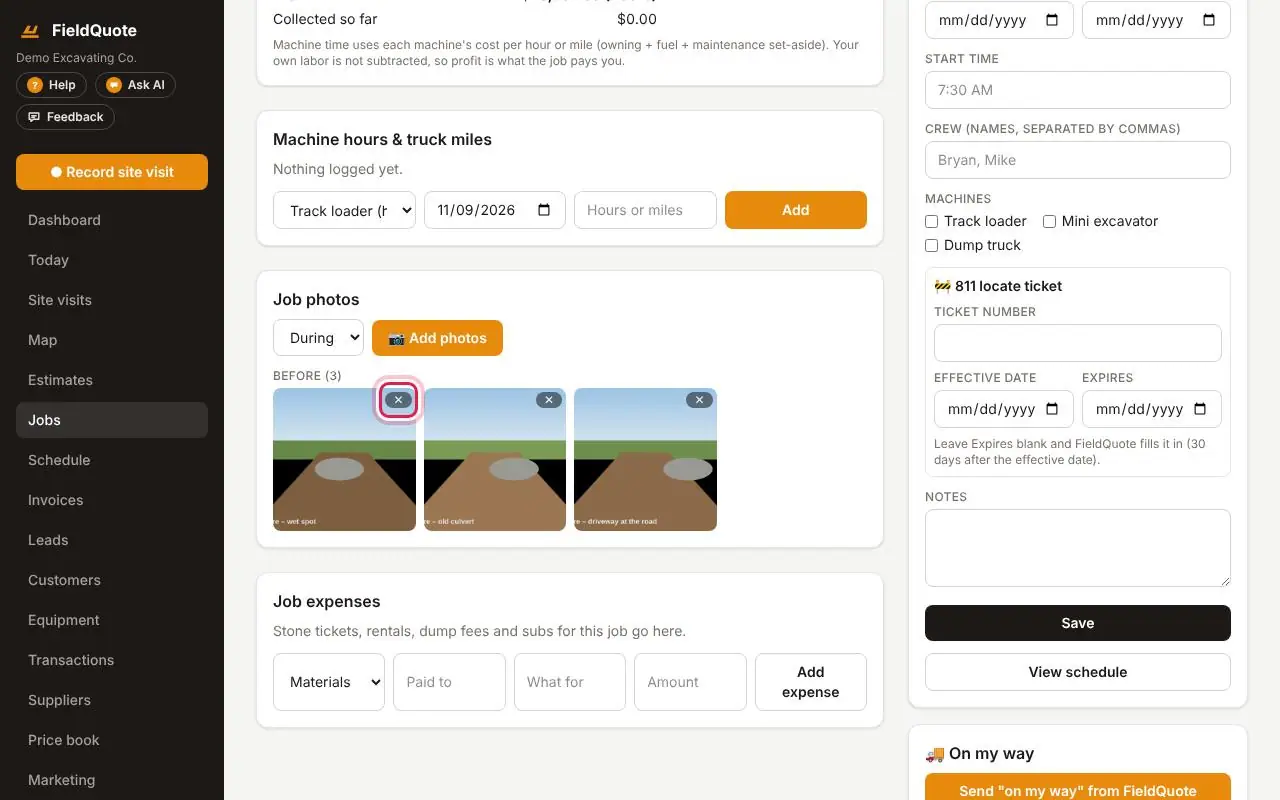
Your phone asks "Delete this photo?". Tap OK. The photo is gone from the job.
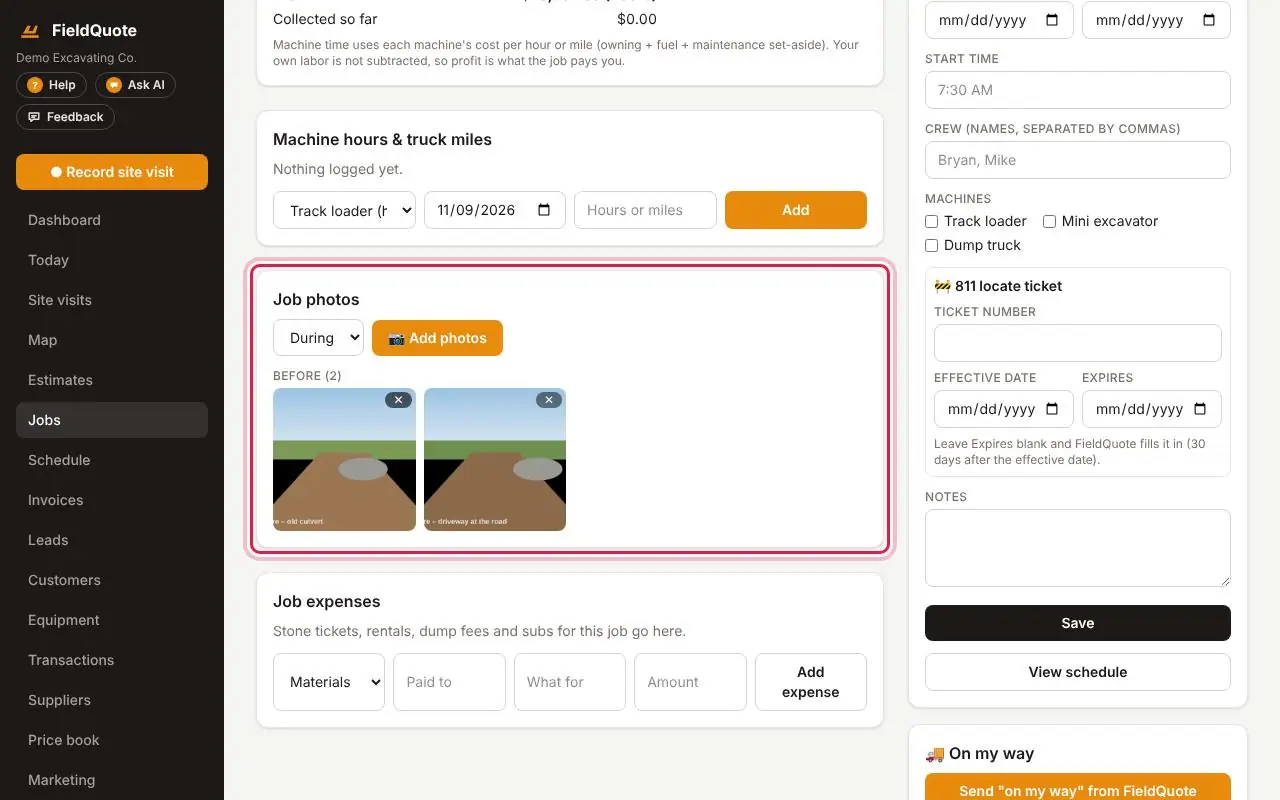
What you'll see
The count next to the group heading goes down by one.
Common mistakes
Deleting a photo to move it to another group. Add it again under the right group first, then delete the old one.
Limits
There's no undo. Keep the original on your phone until you're sure.
Checked against the app on Nov 9, 2026. Pictures are from Demo Excavating Co., a made-up company.