Change orders & job photos
Guide 7 of 8
What it's for
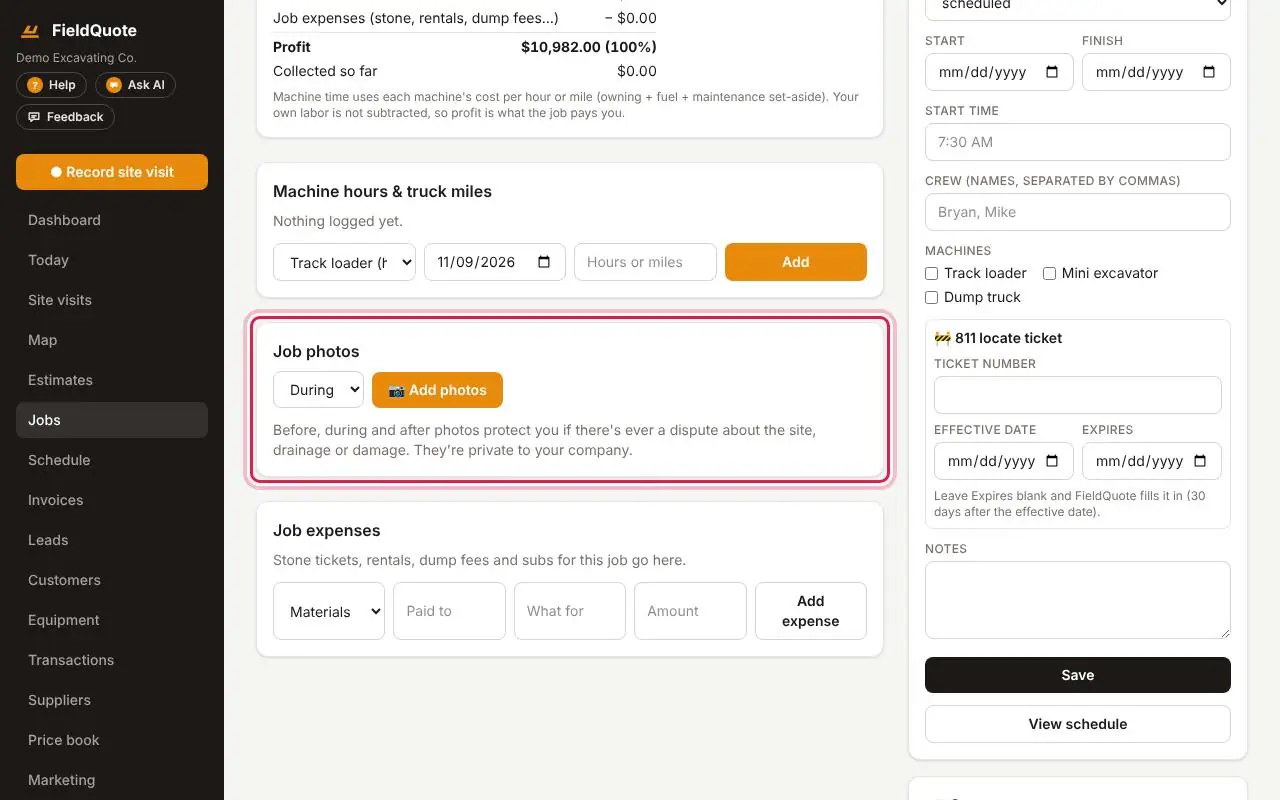
Photos of the site before you start, the rock you hit, and the finished work protect you if there's ever an argument about the site, the drainage or damage. They also back up a change order.
Where
Jobs › open the job › Job photos.
Watch it
Steps
Open the job and find Job photos.
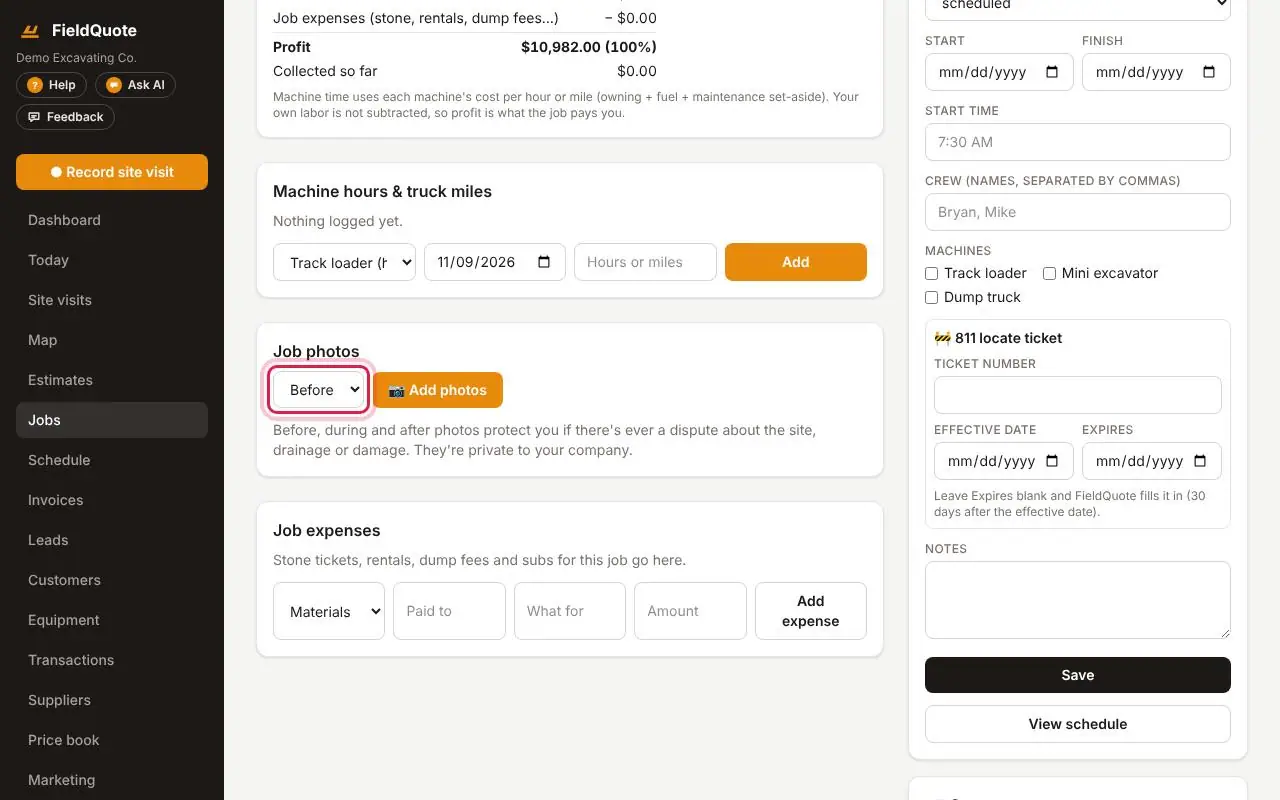
In the list next to the button, pick before, during or after.
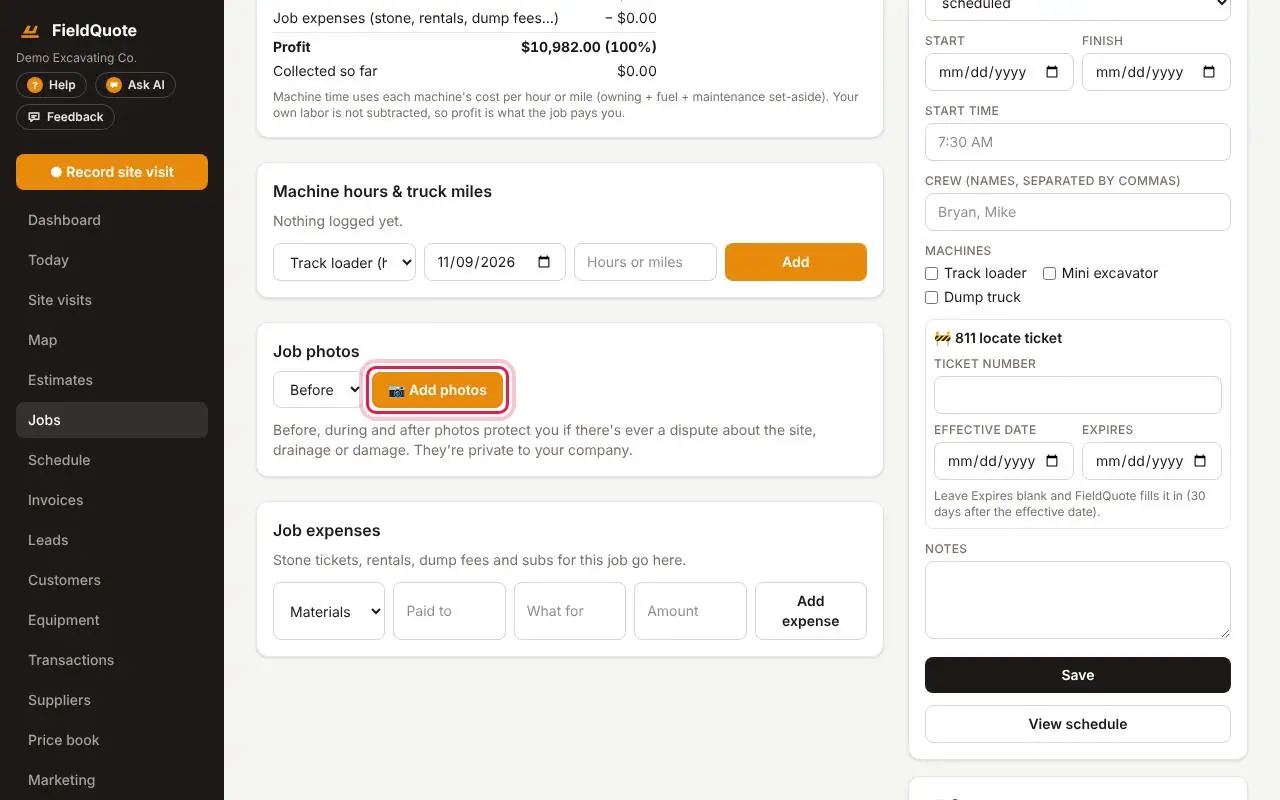
Tap Add photos. On a phone, take a photo or pick several from your camera roll. While they go up, the button counts them as they upload. If any can't be added, a red box under the button names each one and says why.
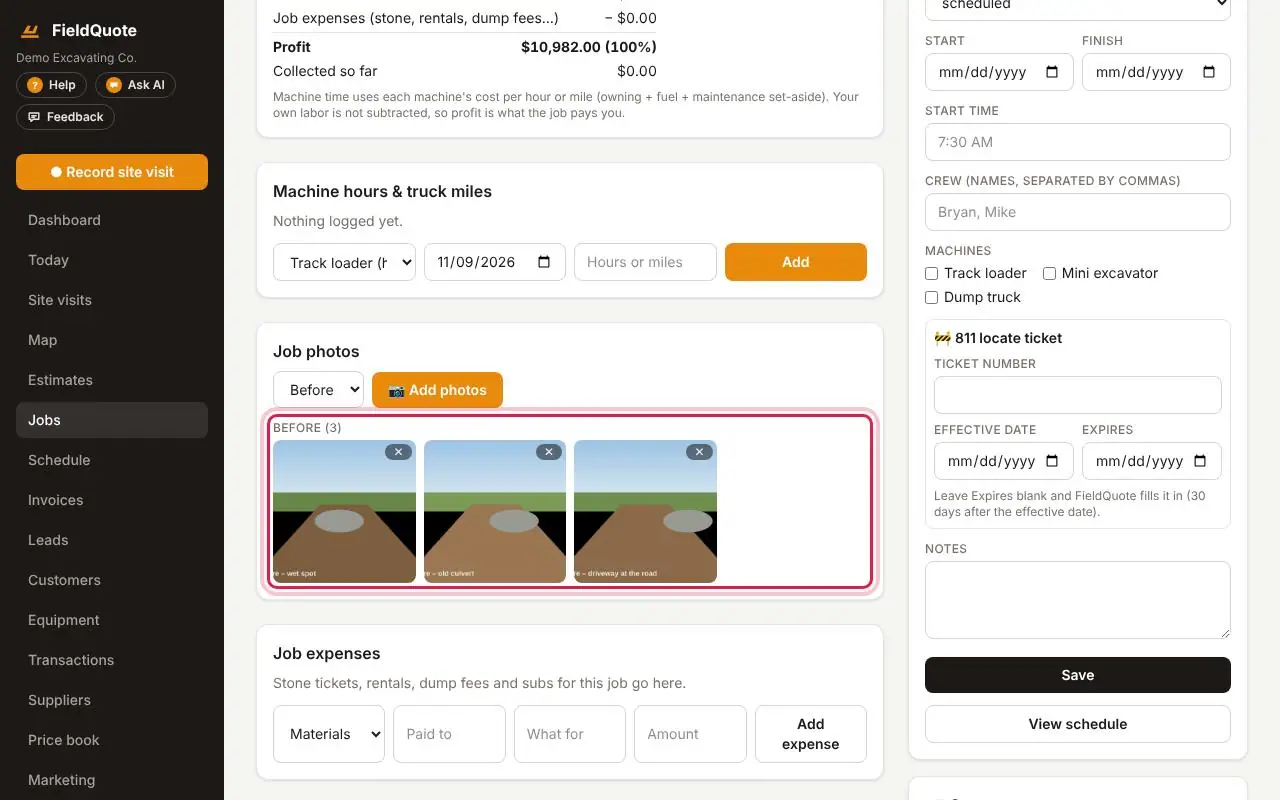
The photos show under their group's heading, with the count (three before photos show as Before (3)). Tap one to see it full size.
What you'll see
Photos grouped as Before, During and After, newest first in each group.
Only people signed in to your company can open them. They're not on the customer's estimate or invoice.
Common mistakes
Forgetting to change the list before adding. Photos are filed under whatever the list says when you tap Add photos (During, to start).
Waiting for a strong signal. You don't need one: each photo is shrunk on your phone first, and they go up a few at a time. If the signal drops, the red box lists the photos that didn't upload; add them again.
A photo the phone or browser can't open (some HEIC or RAW photos). It isn't added, and the box says so. Save or share it as a JPEG and add it again.
Limits
Photos only (no videos or PDFs).
Each photo is shrunk to about 2,000 pixels on its longest side and saved as a JPEG before it uploads. One the phone can't redraw goes up as it is if it's a JPEG, PNG, GIF, WebP, AVIF or BMP of 15 MB or less; anything else isn't added.
You can't move a photo to another group or add a caption. Delete it and add it again under the right group.
Checked against the app on Nov 9, 2026. Pictures are from Demo Excavating Co., a made-up company.