Maps
Guide 10 of 14
What it's for
Some things don't have a size but matter for the price or the crew: where it stays wet, which trees to keep, where the gas line runs. Pin them where they are.
Where
On a visit: Quick measure & pin notes › Add a note.
Watch it
Steps
Tap Add a note.
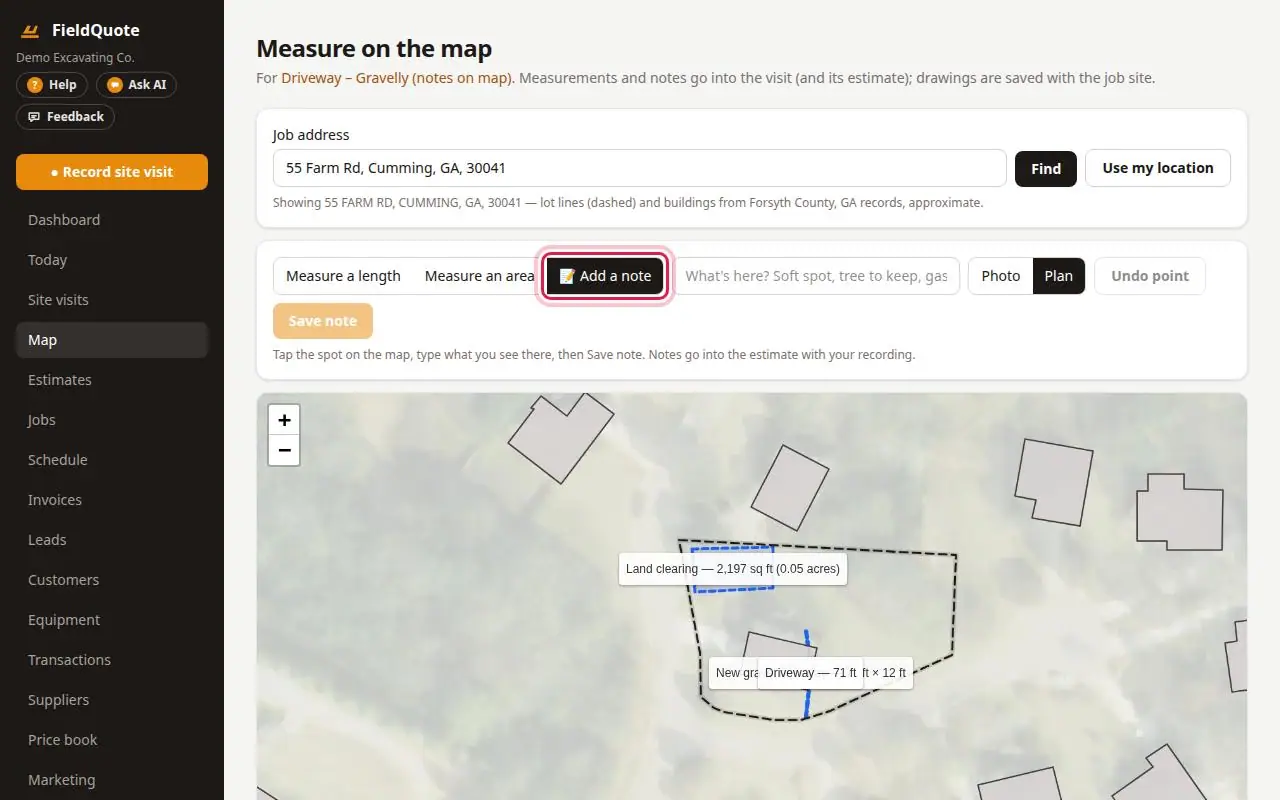
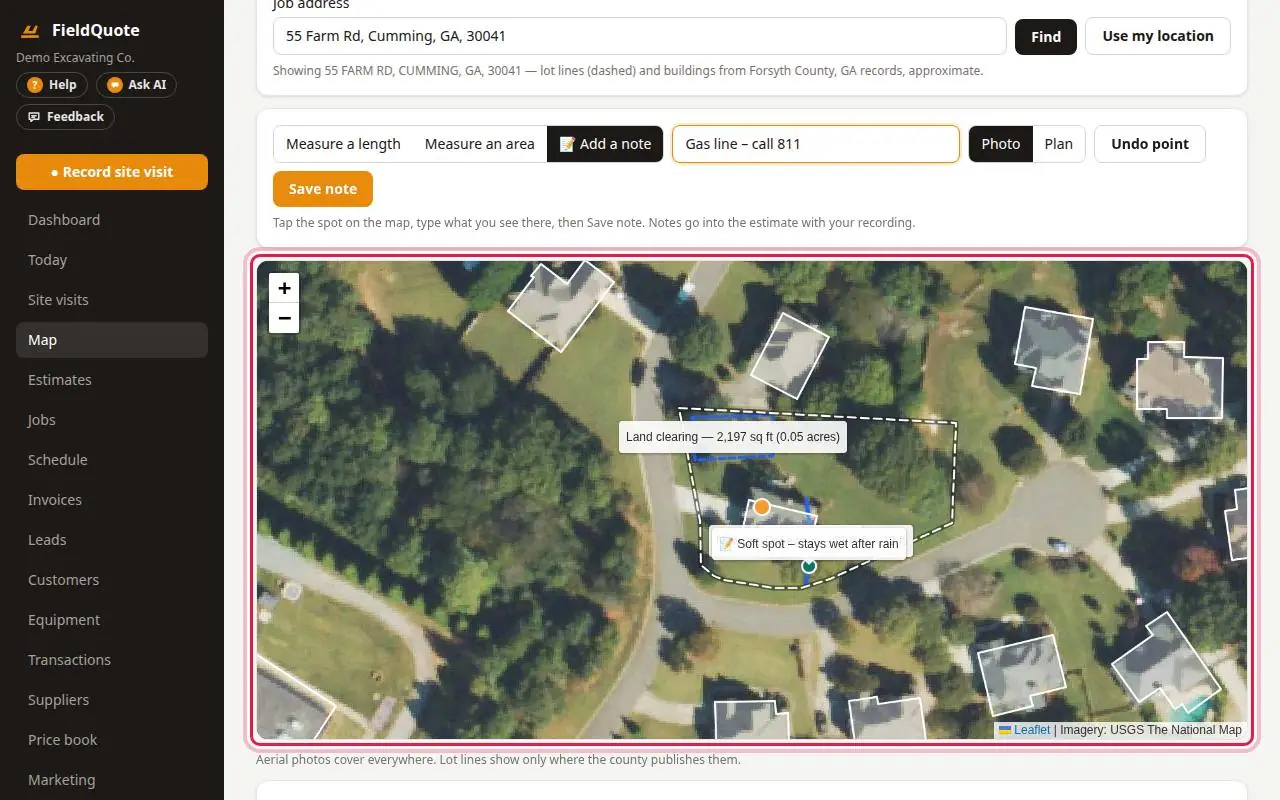
Map shows a sample property. Tap the spot on the map, type what's there in the box, and tap Save note. Do the same for each spot.
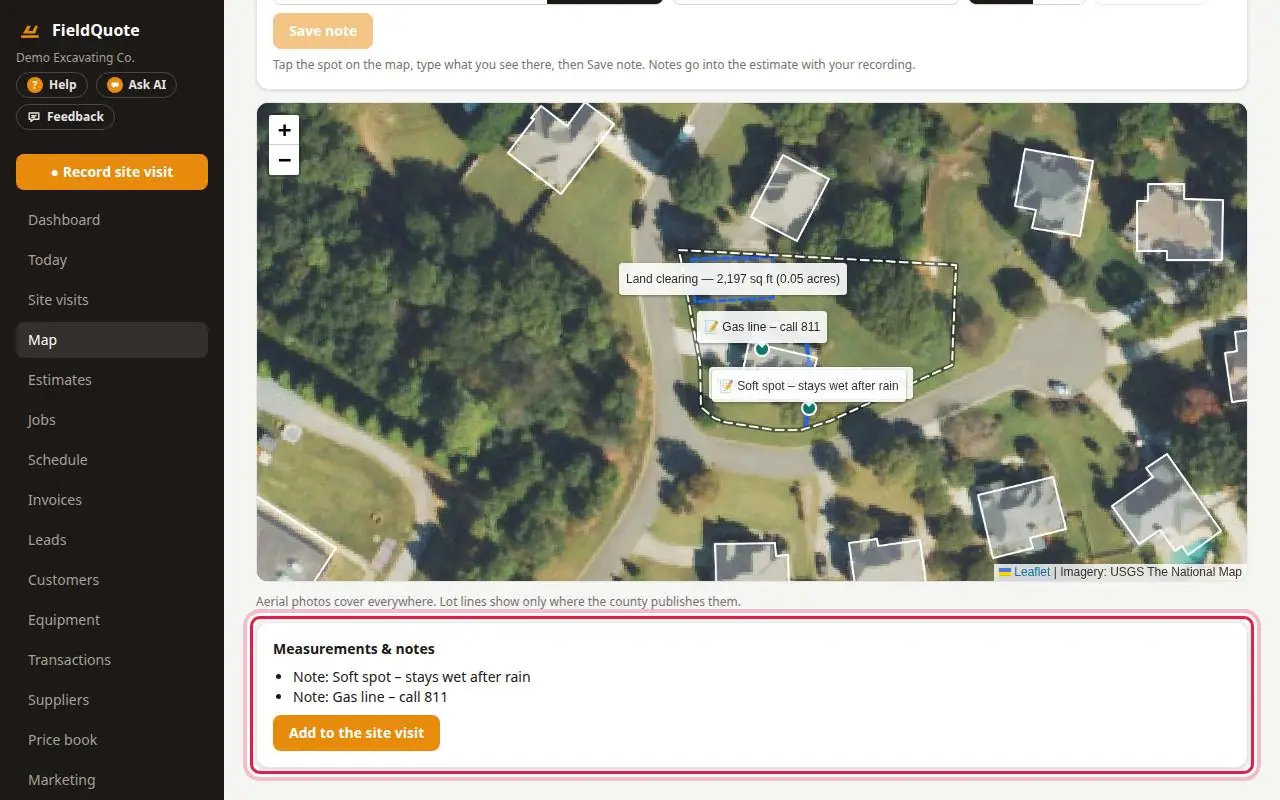
Map shows a sample property. Your notes are listed under Measurements & notes. Tap Add to the site visit.
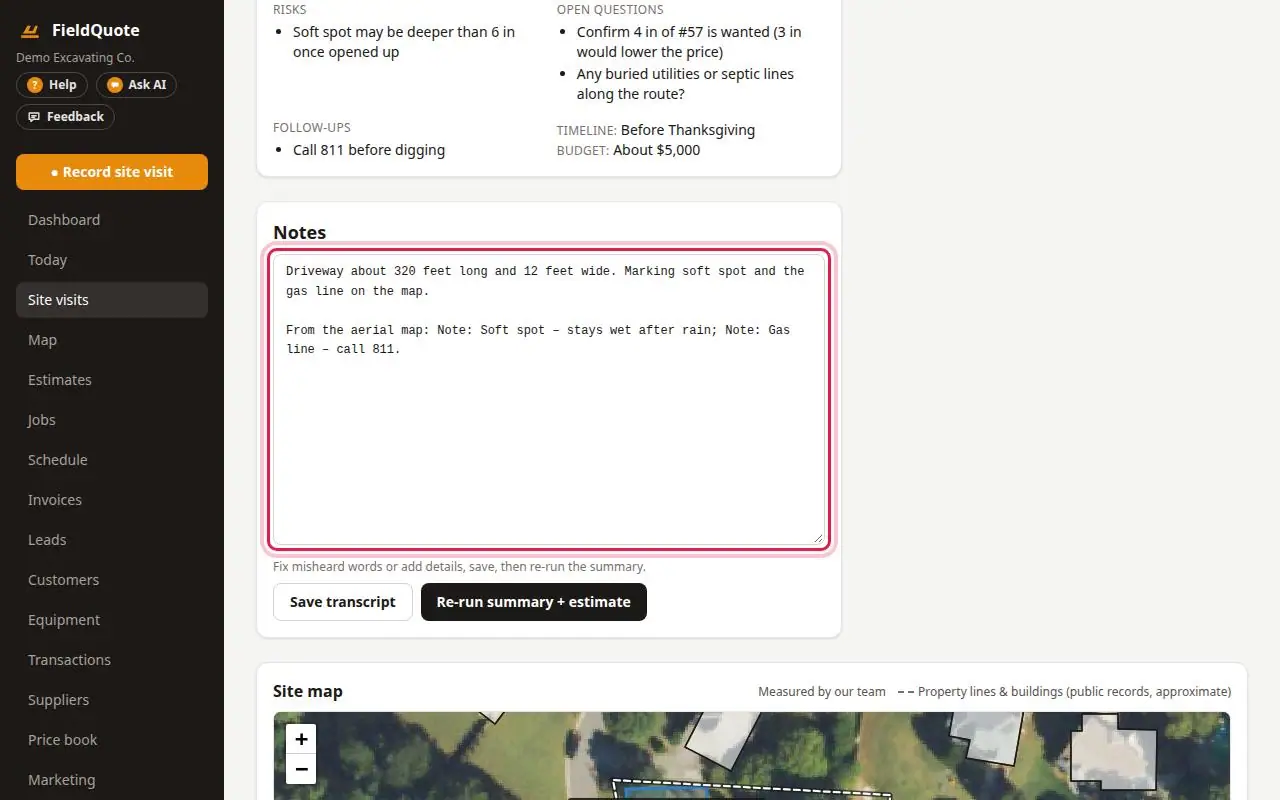
Map shows a sample property. The notes are added to the visit's notes, so the summary and estimate can use them when you re-run them.
Map shows a sample property.
What you'll see
A green pin with your words on it.
In the visit's notes: "From the aerial map:" followed by each note.
The pins show on the job site's Site map.
Common mistakes
Tapping Save note before typing. The button stays off until there's a spot and some words.
Expecting the estimate to change right away. Tap Re-run summary + estimate on the visit.
Limits
A note is one spot. To mark a line or an area, use Measure a length or Measure an area.
Checked against the app on Nov 8, 2026. Pictures are from Demo Excavating Co., a made-up company.