Maps
Guide 13 of 14
What it's for
Let homeowners price their own job on your website, any time of day. Each request lands in FieldQuote as a lead with a draft estimate, ready for your site visit.
Where
Settings › Set up price tools (the Website price tools page). Clearing rates and the price range: Settings › Set clearing rates.
Watch it
Steps
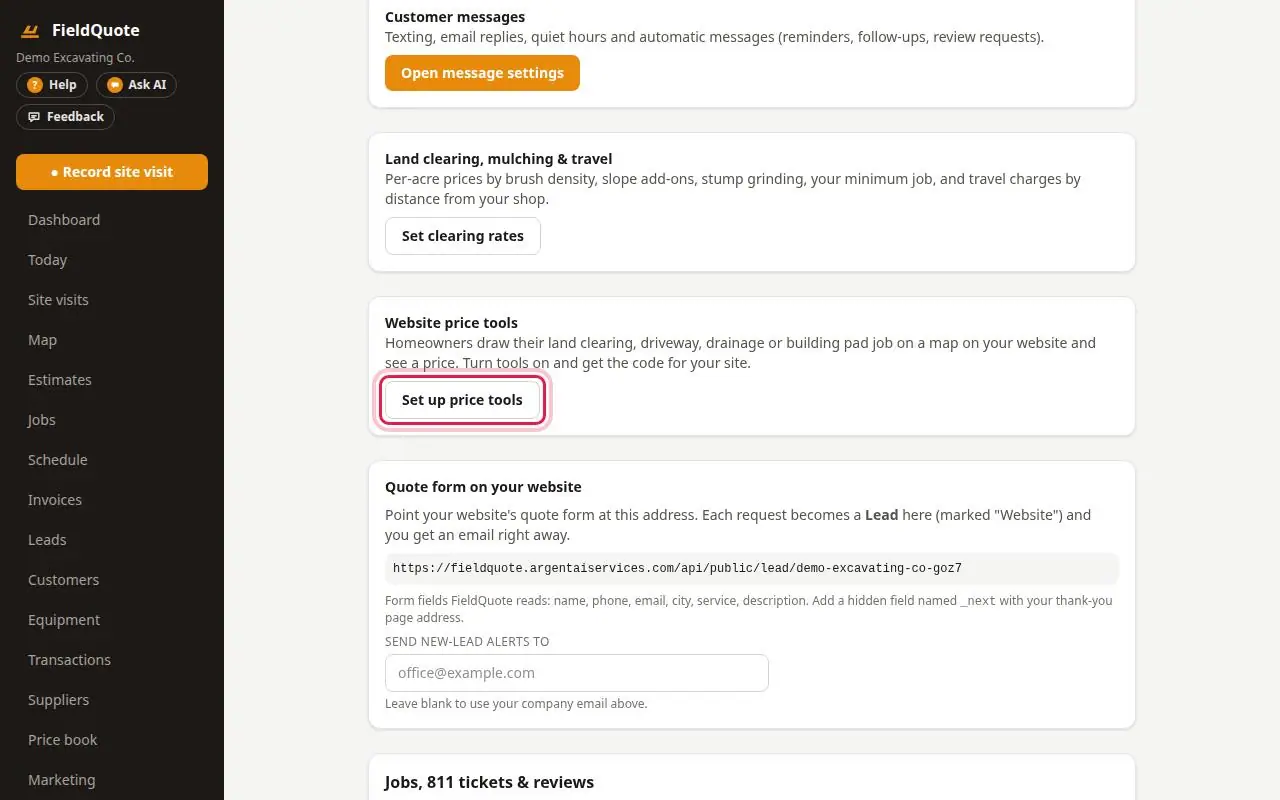
Go to Settings and, under Website price tools, tap Set up price tools.
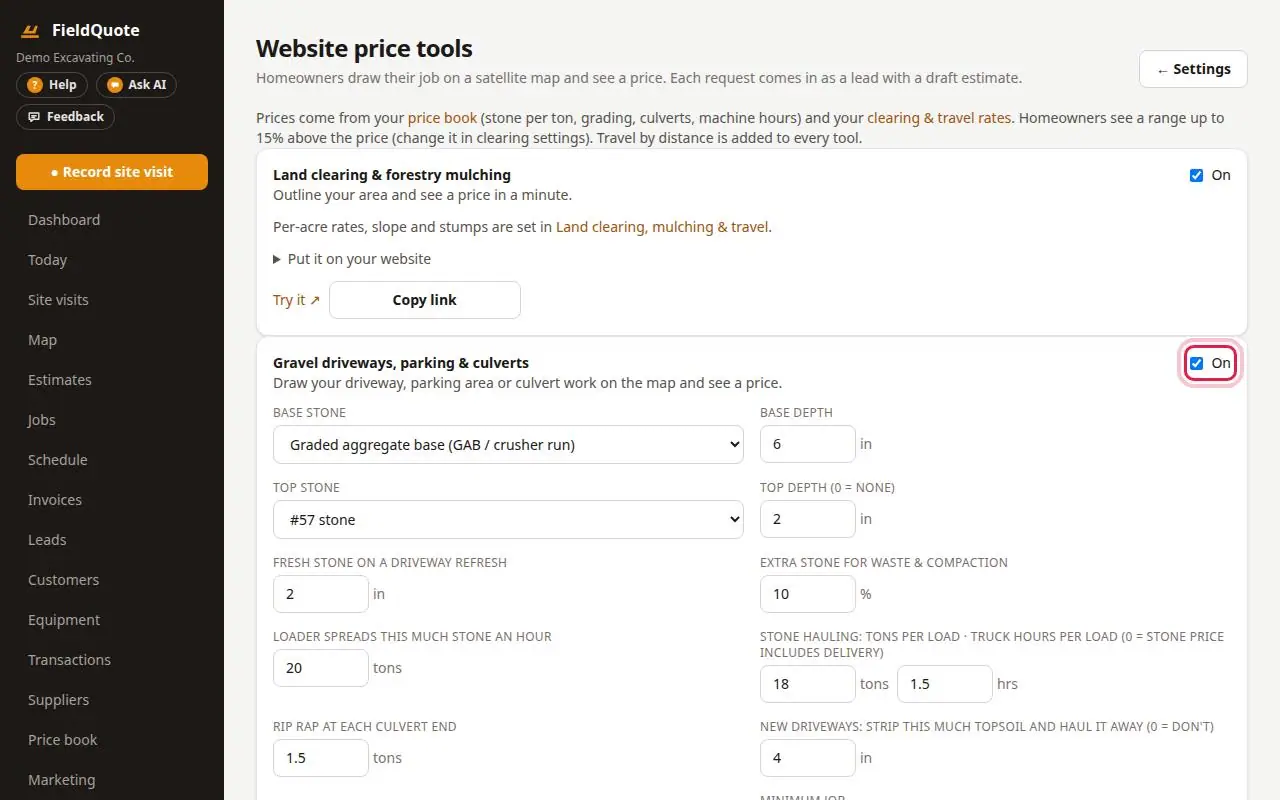
There are four tools: Land clearing & forestry mulching, Gravel driveways, parking & culverts, Building pads and Yard & property drainage. Check On for each one you want on your website.
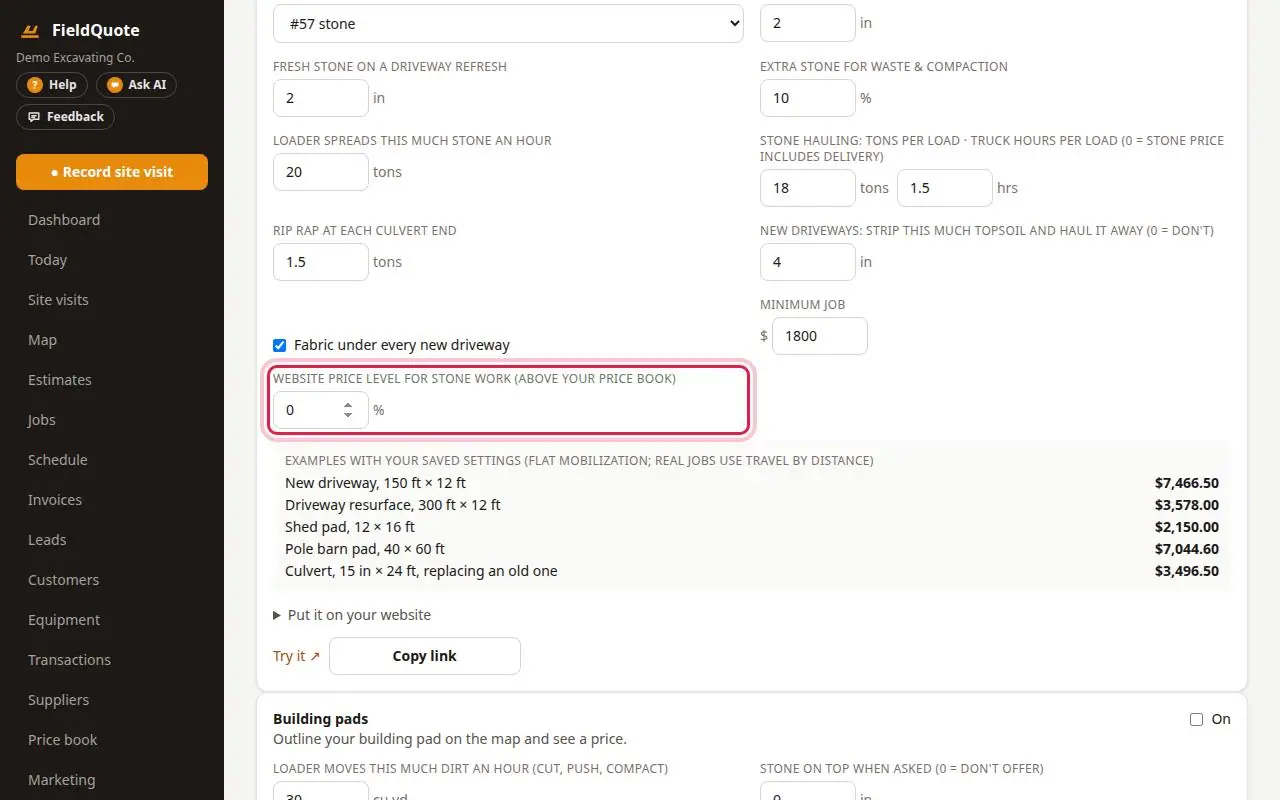
Check each tool's settings: stone and depths, how fast the loader spreads stone, hauling, the Minimum job, and how far above your price book the website prices run. The examples under each tool show what your settings give.
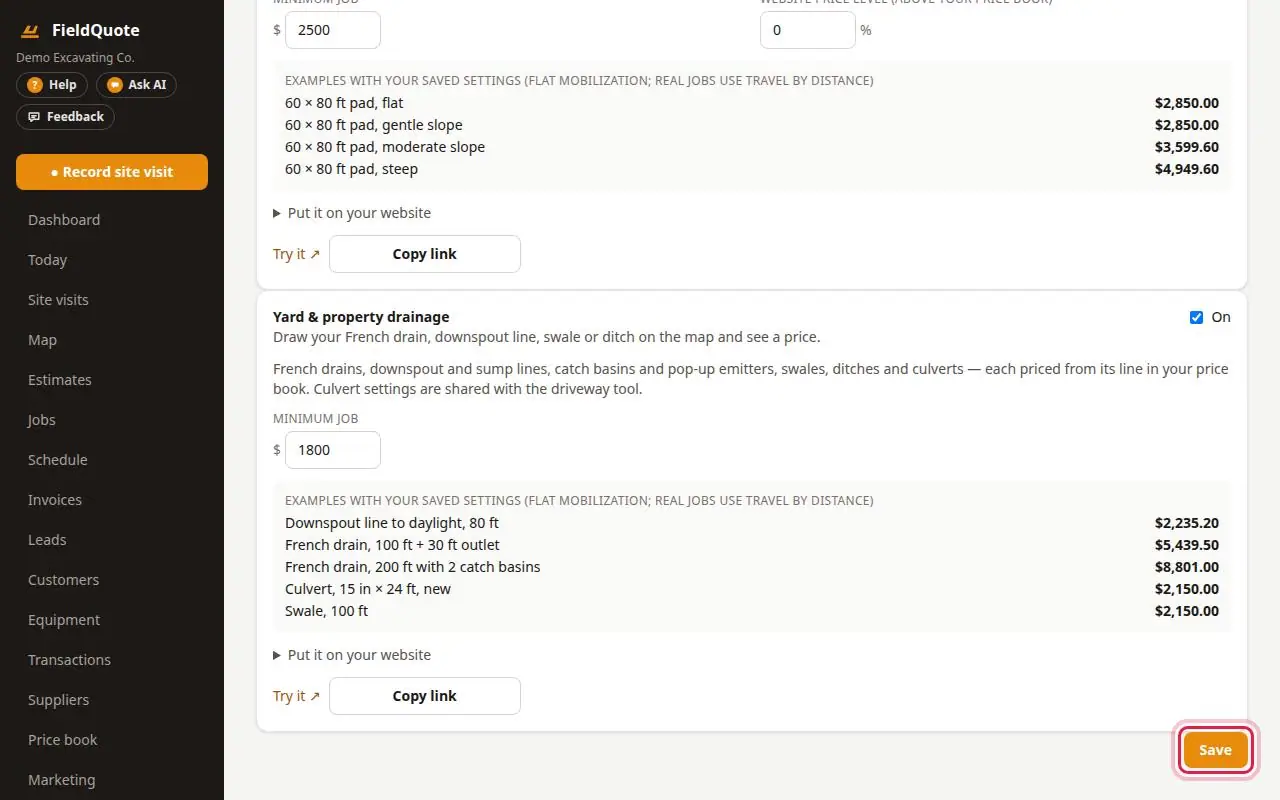
Tap Save at the bottom.
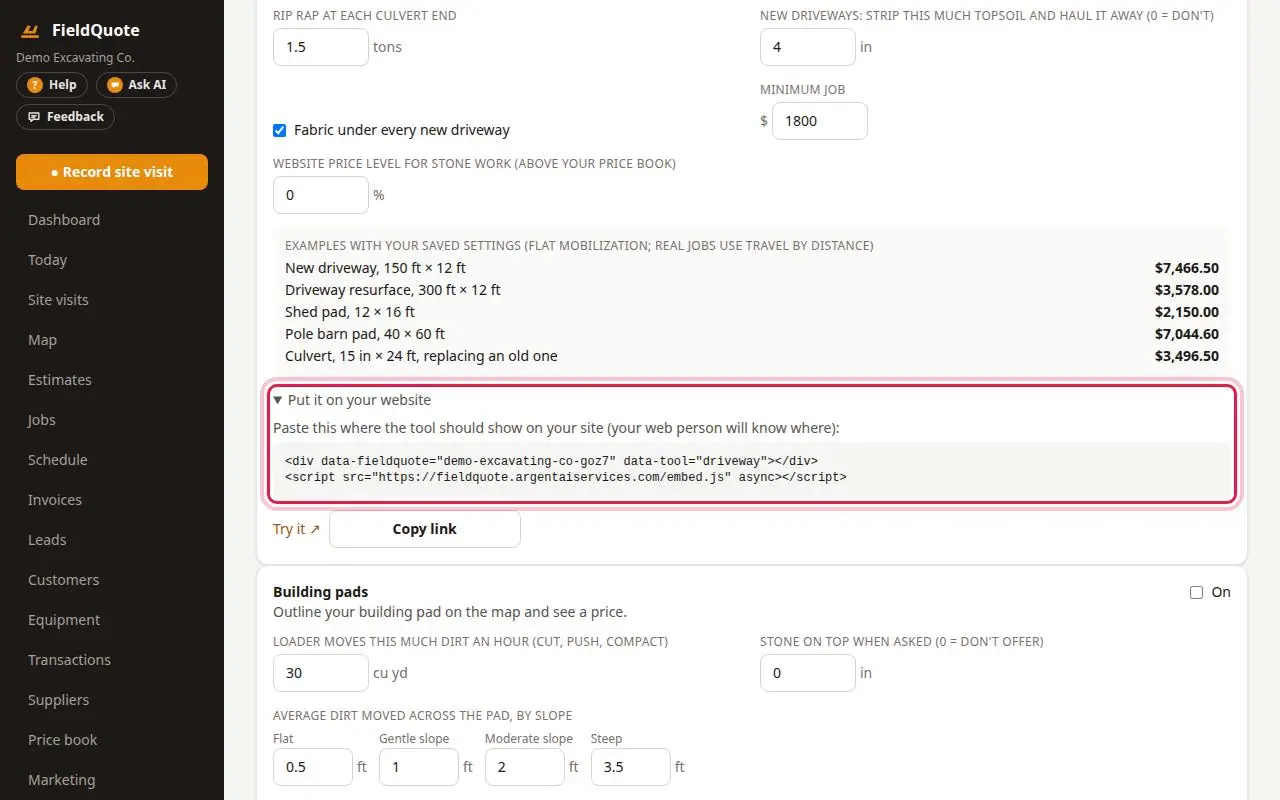
To put a tool on your site, open Put it on your website and give the two lines of code to whoever runs your website. They paste it where the tool should show. It sizes itself to fit the page.
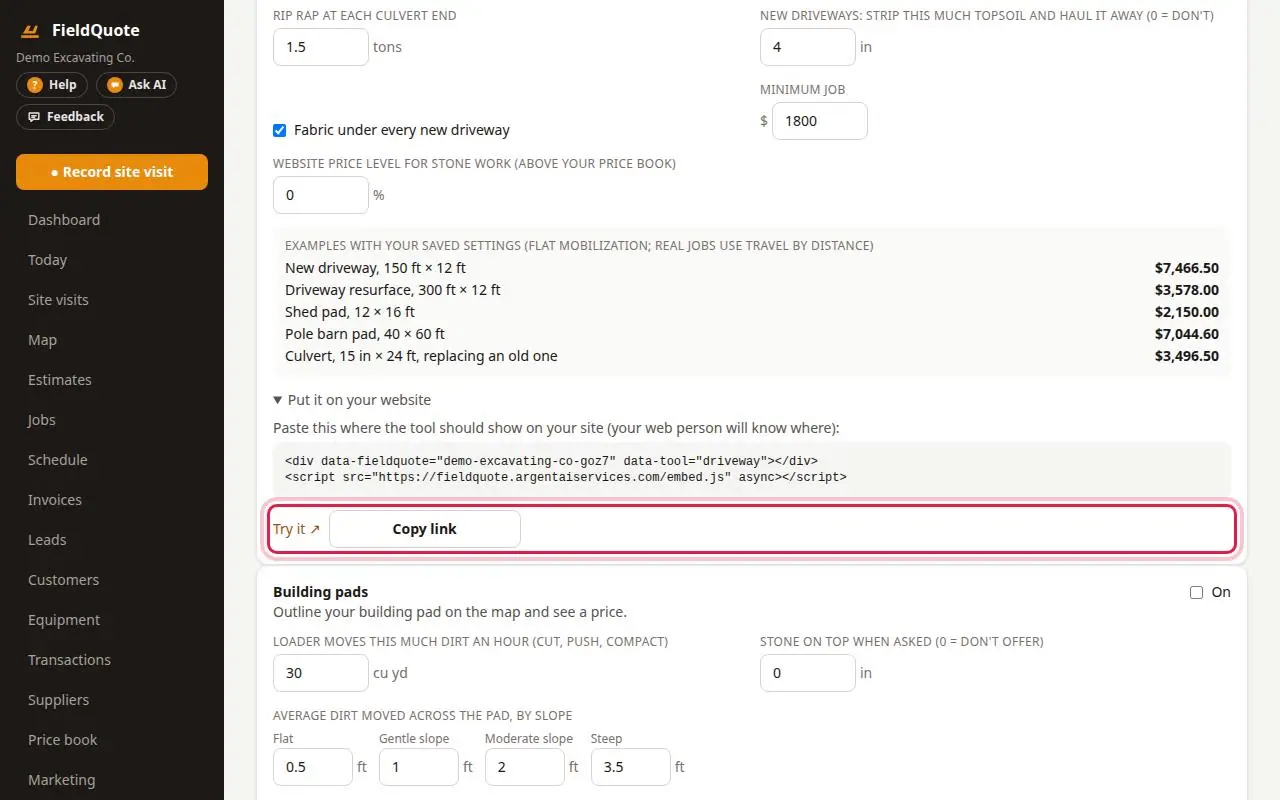
Or share it as a link: Copy link. Tap Try it to open it.
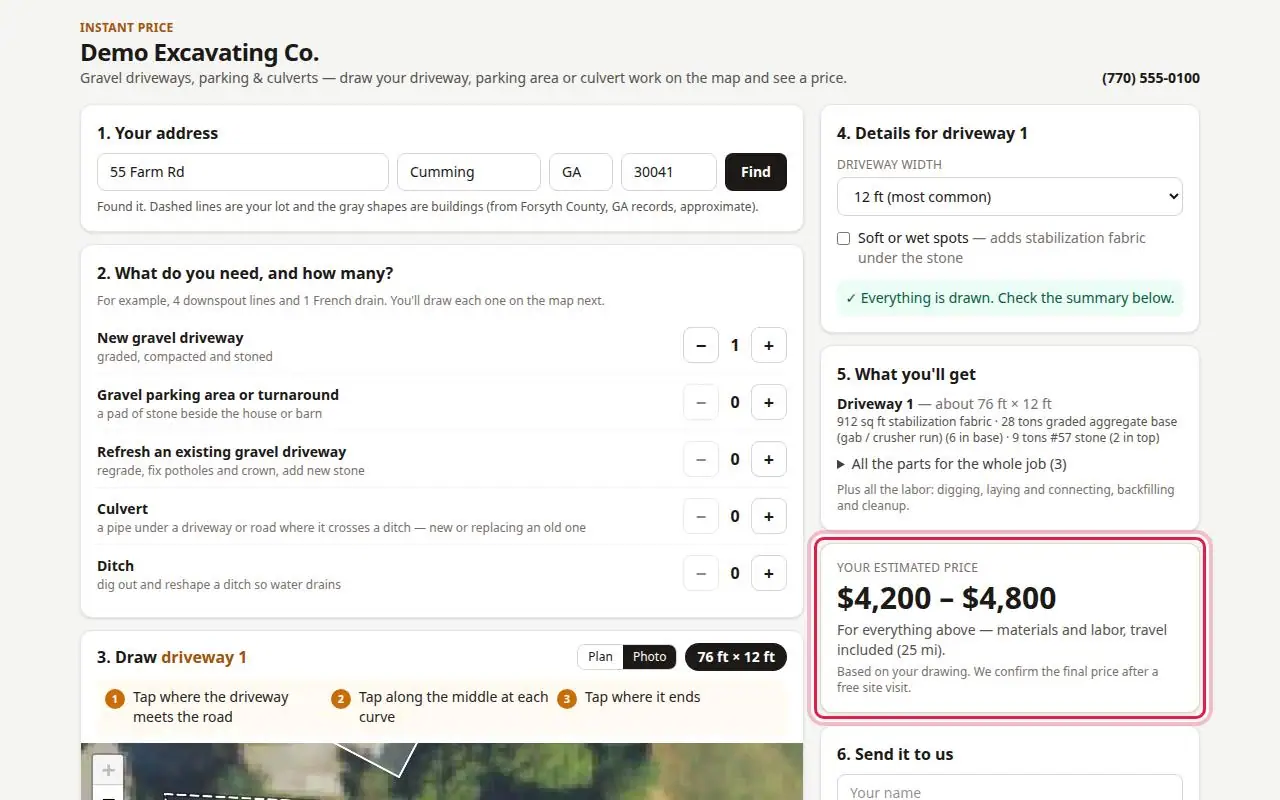
This is what homeowners see: they find their address, draw the job, and see a price with travel included, then send it to you.
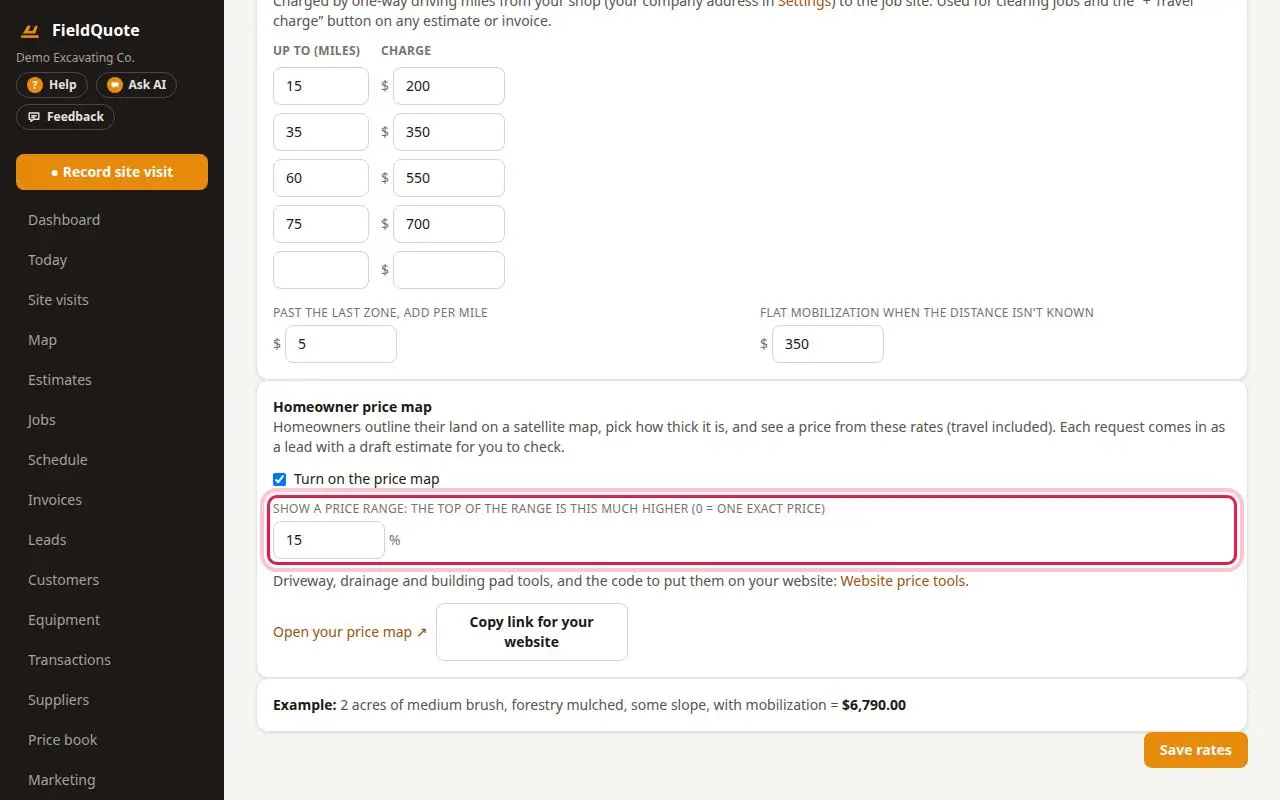
Map shows a sample property. Under Settings › Set clearing rates, set your per-acre clearing prices, travel zones, and how wide a price range homeowners see. Tap Save rates.
What you'll see
Homeowners see a price rounded to the nearest $50. With a range set, they see a low and a high price.
"Hidden from homeowners until priced" on a tool lists the price-book items that still need a price. Those choices don't show to homeowners until they have one.
Common mistakes
Turning a tool on with prices missing. Check the yellow "Hidden from homeowners until priced" box and set those prices in Price book.
Forgetting your shop address in Settings. Without it the price uses a flat mobilization charge instead of travel by distance.
Setting the website price level and expecting your own team map to match. The team map always prices at your price book with no website markup.
Limits
Only the owner or an admin can turn the tools on or change their prices. Team members see them grayed out, with "Only the owner or an admin can change prices." Anyone can copy the link or the code.
The website price level applies to stone work (driveways, parking, refresh) and building pads. Drainage and clearing have no level setting.
Each tool has its own minimum job. Land clearing uses the clearing minimum.
Prices on the website are a starting point. Homeowners are told you confirm the final price after a free site visit.
Checked against the app on Nov 8, 2026. Pictures are from Demo Excavating Co., a made-up company.