Jobs, scheduling, weather, 811 tickets & lien deadlines
Guide 10 of 14
What it's for
Know what a job really cost in iron, and keep your machines' hours (and their maintenance fund) up to date without a separate logbook.
Where
The job's page › Machine hours & truck miles.
Watch it
Steps
Pick the machine (machines say "hours", trucks "miles"), the date (today is filled in), and type the hours.
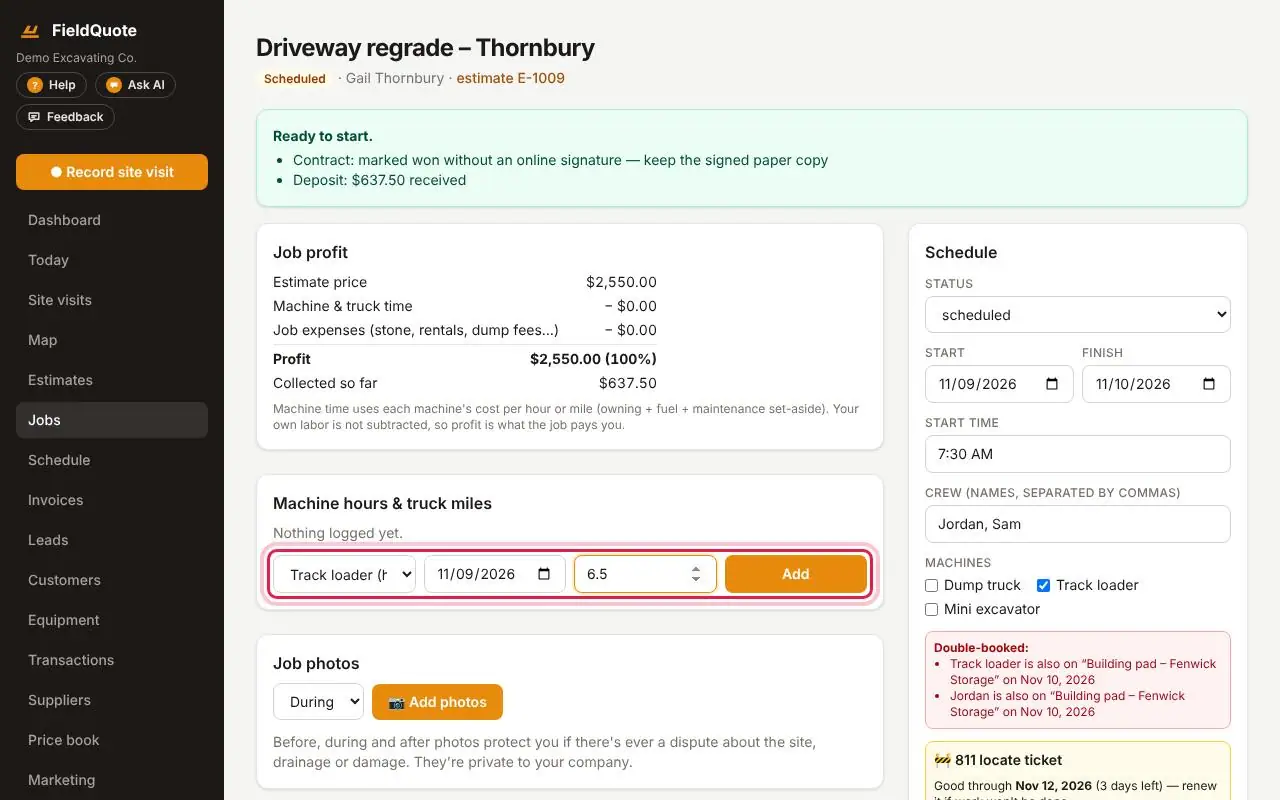
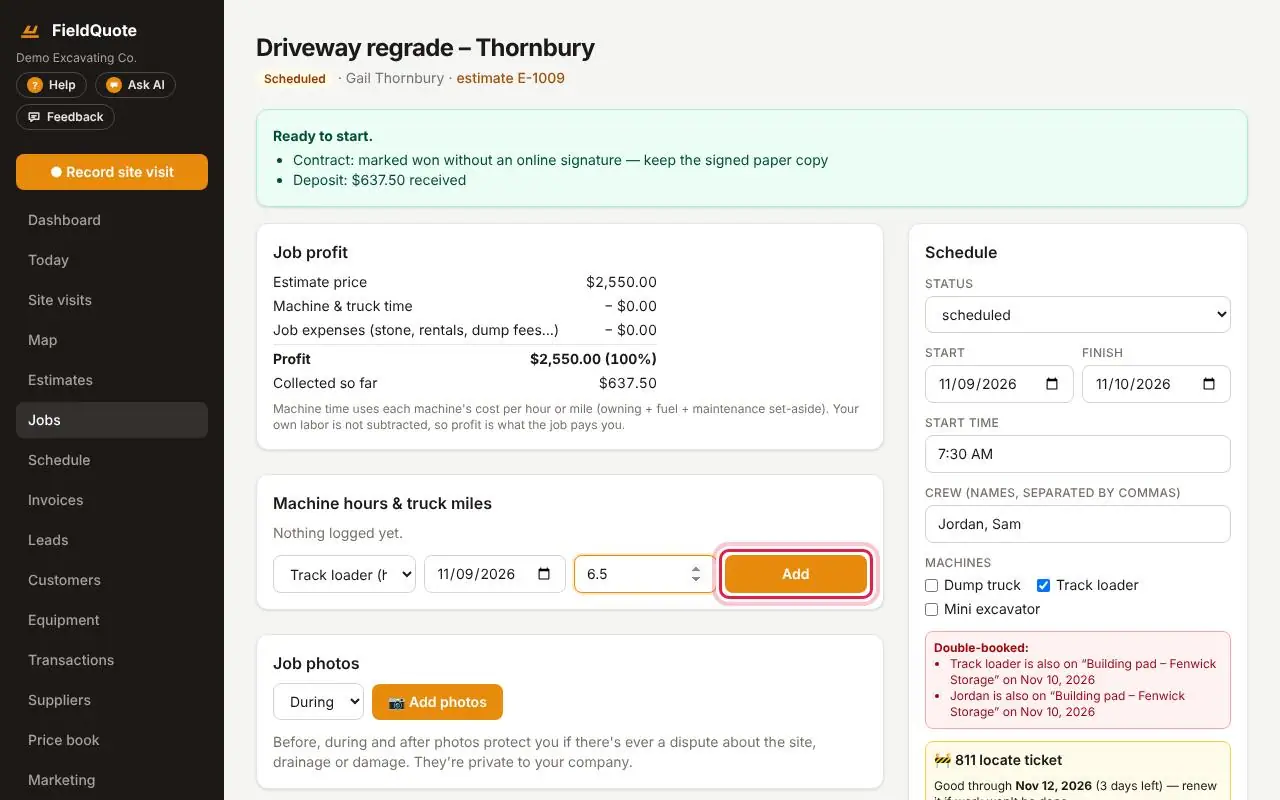
Tap Add.
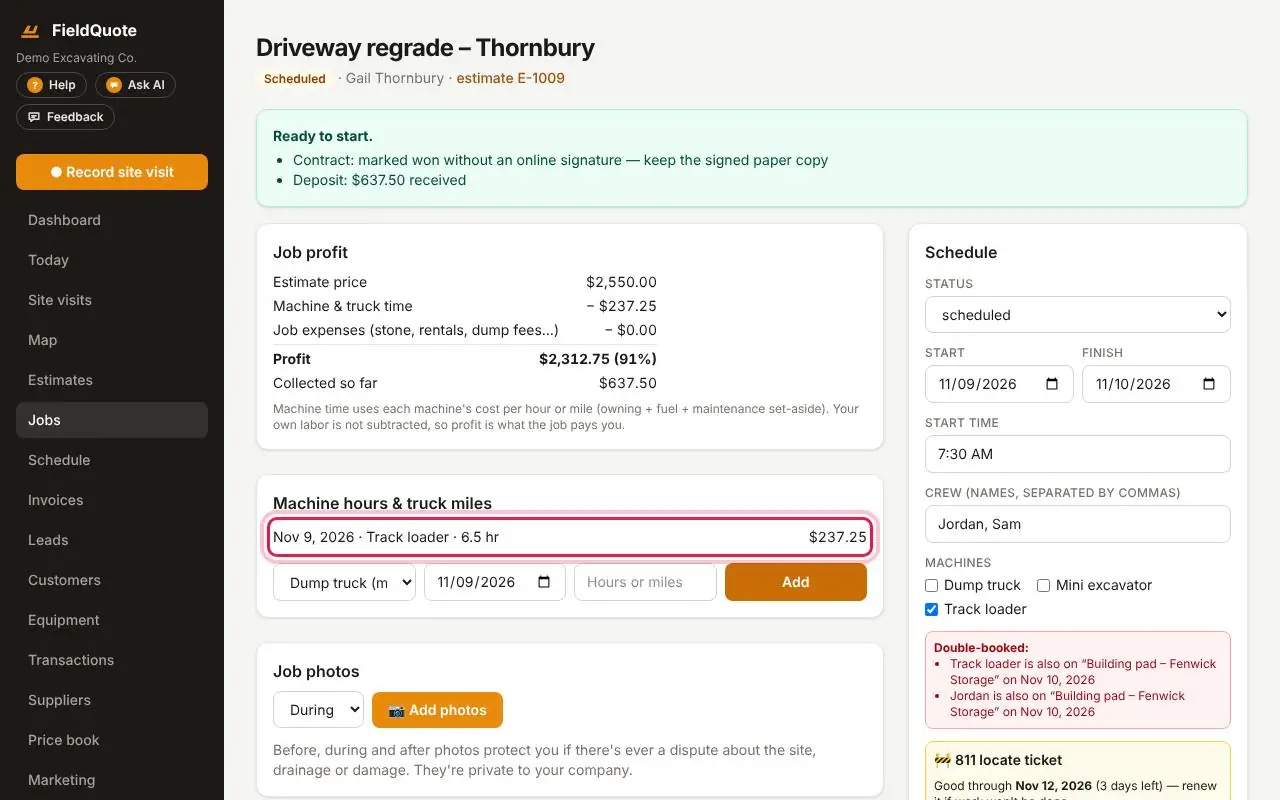
The entry is listed with what it cost: hours × that machine's cost per hour.
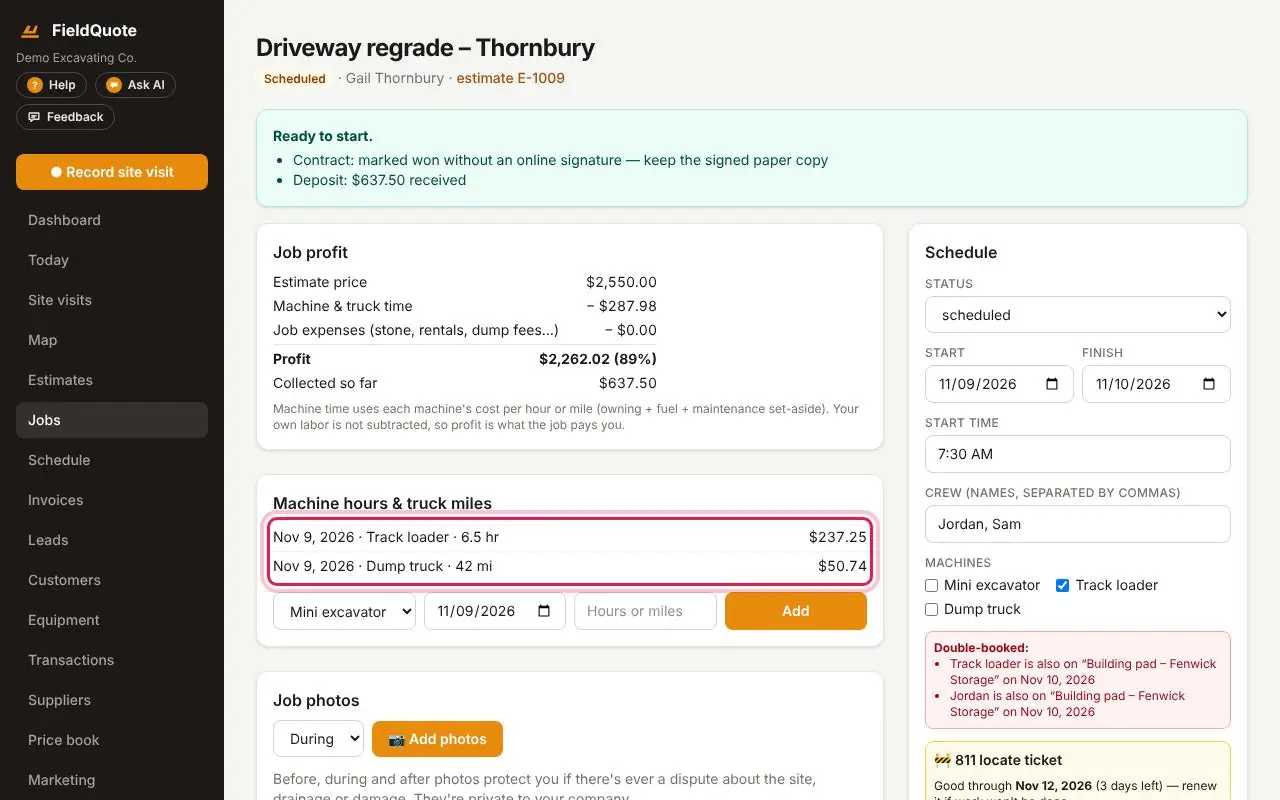
For a truck, pick it and type the miles. It's listed in miles at the truck's cost per mile.
What you'll see
Job profit goes down by the machine and truck time.
The machine's hour meter (or odometer) moves forward, and the hours show on its page and on the Dashboard's Equipment table.
Common mistakes
Typing the meter reading instead of the hours worked. Type how many hours (or miles) for this job.
No machines in the list: "Add your machines to log hours." Add them under Equipment first.
Limits
Each machine's cost per hour or mile comes from Equipment (owning, fuel and the maintenance set-aside).
Entries can't be changed. To fix one, delete it with ✕ on the machine's page (under Equipment) and log it again.
Checked against the app on Nov 9, 2026. Pictures are from Demo Excavating Co., a made-up company.