Your books: Fiscally Fit Business & QuickBooks
Guide 3 of 7
What it's for
Most companies leave it on so the books are always current. Turn it off if your bookkeeper wants to review a batch first, or while you clean up test entries.
Where
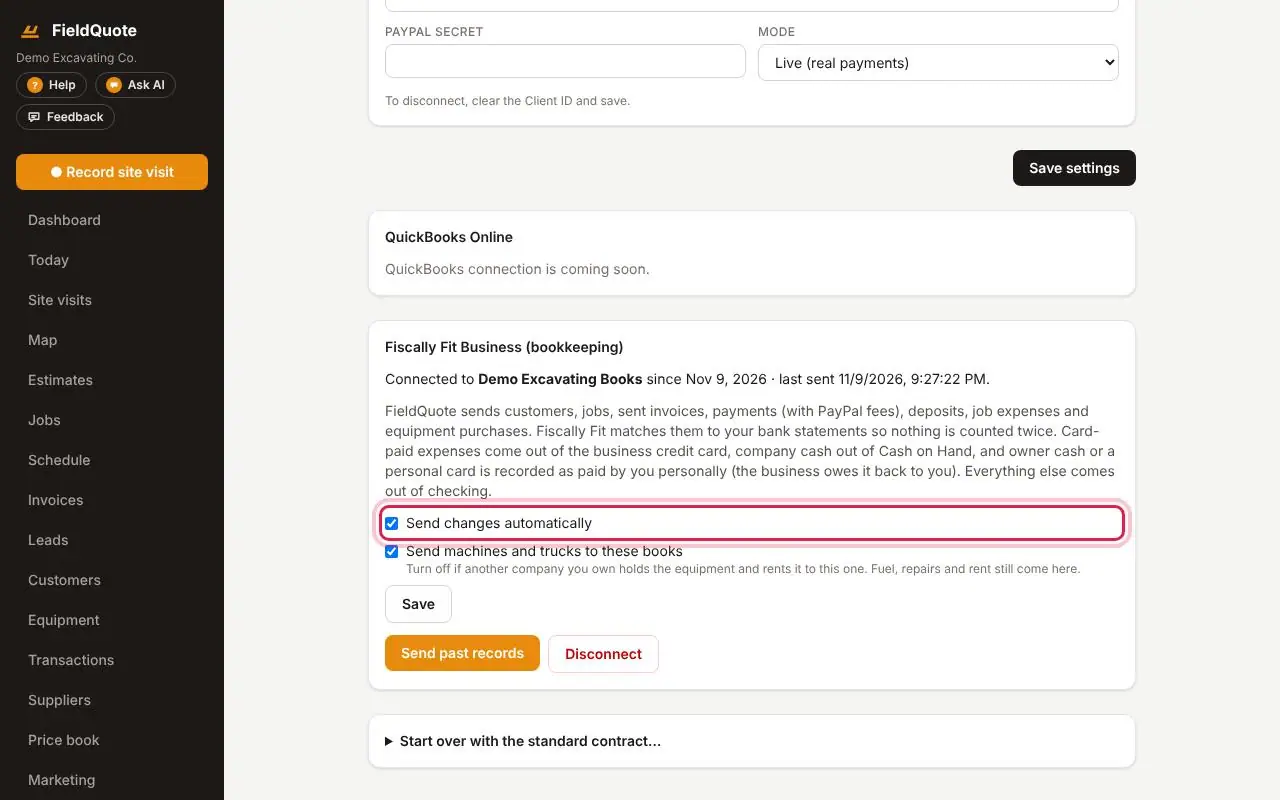
Settings › Fiscally Fit Business (bookkeeping) › Send changes automatically (shows once you're connected).
Watch it
Steps
Send changes automatically is checked when you connect.
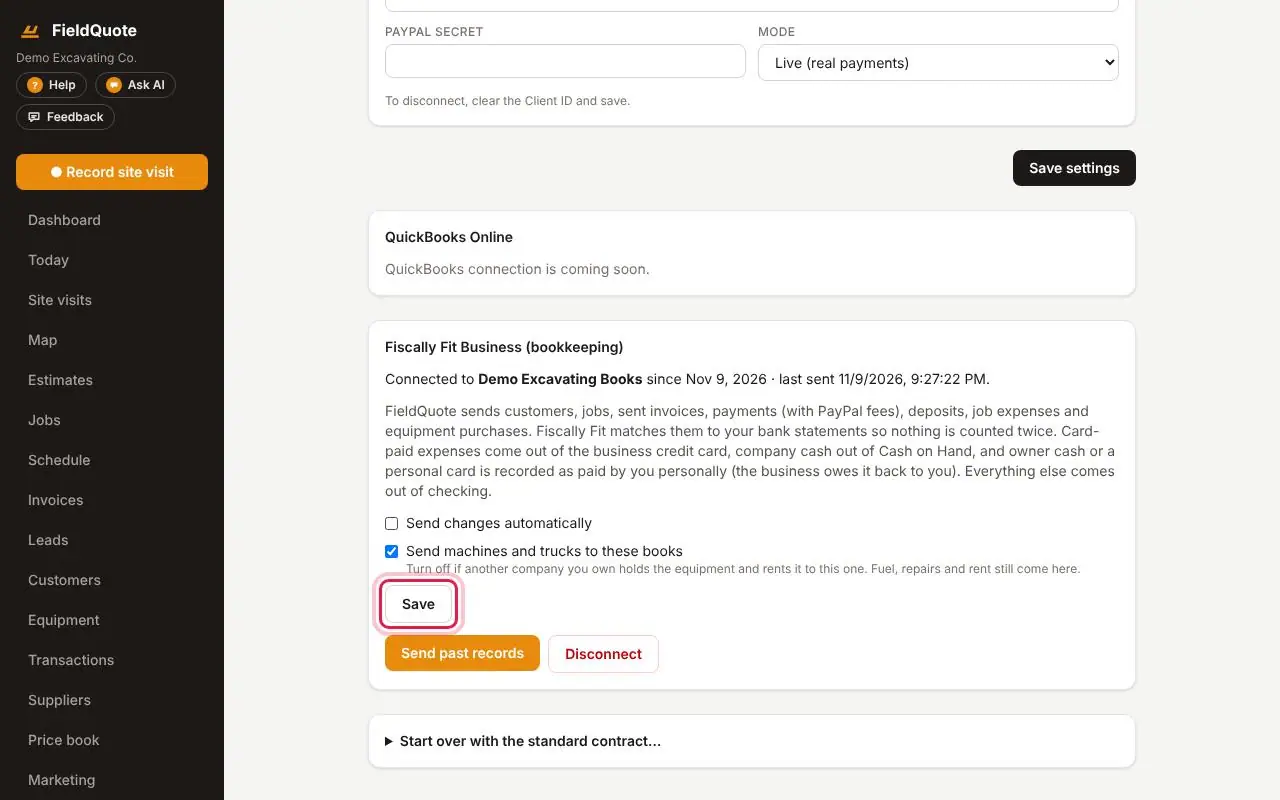
To stop sending on its own, uncheck it and tap Save under it.
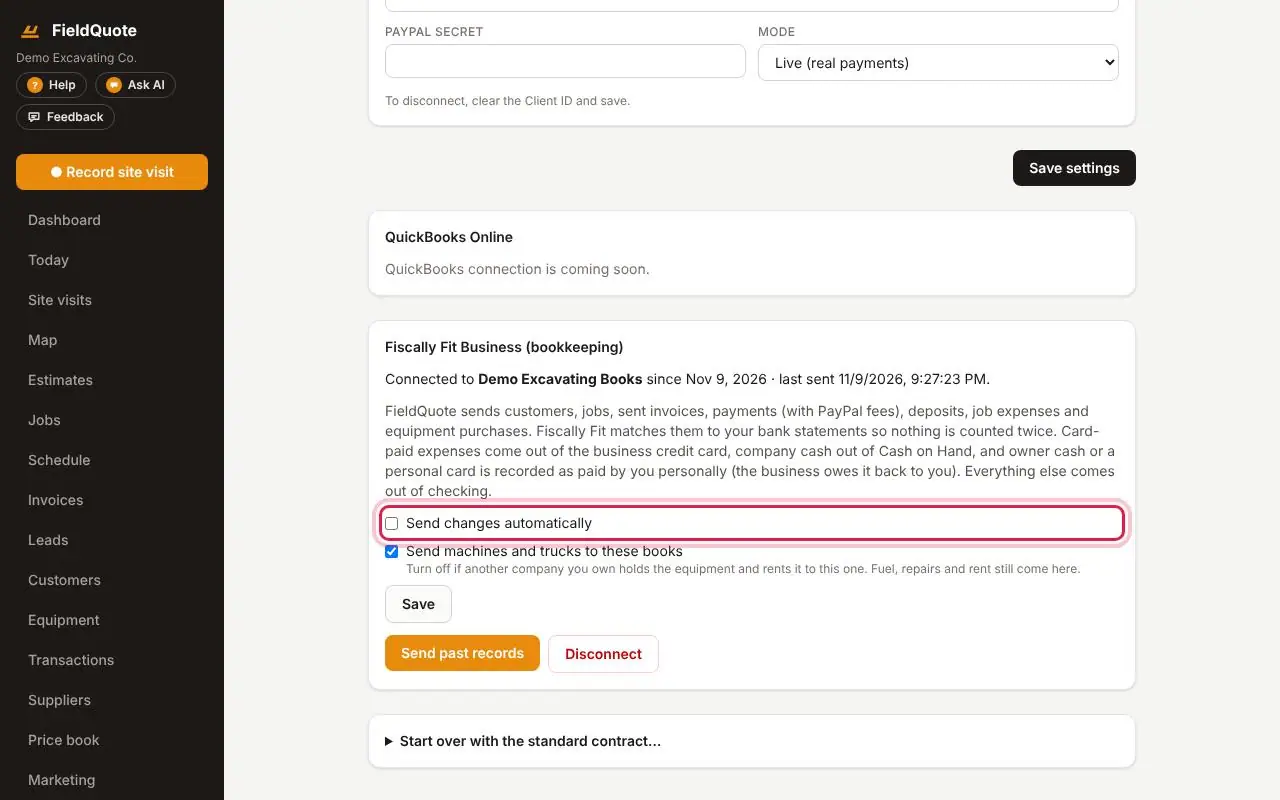
It stays unchecked. Nothing is sent until you tap Send past records (or check it again and save).
What you'll see
With it on, these go over right after you save them:
an expense you add, or take away when you delete it;
an invoice when it's marked sent, edited, paid or voided, with its payments (a sent invoice moved back to draft is taken back out);
a deposit on an estimate, a payment taken online, a payment deleted;
a machine you add, change, sell or delete (unless sending machines is off).
If something can't be sent, it shows as Last problem: in this section.
Common mistakes
Turning it off and forgetting. Changes pile up in FieldQuote until you tap Send past records.
Expecting a new customer to go over the moment you add them. A customer goes over with their first invoice or deposit, a job with its first invoice or job expense — or both with Send past records.
Limits
Only the owner or an admin can change it.
Turning it back on doesn't send what you saved while it was off; tap Send past records for that.
Checked against the app on Nov 9, 2026. Pictures are from Demo Excavating Co., a made-up company.