Change orders & job photos
Guide 5 of 8
What it's for
Keep a record of changes the customer said no to, and clear out change orders that were never meant to be sent.
Where
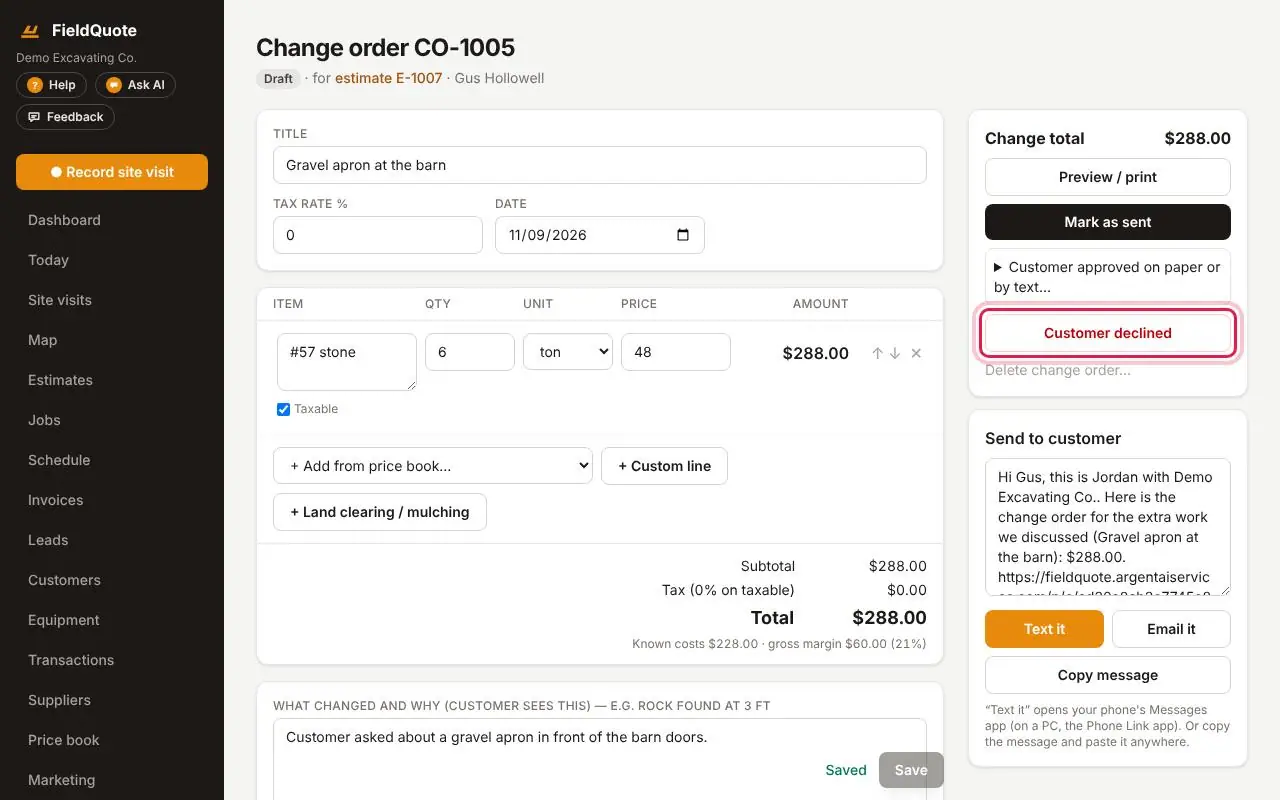
On the change order: Customer declined and Delete change order… on the right.
Watch it
Steps
If the customer said no, tap Customer declined. The status changes to Declined.
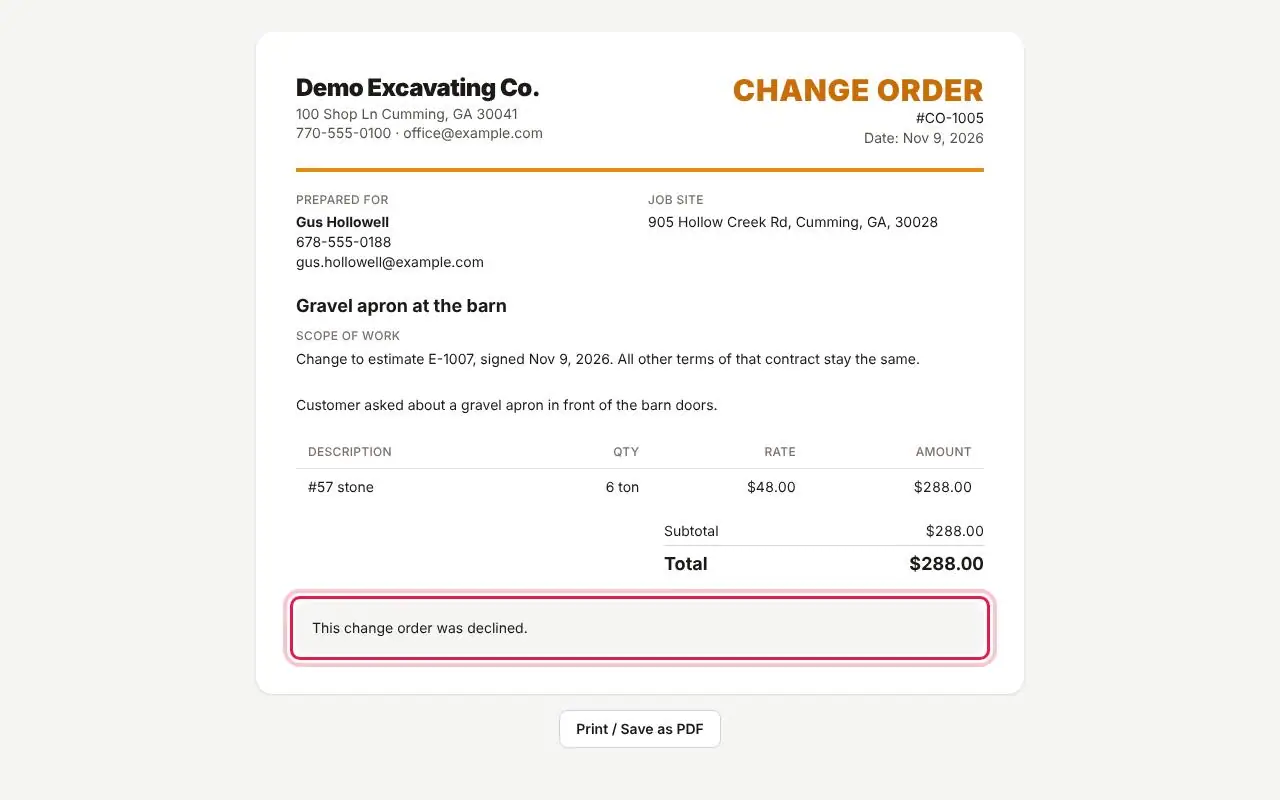
The customer's link now says "This change order was declined." instead of the approval box.
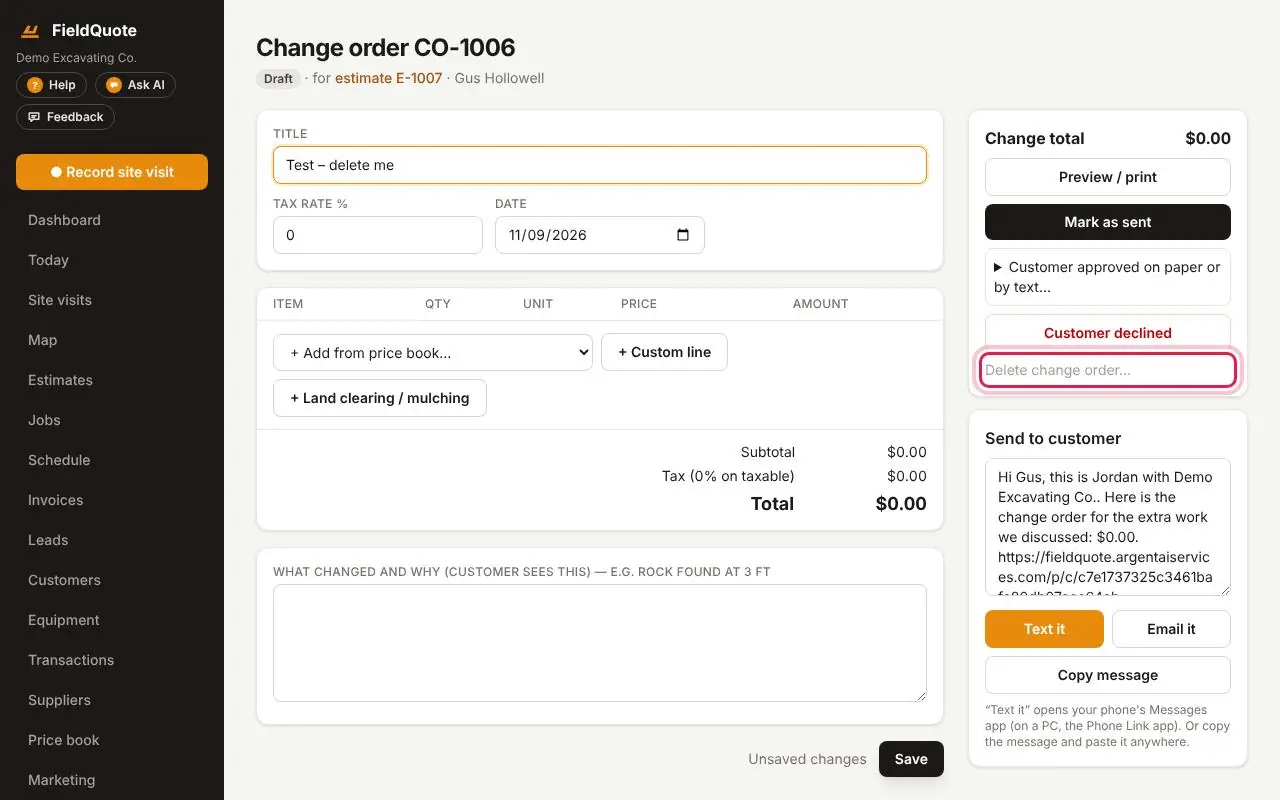
To delete a change order, tap Delete change order….
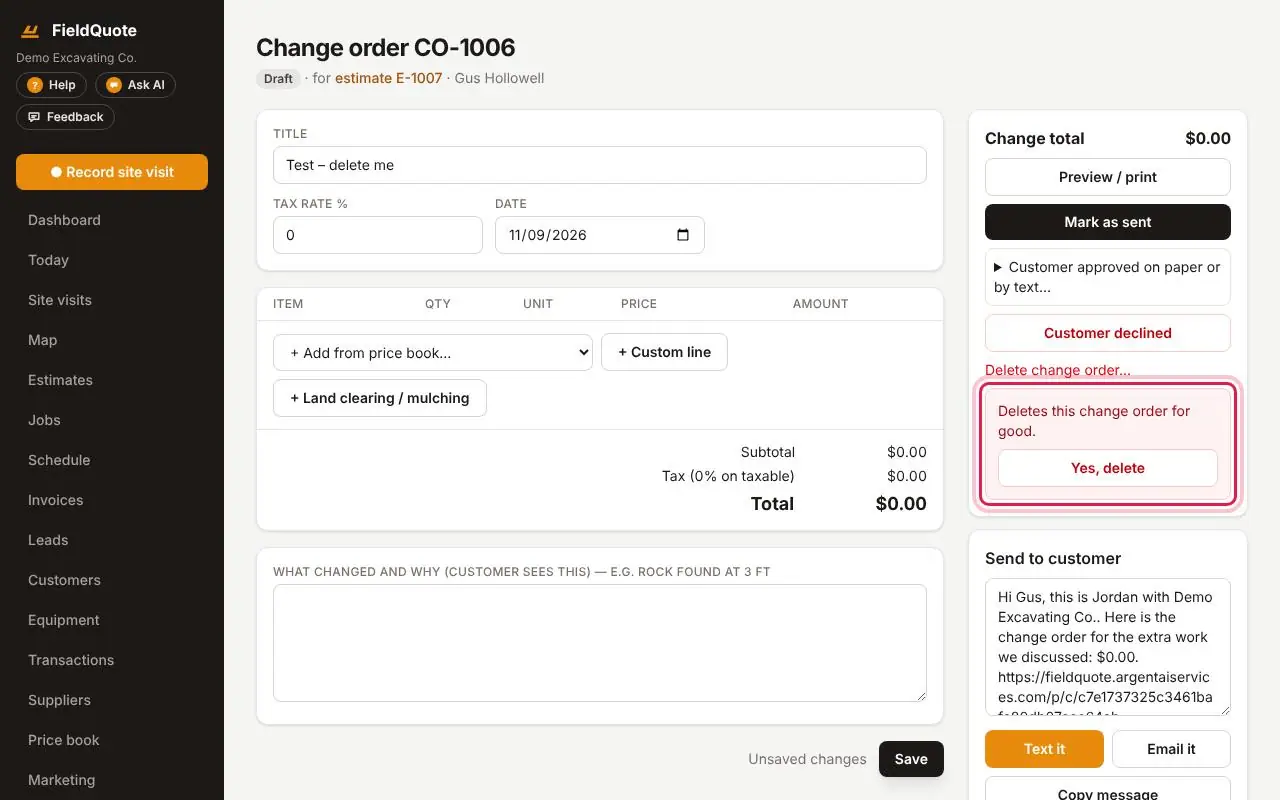
Read "Deletes this change order for good." and tap Yes, delete. You're taken back to the estimate.
What you'll see
A declined change order stays in the estimate's Change orders list, marked declined, and is never put on the invoice.
Common mistakes
Deleting a change order the customer declined. Mark it declined instead, so you have the record.
Limits
An approved change order can't be declined or deleted. The buttons aren't shown.
If the customer changes their mind after declining, you can still record their approval with Customer approved on paper or by text…, or make a new change order and send it.
Deleted change orders keep their number used; the next one gets the next number.
Checked against the app on Nov 9, 2026. Pictures are from Demo Excavating Co., a made-up company.