Change orders & job photos
Guide 4 of 8
What it's for
Not every customer will tap a link. The contract allows approval in writing, by text or by email. Record it so the change order counts as approved and goes on the invoice.
Where
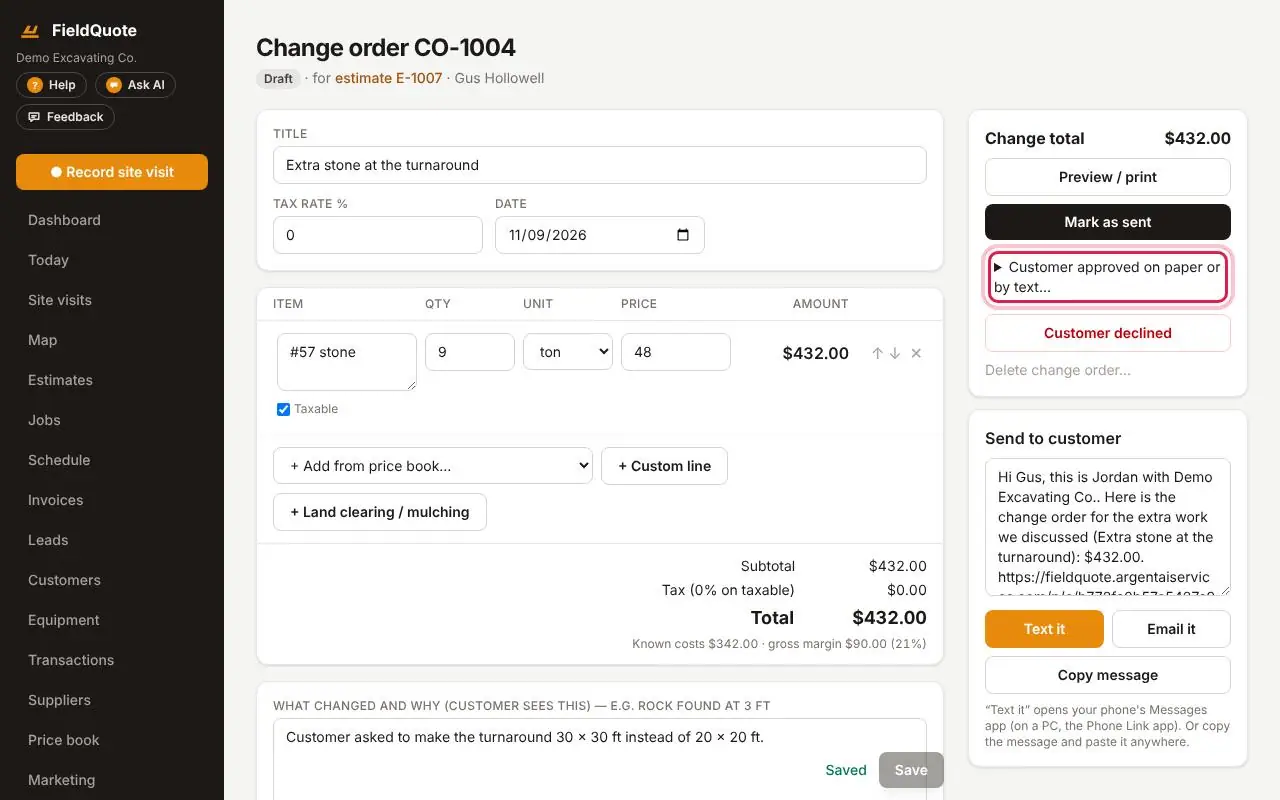
On the change order: Customer approved on paper or by text… on the right.
Watch it
Steps
Tap Customer approved on paper or by text….
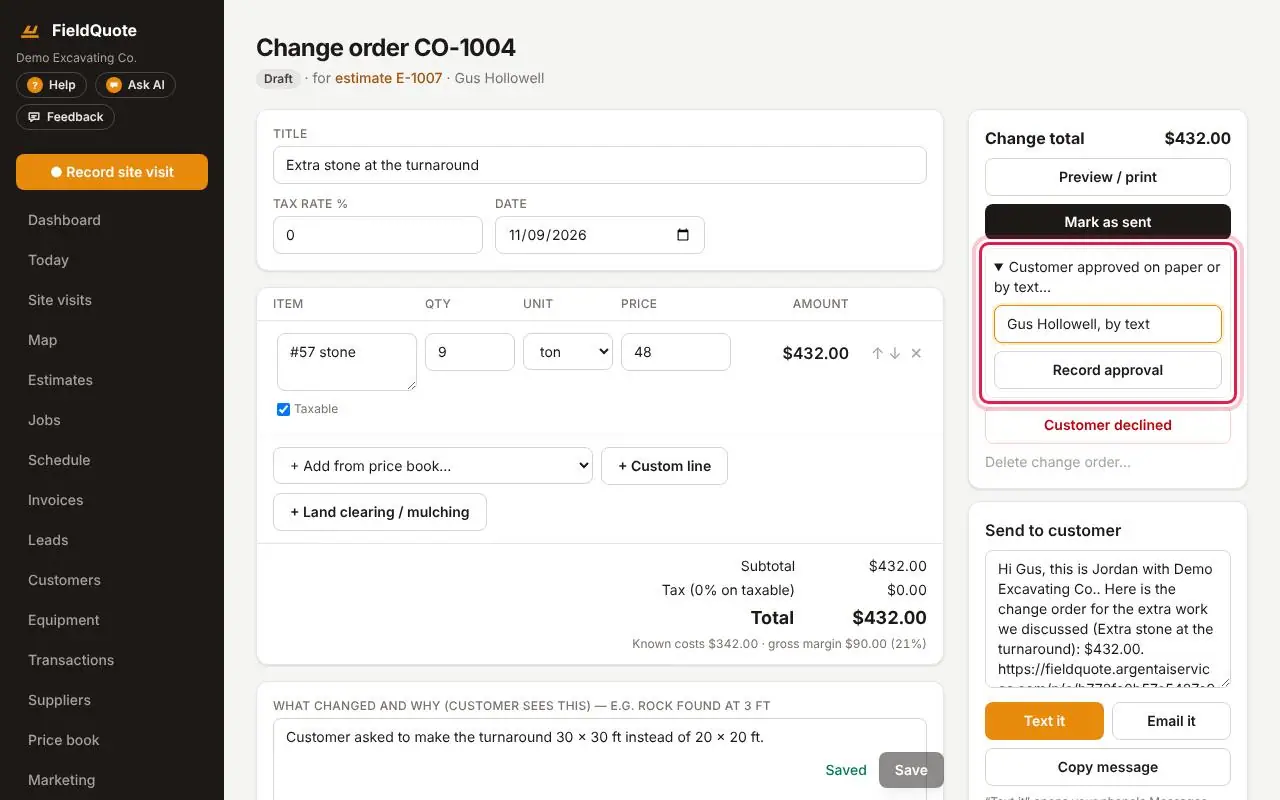
Type who approved it and how in Who approved it, then tap Record approval.
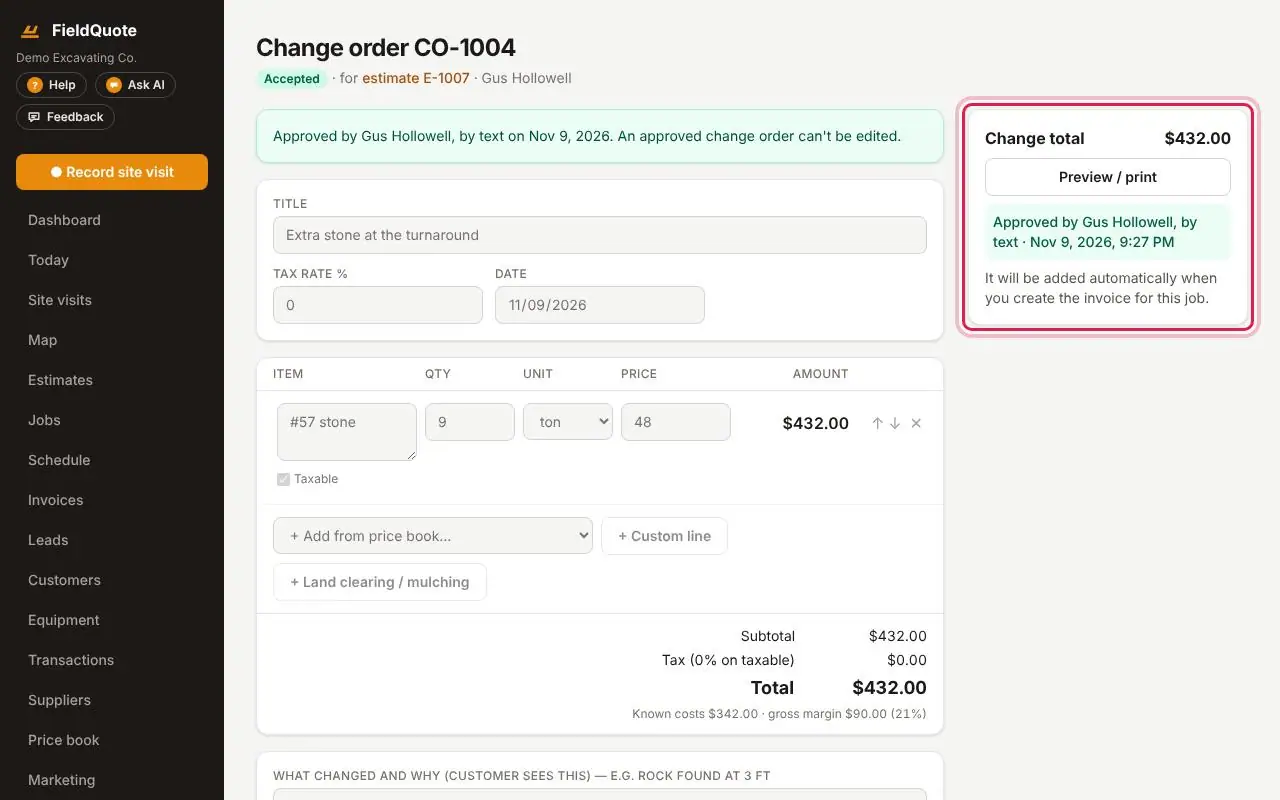
The change order shows "Approved by …" with the date and time, and can't be edited any more.
What you'll see
If the job's invoice hasn't been made yet: "It will be added automatically when you create the invoice for this job."
If the invoice is made but not sent yet: the change order's lines go on it right away, and it says "Added to invoice … by itself when it was approved …".
If the invoice was already sent: "Invoice … was already sent, so approving this didn't change it." with an Add to invoice … button (see Put an approved change order on the invoice).
Common mistakes
Leaving Who approved it blank. It's recorded as "Approved offline", which says nothing about who. Type the name and how they approved, for example by text.
Recording an approval you don't have in writing. Keep the text or email.
Limits
No signature or IP address is saved for an offline approval, only the name you type and the time.
Once recorded, it can't be undone or edited.
Checked against the app on Nov 9, 2026. Pictures are from Demo Excavating Co., a made-up company.