Change orders & job photos
Guide 2 of 8
What it's for
Get the approval in writing while you're still standing in the trench, without stopping work for a paper signature.
Where
On the change order: the Send to customer box on the right.
Watch it
Steps
Tap Preview / print to check the change order the way the customer will see it.
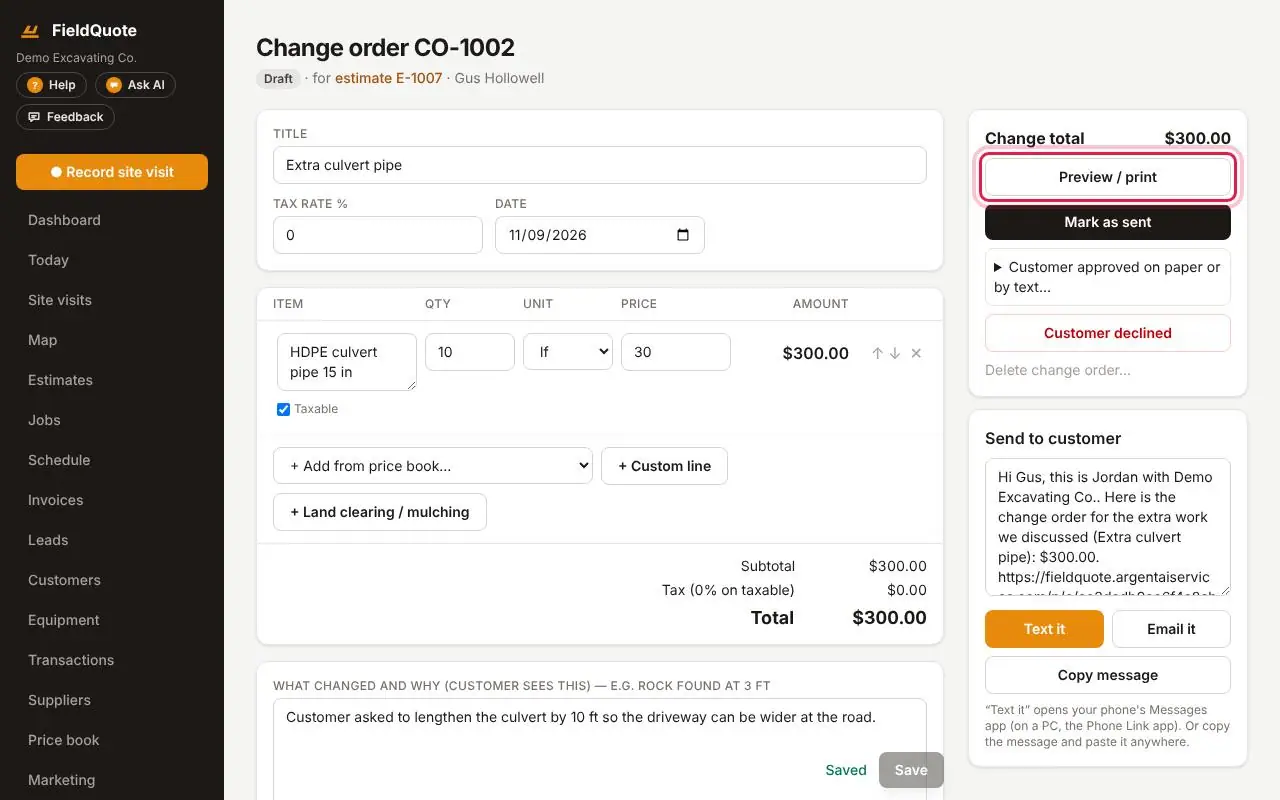
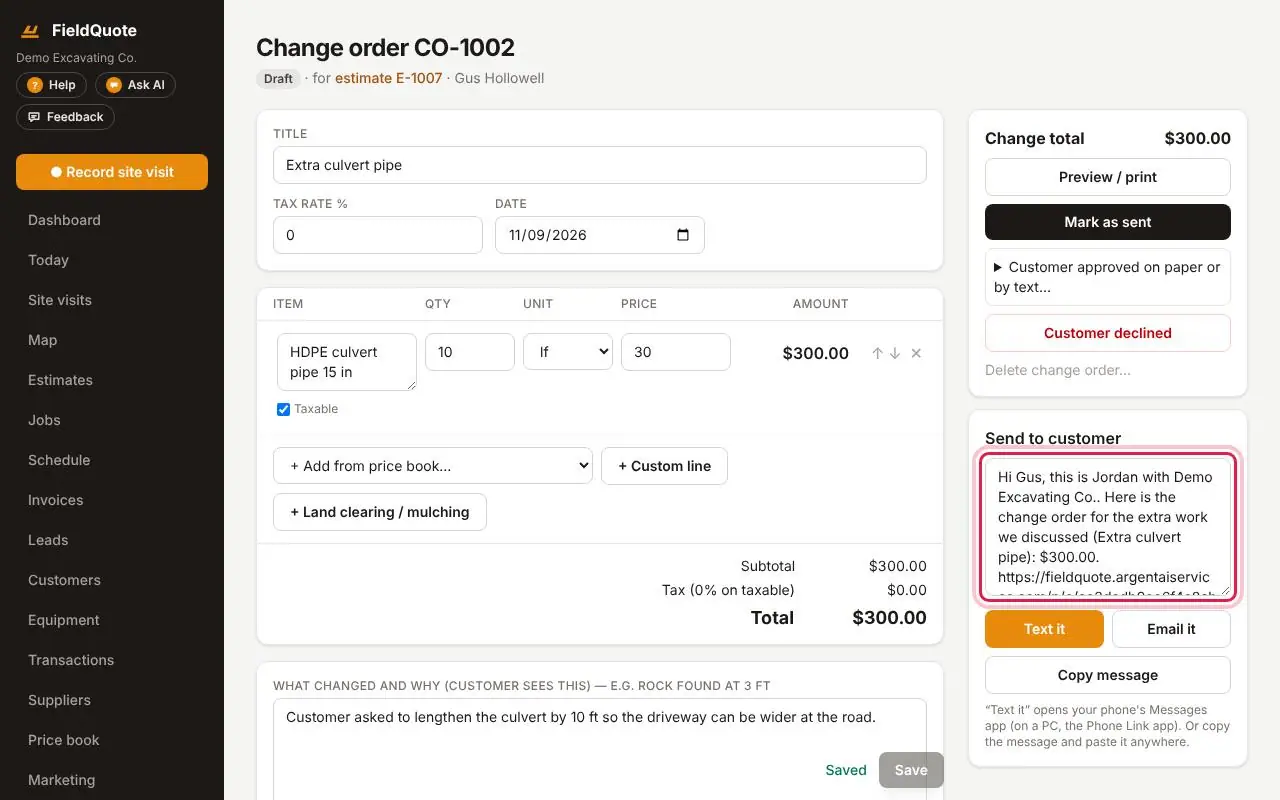
In Send to customer, check the message. It's written for you: who it's from, what it's for, the added cost and the link. After you change the lines and tap Save, it shows the new total by itself.
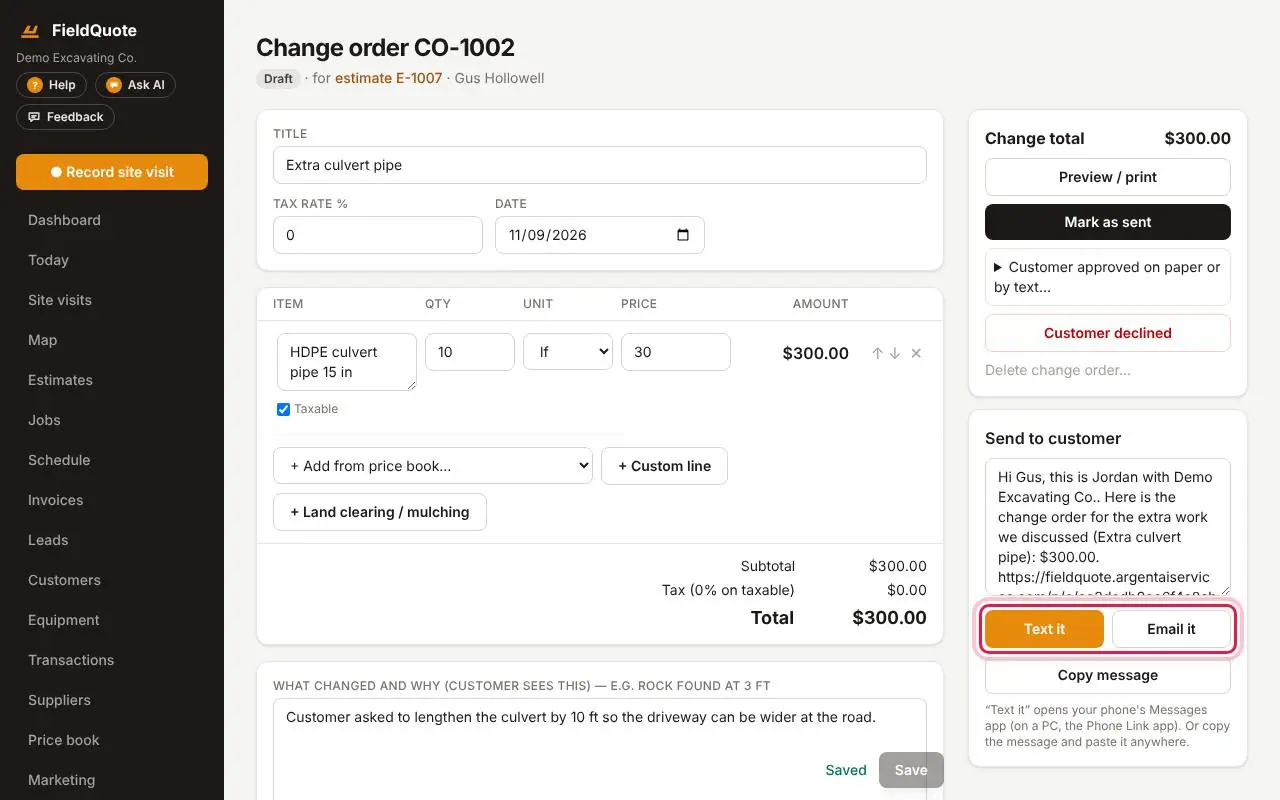
Tap Text it to open your phone's messages with the message filled in, or Email it for your email. Copy message copies it to paste anywhere. If you sent it some other way, tap Mark as sent.
What you'll see
The change order's status goes from Draft to Sent when you tap Text it, Email it or Copy message.
When the customer approves, the change order shows "Approved by … · …" and their signature.
Common mistakes
Sending before saving. The customer sees what's saved. Tap Save first.
Changing the message and then the lines. The message follows the change order's title and total after each Save, until you type in it yourself. If you edited it, check the total in it before you send.
Text it greyed out. The customer has no phone number. Add it on the customer's page, or copy the message.
Limits
Change orders are sent from your own phone or email. They aren't sent from FieldQuote's own email or texting number.
The link works for anyone who has it. Send it only to the customer.
Checked against the app on Nov 9, 2026. Pictures are from Demo Excavating Co., a made-up company.