Equipment, machine costs & transactions
Guide 1 of 10
What it's for
Put every machine and truck you run into FieldQuote once. After that you log hours or miles and costs against it, and FieldQuote shows what an hour or a mile really costs you, what the machine is worth on paper, and how much you've set aside for upkeep.
Where
Equipment in the menu, then the Add a machine or truck box on the right (below the list on a phone).
Watch it
Steps
Open Equipment in the menu.
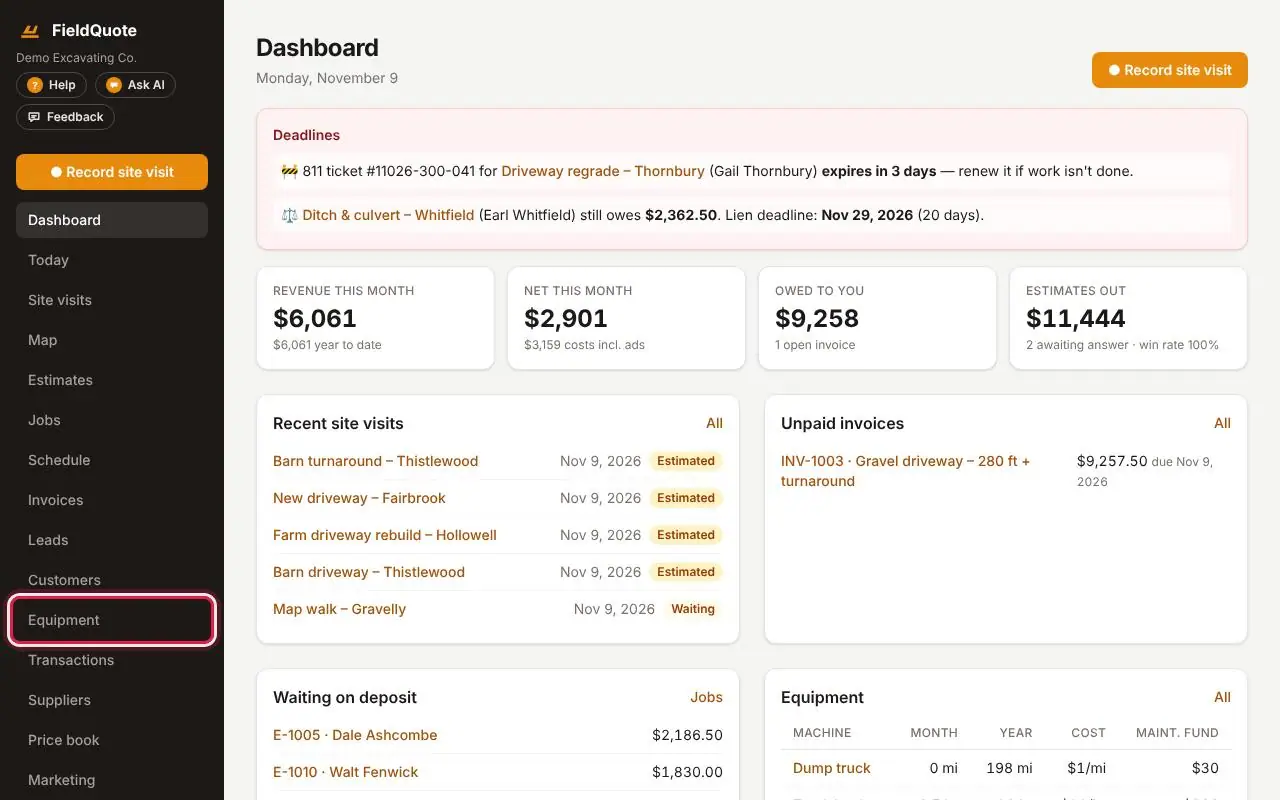
Under Add a machine or truck, type a Name you'll know it by, like Skid steer or Dump truck. Add the Year, Make and Model if you like.
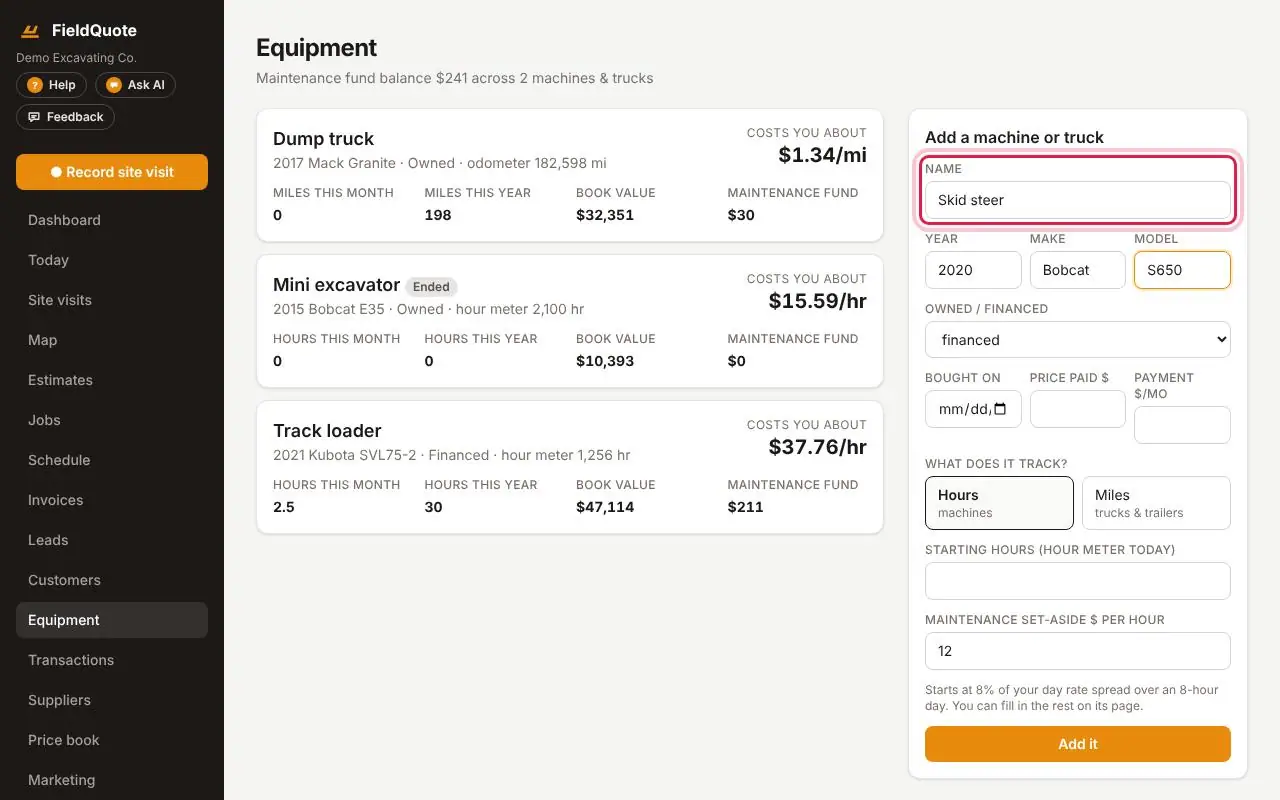
Pick Owned / financed: financed, owned, leased or rented. Then fill in Bought on, Price paid $ and, if you make payments on it, Payment $/mo.
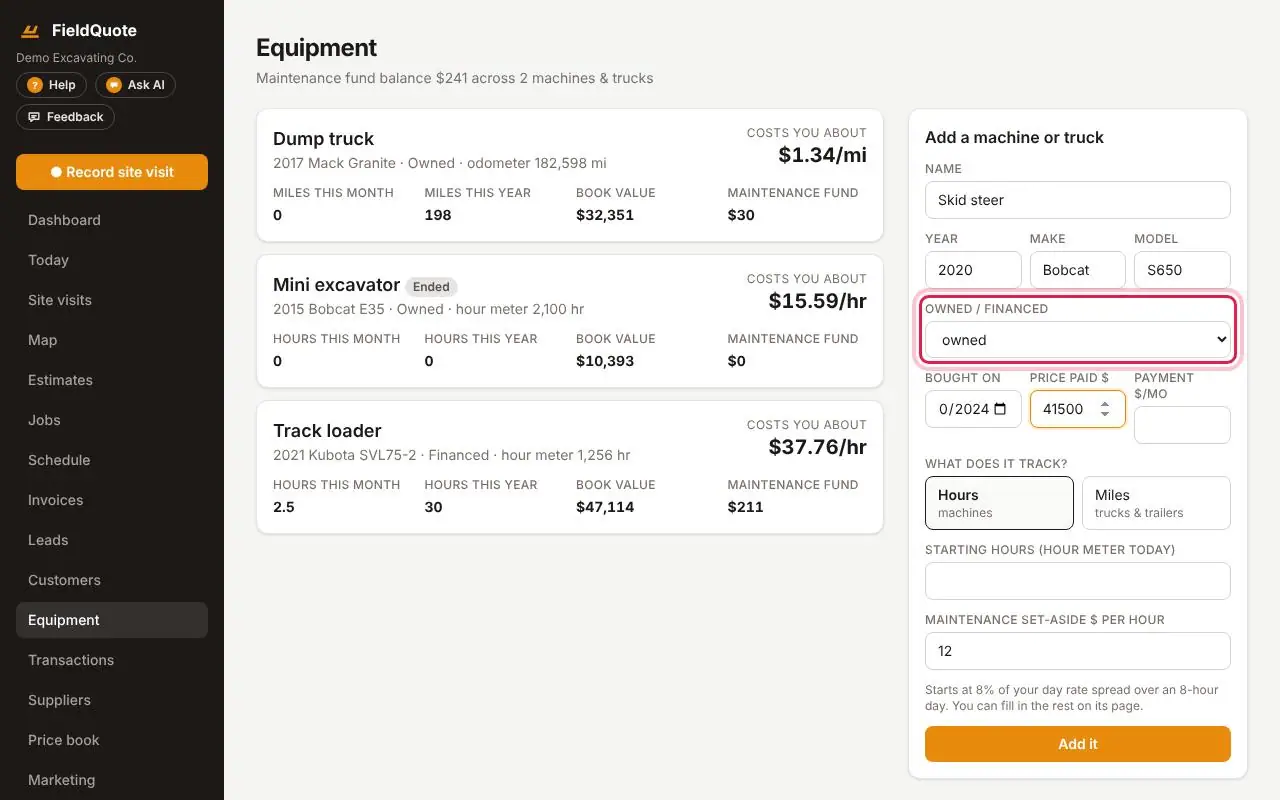
Pick what it tracks: Hours for machines, or Miles for trucks & trailers. The boxes below change to match.
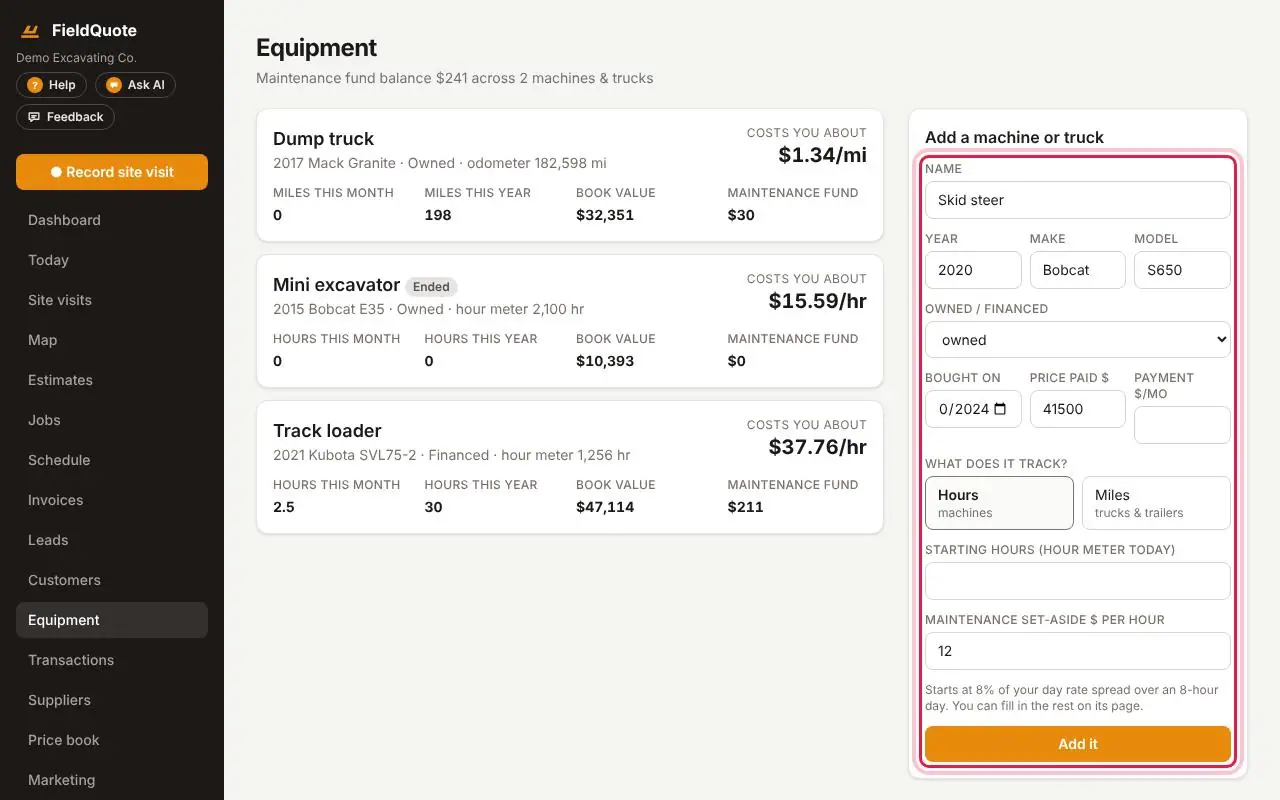
Type the hour meter reading today under Starting hours (hour meter today) (for a truck, the odometer under Starting miles (odometer today)). Leave Maintenance set-aside $ per hour as it is to start. It "Starts at 8% of your day rate spread over an 8-hour day." For a truck it "Starts at 15¢ a mile for tires, brakes, oil and repairs."
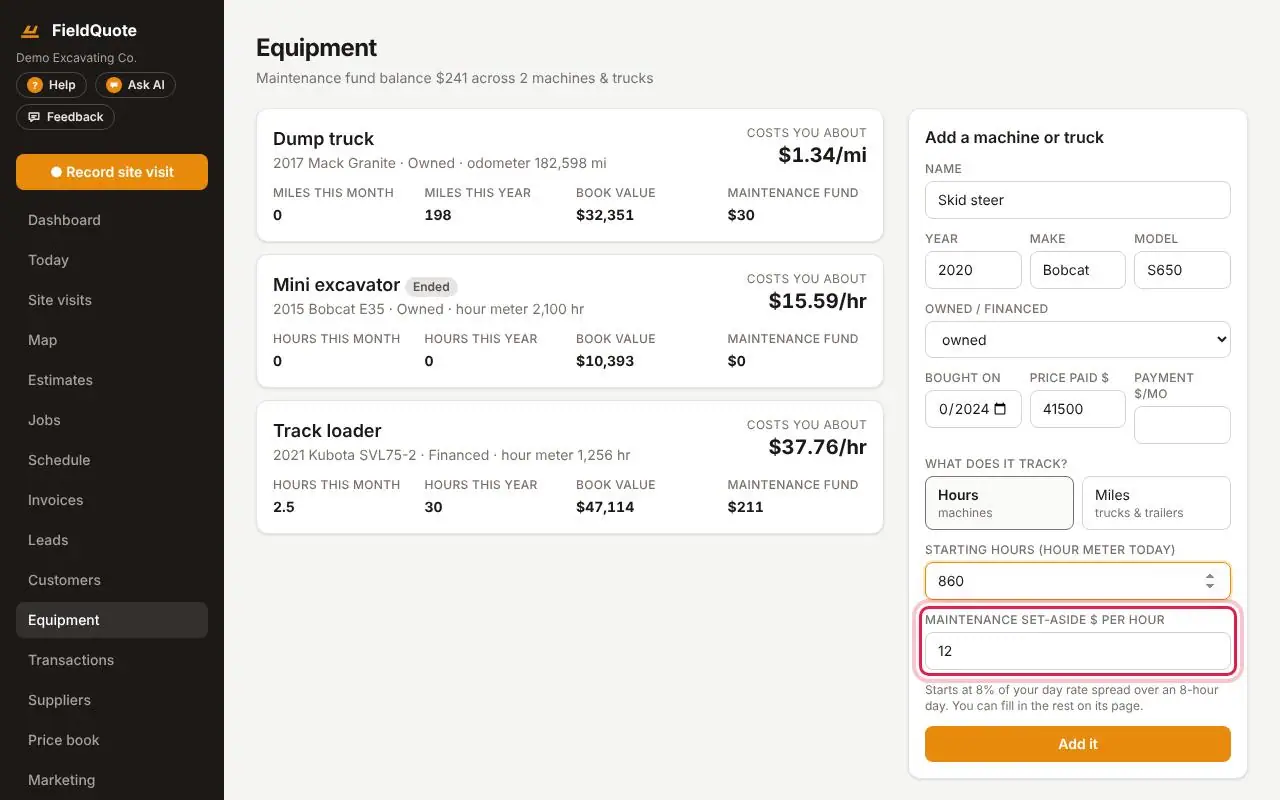
Tap Add it. The machine's own page opens, ready for hours and costs.
What you'll see
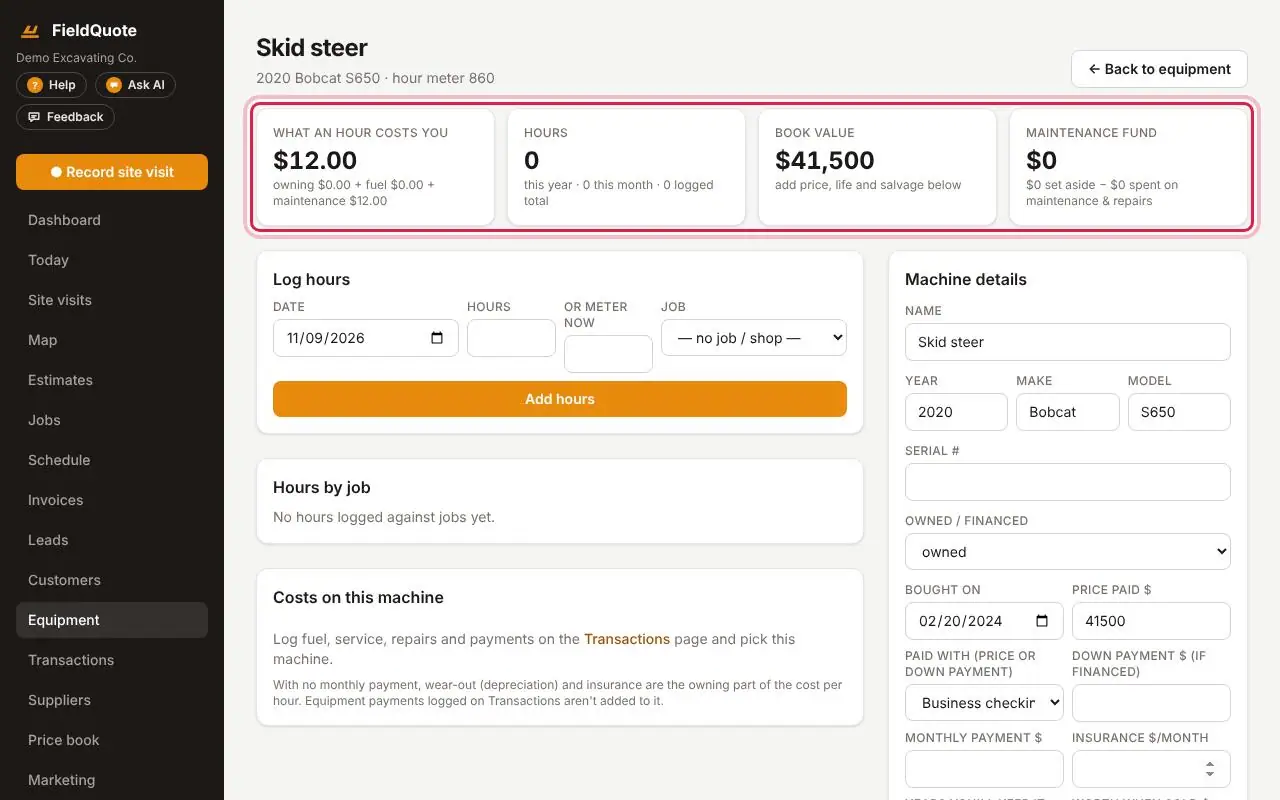
The machine's page shows four boxes across the top: What an hour costs you (or a mile), the hours (or miles) logged, Book value and Maintenance fund. They fill in as you log hours and costs.
Back on Equipment, the machine is in the list with what it Costs you about per hour or mile, its hours or miles this month and this year, its Book value and its Maintenance fund.
The line under the page title, "Maintenance fund balance … across … machines & trucks", counts the machines you haven't sold.
Common mistakes
Picking Hours for a truck. Its cost then comes out per hour instead of per mile. Open the truck and switch it to Miles under Truck details (it says Machine details until you switch).
Leaving the starting reading blank. FieldQuote uses it to show how many hours or miles you've put on since you got it. You can add it later on the machine's page under Starting hours (when you got it).
Adding the same machine twice. Delete the extra one (see the related article), not the one with your hours on it.
Limits
Only the owner or an admin can do this. Team members see it grayed out, with "Only the owner or an admin can change this."
The down payment, insurance, how many years you'll keep it and what it'll be worth when you sell it are filled in on the machine's page afterwards (Machine details). Book value needs them.
What a machine costs you does not include the operator's pay.
A leased or rented machine is tracked the same way here, but only owned and financed machines are sent to your books as equipment you own.
Checked against the app on Nov 9, 2026. Pictures are from Demo Excavating Co., a made-up company.