Equipment, machine costs & transactions
Guide 2 of 10
What it's for
The cost per hour and the book value are only as good as these numbers. A financed machine has to earn its loan payment and insurance every month; one you own outright wears out over the years you keep it. Fill this in once when you add the machine, and again if the loan or insurance changes.
Where
Equipment › tap the machine › Machine details (on the right, or below on a phone). A truck tracked by miles says Truck details.
Watch it
Steps
Open Equipment and tap the machine.
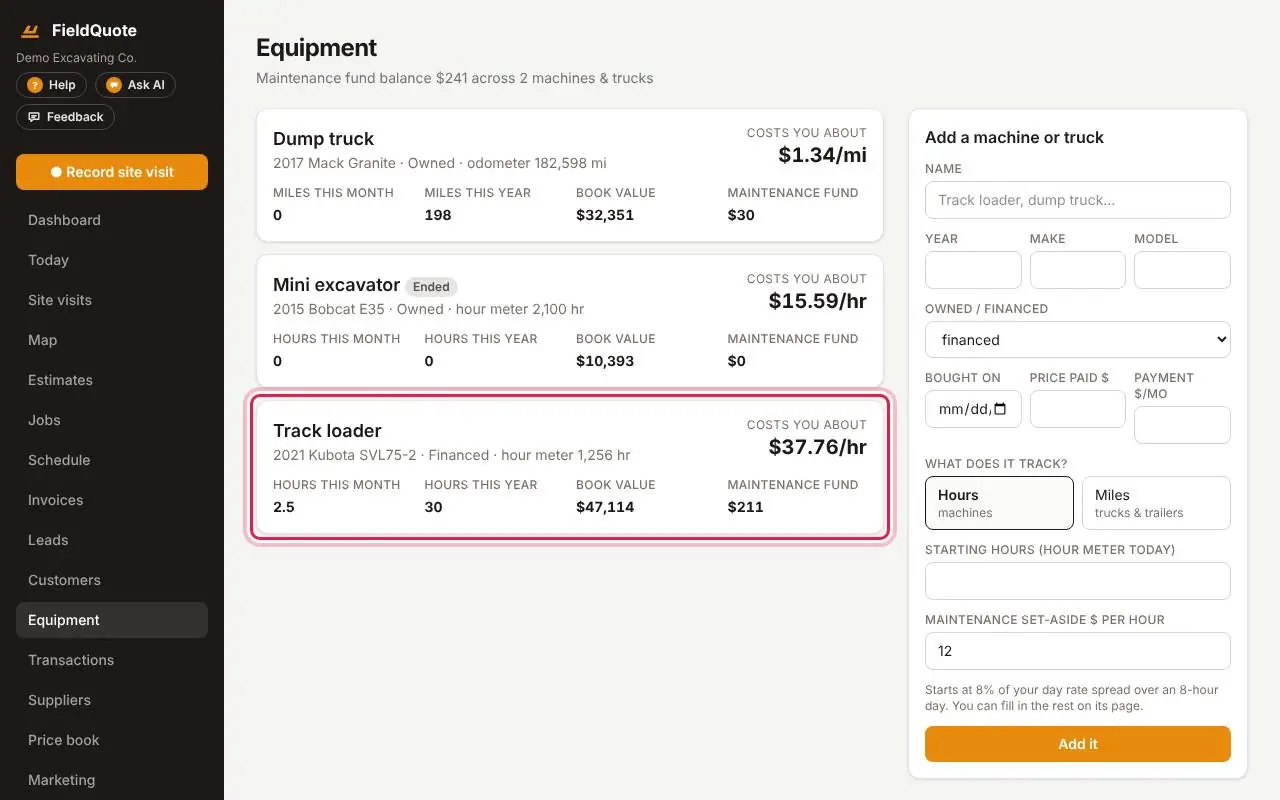
Under Machine details, check Owned / financed, Bought on and Price paid $. Under Paid with (price or down payment), pick how you paid for it (or the down payment): business checking, business credit card, company cash (the business's own cash on hand), or owner cash or a personal card (your own money).
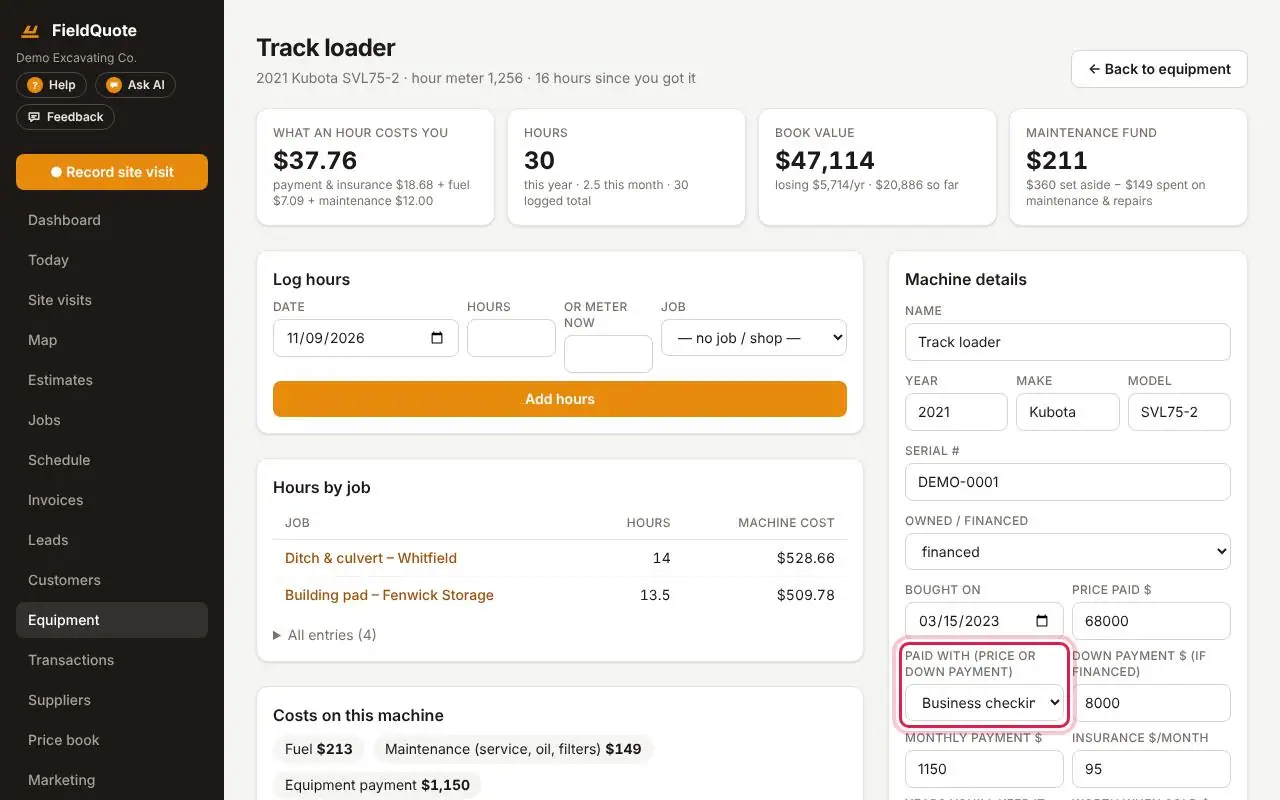
For a financed machine, fill in Down payment $ (if financed) and Monthly payment $. Add Insurance $/month for any machine.
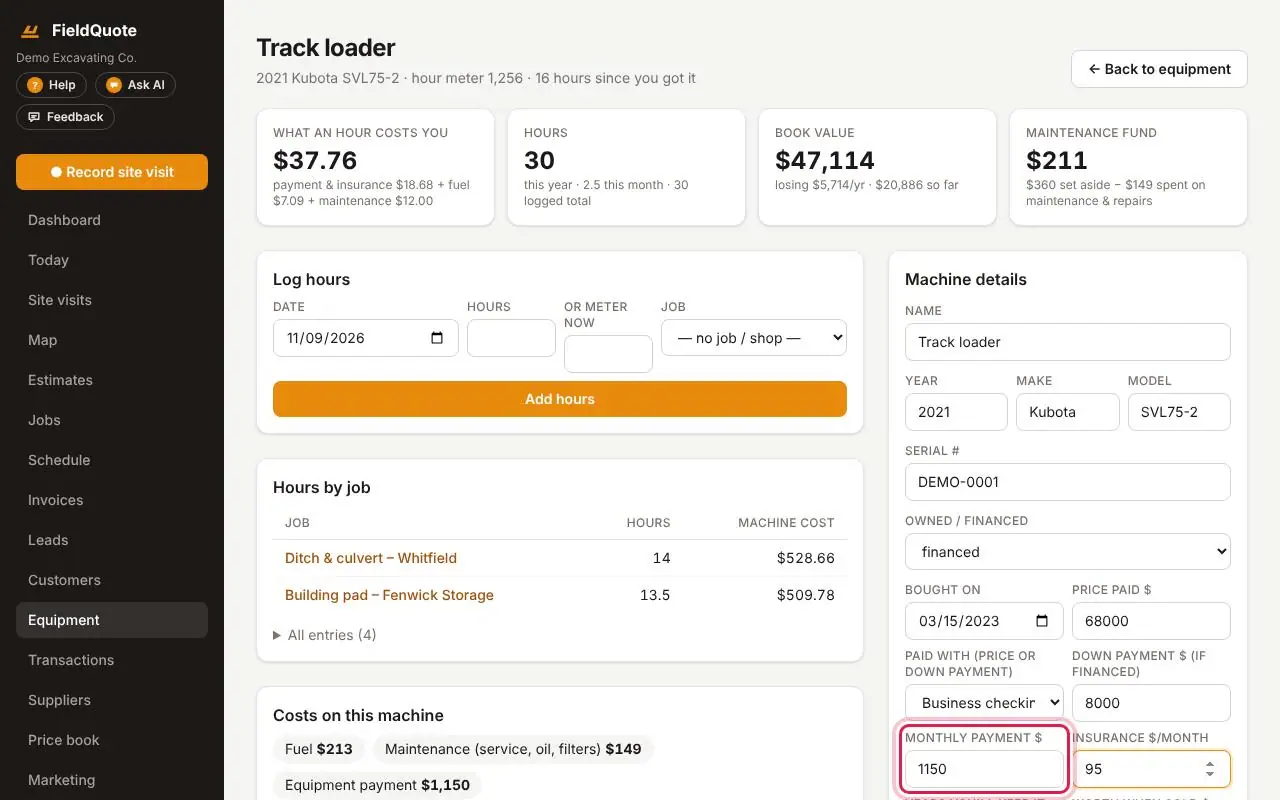
Fill in Years you'll keep it and Worth when sold $. These set the book value.
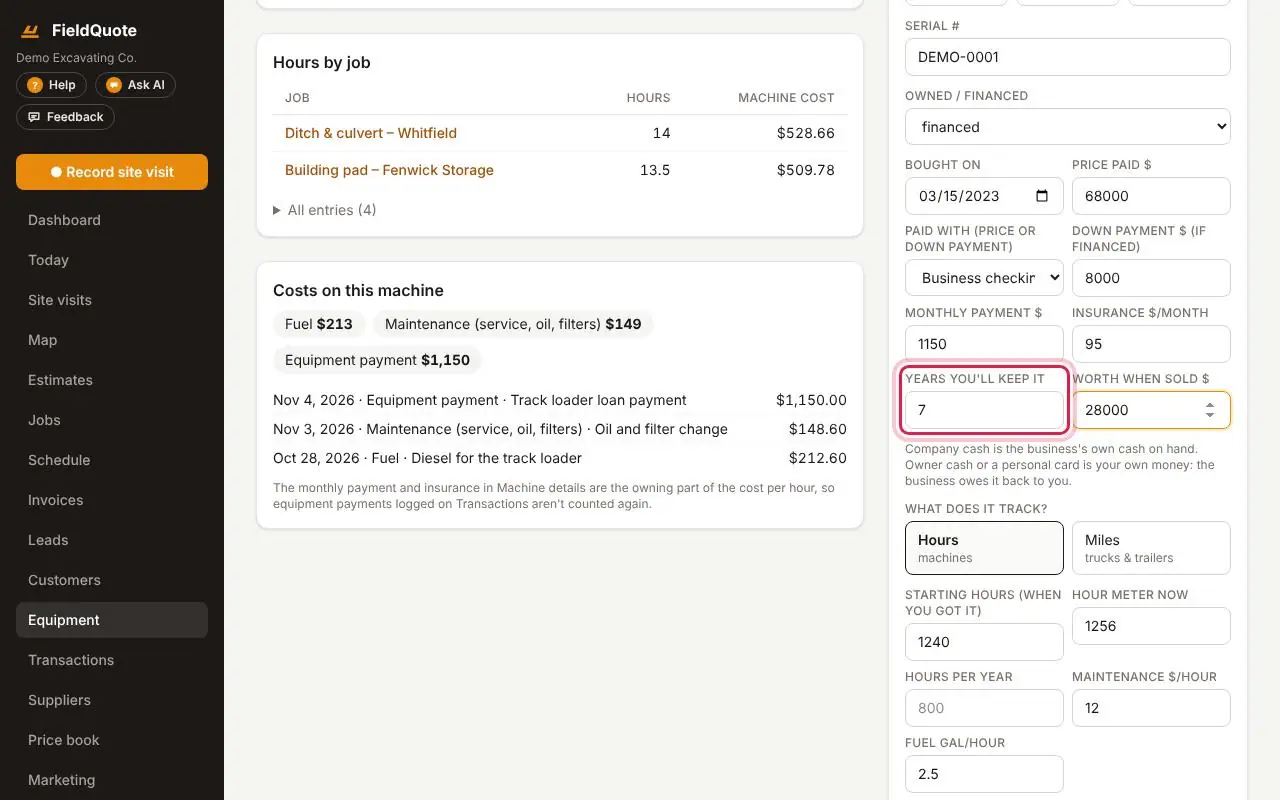
Check the meter boxes: Starting hours (when you got it), Hour meter now, Hours per year (how many hours a year you expect to run it), Maintenance $/hour and Fuel gal/hour. On a truck they read in miles.
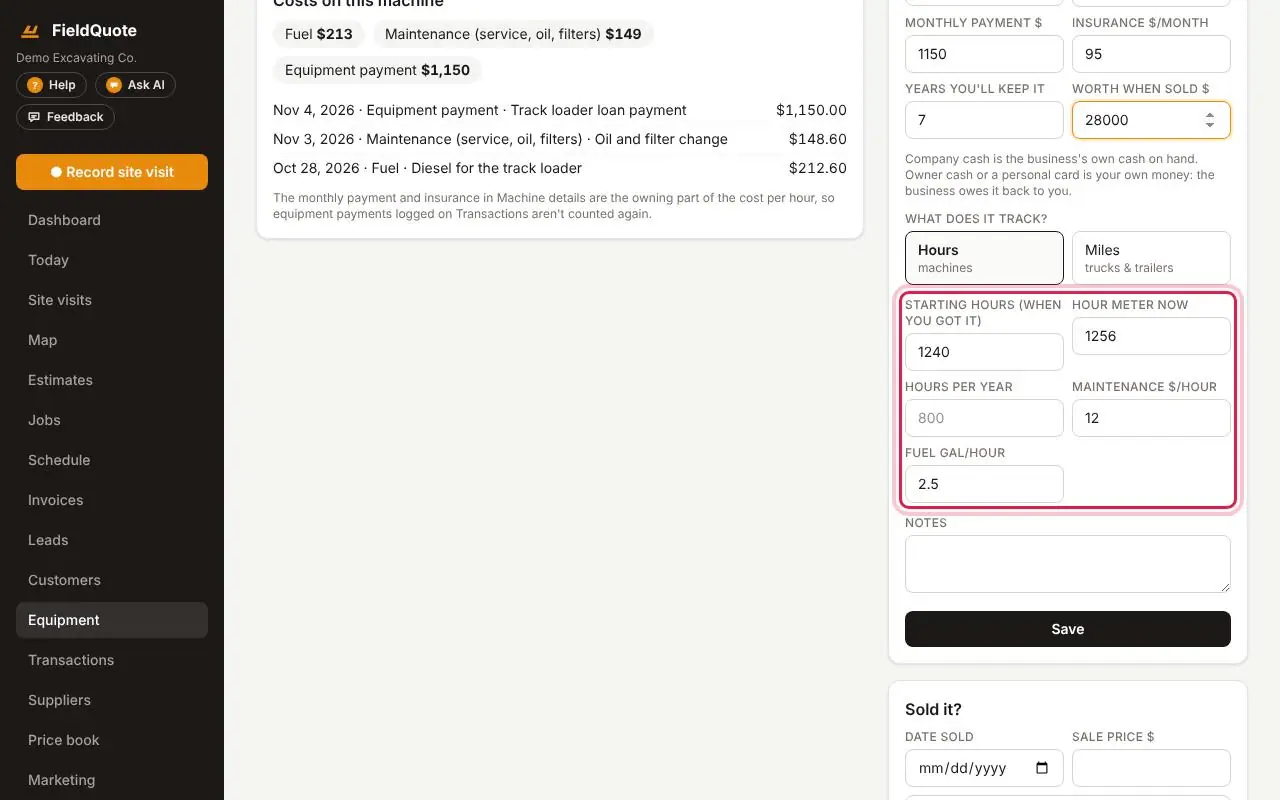
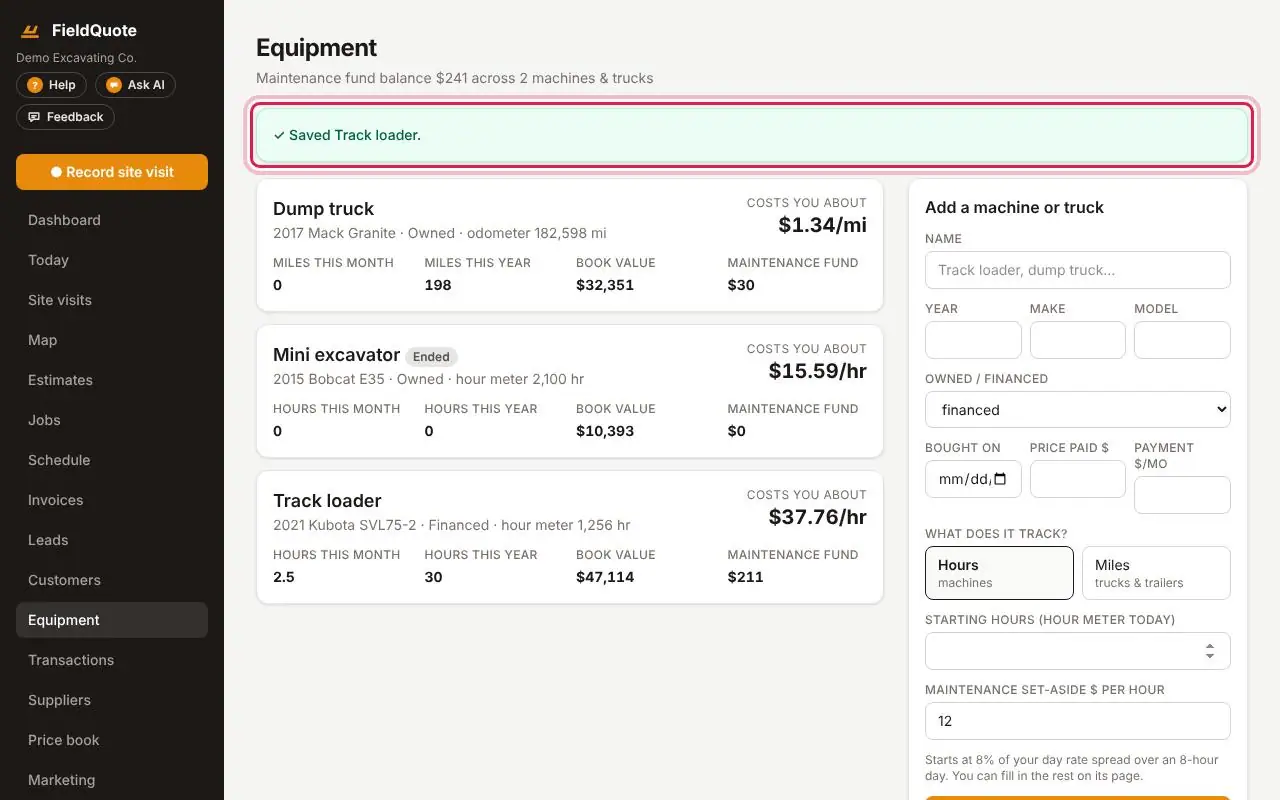
Tap Save. You go back to Equipment with "✓ Saved Track loader." and the new cost per hour.
What you'll see
What an hour costs you on the machine's page now splits into payment & insurance (or owning, for a machine with no payment), fuel and maintenance.
Book value shows how much it's losing a year and how much it has lost so far.
The list on Equipment shows the new Costs you about figure.
Common mistakes
Leaving Hours per year blank and expecting it to use your real hours. Blank means 800 hours a year for a machine, or 15,000 miles for a truck. If you run it much more or less, type your own number — the loan and insurance are spread over it.
Typing the full price under Down payment $ (if financed). Only type what you paid up front; the rest is the loan.
Expecting Fuel gal/hour to change the cost. The fuel part of the cost comes from the fuel you log against the machine on Transactions. Fuel gal/hour is kept with the machine as a note.
Changing Hour meter now to fix a typo after logging hours. That's fine — it just sets the reading. It doesn't add or remove logged hours.
Limits
Only the owner or an admin can change a machine's money details. Team members see them grayed out, with "Only the owner or an admin can change this." They can still fix the name, year, make, model, serial number, meter readings and notes, and log hours.
Book value needs Price paid $, Years you'll keep it and Worth when sold $; without the years it shows "add price, life and salvage below".
Book value is straight-line: the same amount every year from the day you bought it. It's a running estimate for you, not a tax number.
Selling the machine is done under Sold it?, not here.
Checked against the app on Nov 9, 2026. Pictures are from Demo Excavating Co., a made-up company.