Invoicing & online payments
Guide 3 of 12
What it's for
Not every job starts with an estimate. Bill the quick ones in a minute.
Where
Invoices, top right.
Watch it
Steps
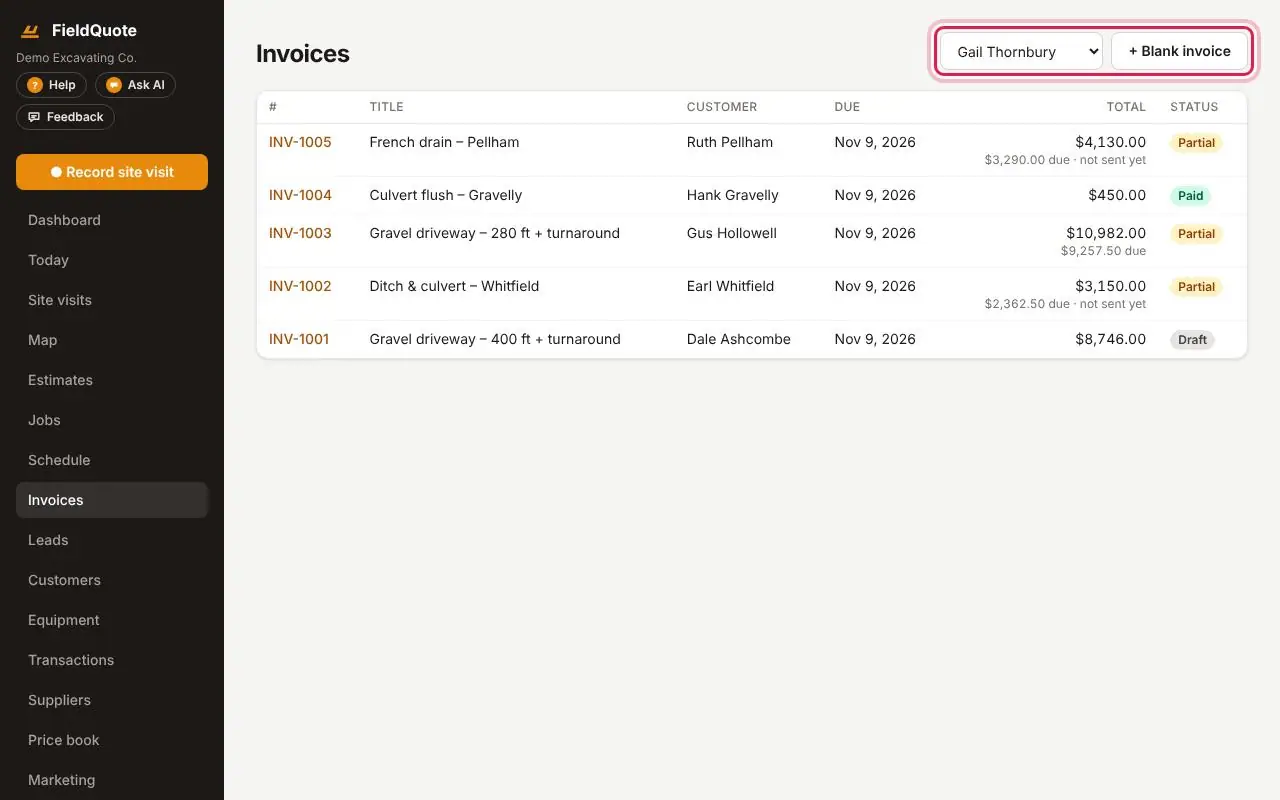
On Invoices, pick the customer in Customer… and tap + Blank invoice.
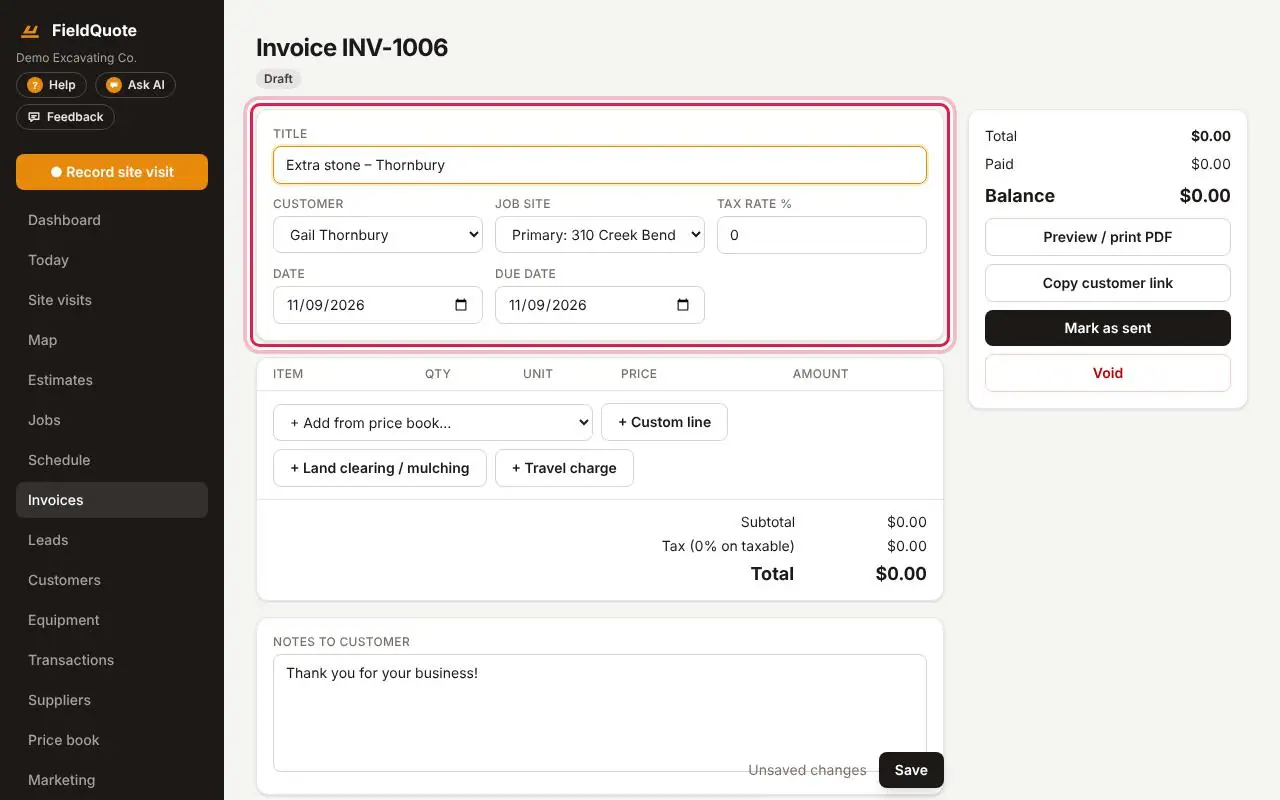
Give it a Title, pick the Job site, and check the Date and Due date.
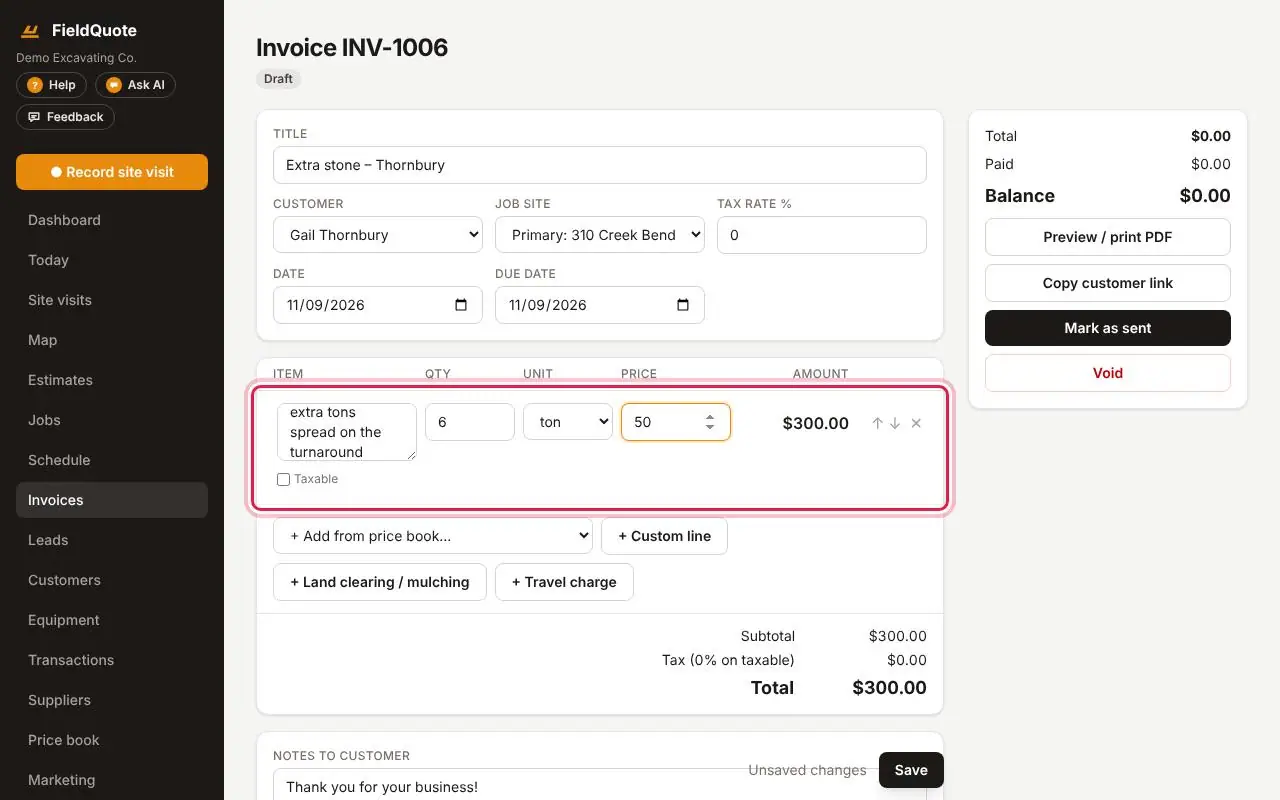
Add the lines (+ Custom line, + Add from price book…): description, quantity, unit and price.
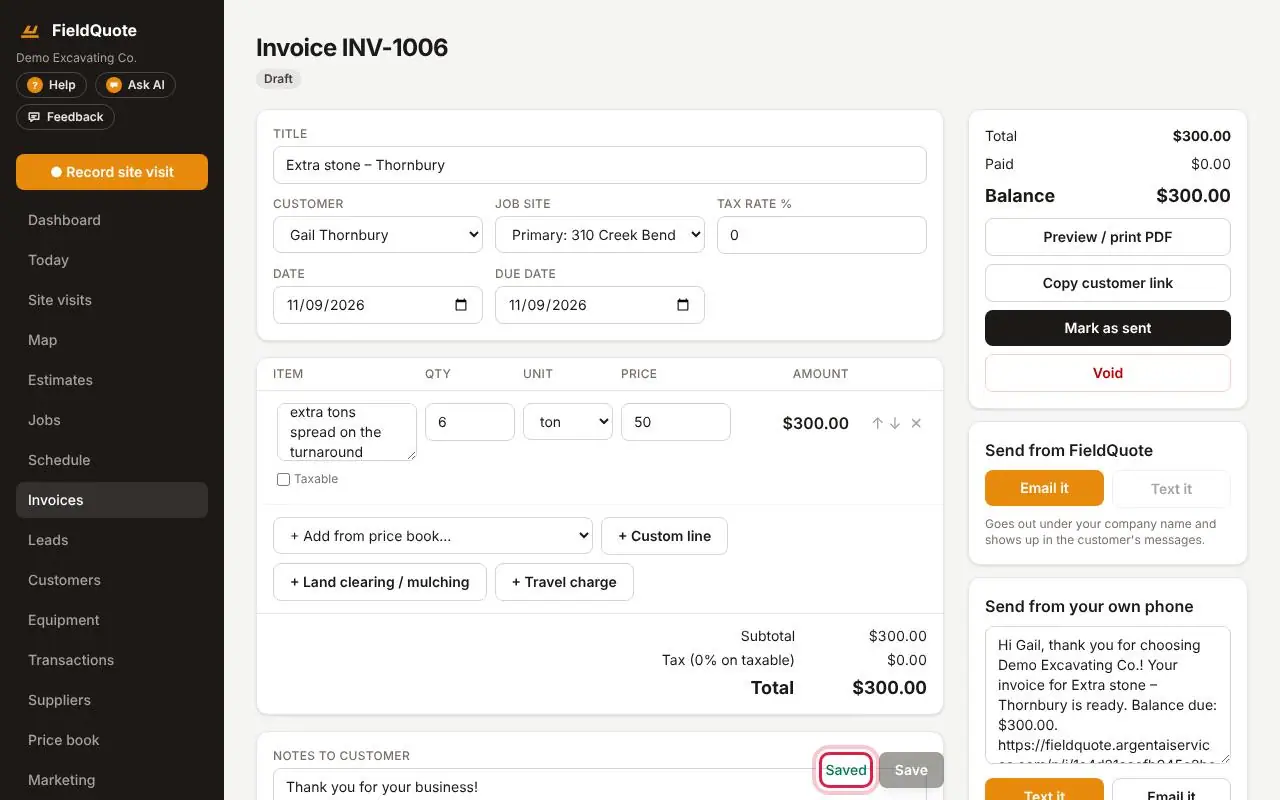
Tap Save.
What you'll see
The invoice on Invoices as Draft until you send it or mark it sent.
Your standard invoice note in Notes to customer.
Common mistakes
Starting a blank invoice for work that had an estimate. Use Convert to invoice on the estimate so the deposit and change orders carry over and the job is linked.
Forgetting to pick a customer. You can pick one on the invoice afterwards, but you can't send it until it has one.
Limits
A blank invoice isn't tied to a job, so it doesn't count toward a job's profit or mark a job complete.
Checked against the app on Nov 9, 2026. Pictures are from Demo Excavating Co., a made-up company.