Invoicing & online payments
Guide 5 of 12
What it's for
Customers ask who do I make the check out to? Answer it once, on every document.
Where
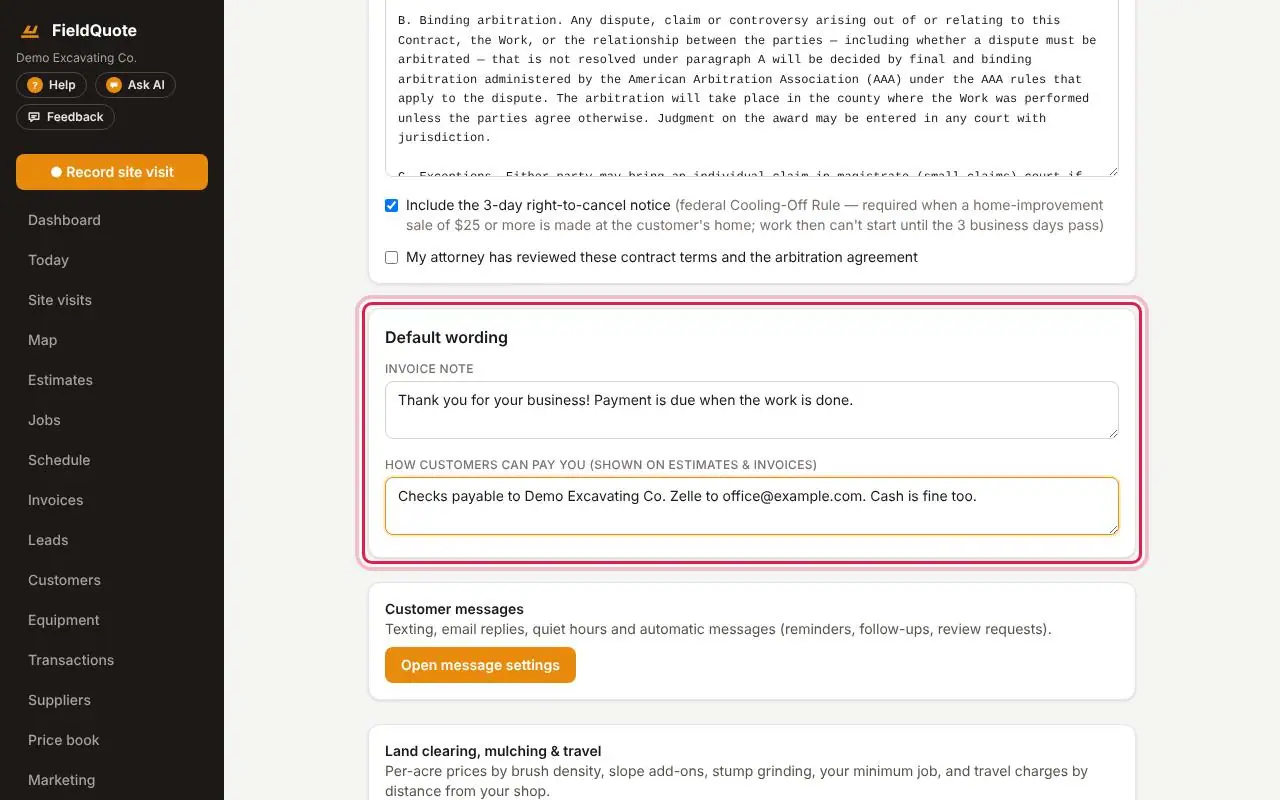
Settings › Default wording.
Watch it
Steps
Fill in How customers can pay you (shown on estimates & invoices): who checks are payable to, your Zelle email or phone, cash. Add an Invoice note if you want the same message on every new invoice.
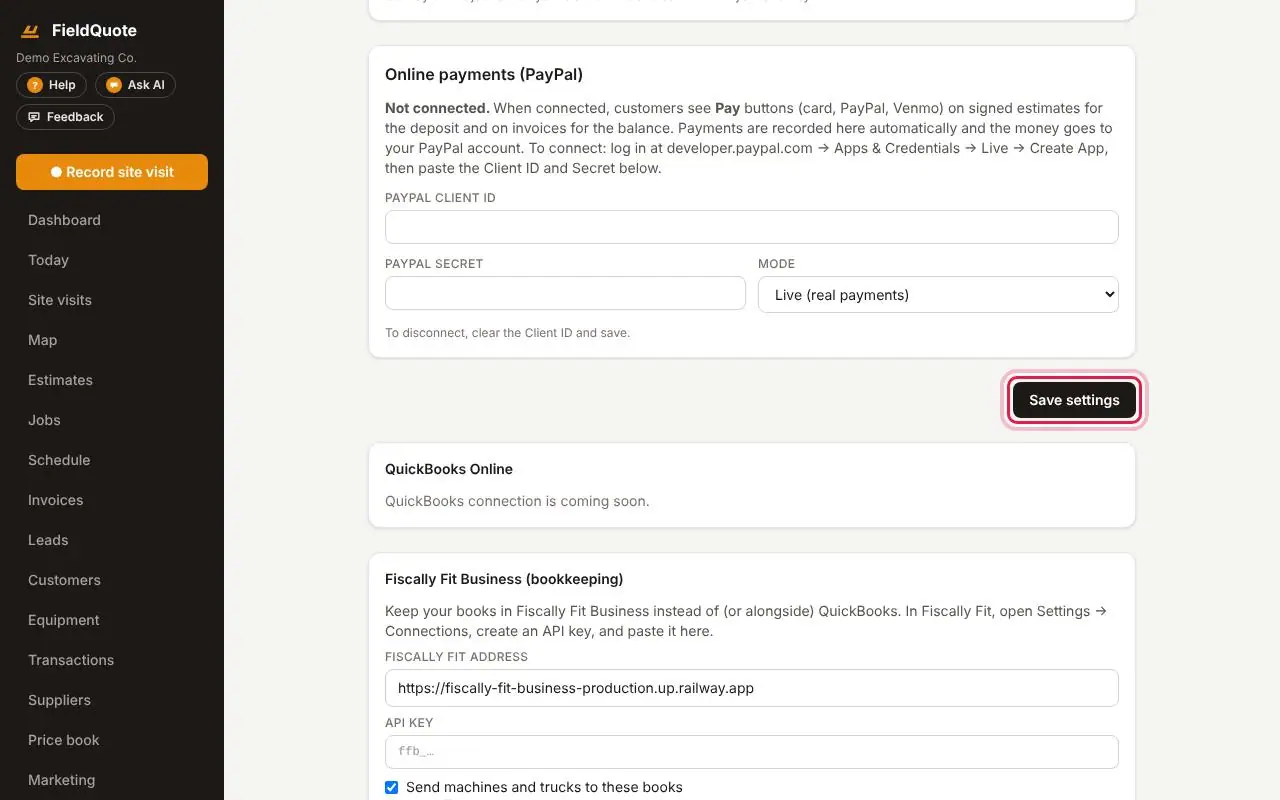
Tap Save settings.
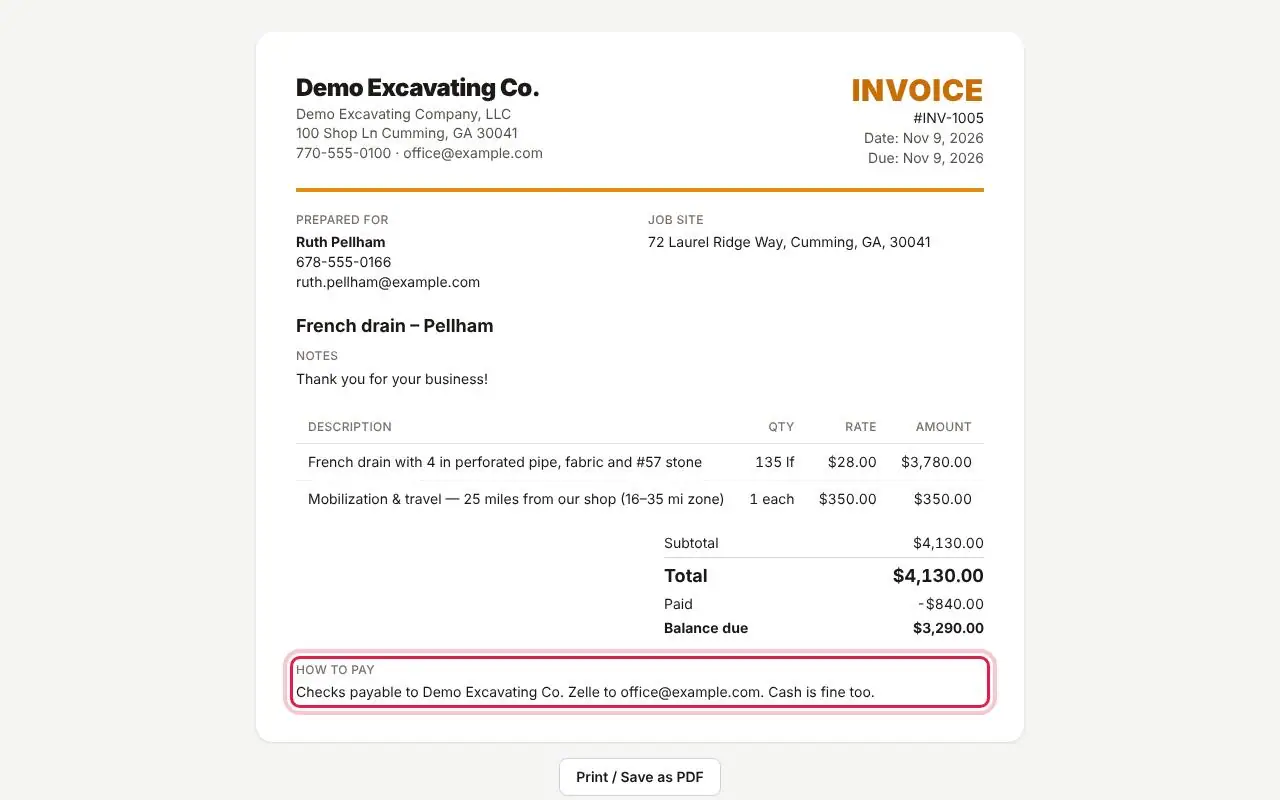
Every estimate and invoice your customers open now shows it under "How to pay".
What you'll see
The payment instructions on every estimate and invoice, old and new, as soon as you save.
The invoice note in Notes to customer on invoices you make from now on.
Common mistakes
Putting bank account numbers here. Anyone with the link can see them; Zelle details are enough.
Expecting the invoice note on old invoices. It's only copied onto new ones; change an old one in its Notes to customer.
Limits
Only the owner or an admin can change this. Team members see Settings grayed out, with "View only. Only the owner or an admin can change this."
One set of instructions for the whole company.
To take cards online, connect PayPal (see Connect PayPal to take payments online).
Checked against the app on Nov 9, 2026. Pictures are from Demo Excavating Co., a made-up company.