Invoicing & online payments
Guide 6 of 12
What it's for
Know exactly what your customer is looking at when they call about the bill.
Where
The link you send (or Preview / print PDF on the invoice).
Watch it
Steps
They open the link. At the top: your company name, address and phone, "Invoice", its number, the date and the due date.
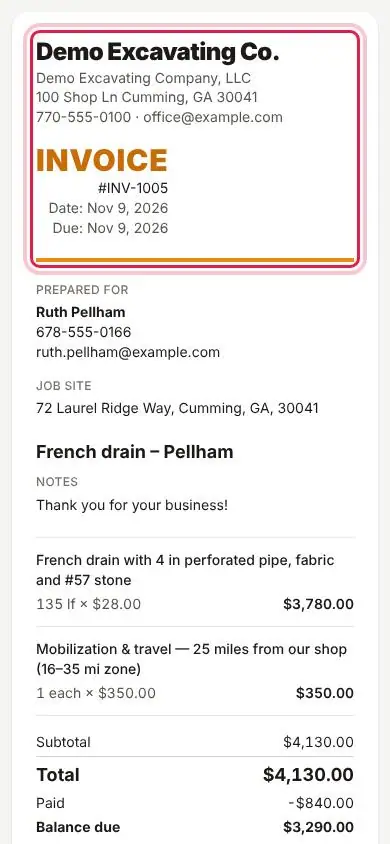
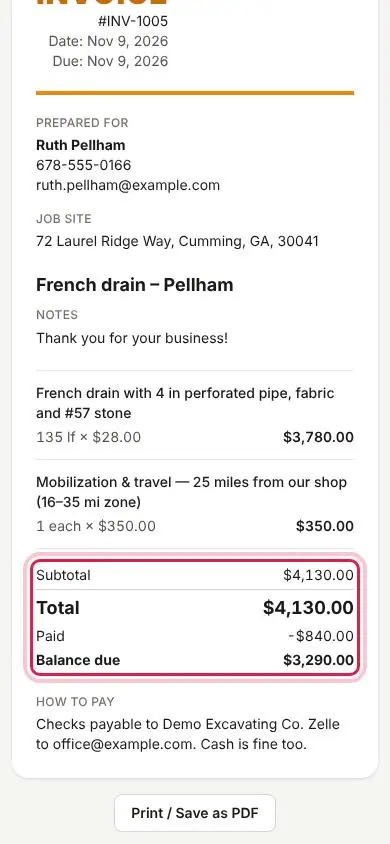
Then who it's for, the job site, the title, your note, each line, and the totals: what's been Paid (deposit included) and the Balance due.
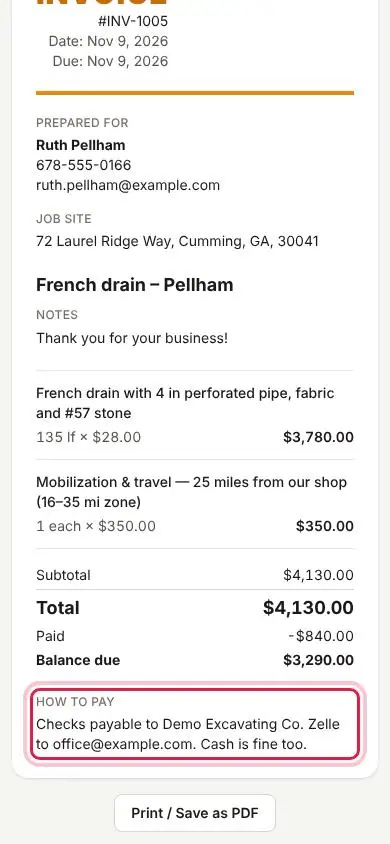
Under "How to pay": your payment instructions.
Print / Save as PDF prints it or saves it as a PDF.
What you'll see
The site map of the job, when there is one.
With PayPal connected and a balance due, a Pay online box (see How a customer pays an invoice online).
Once paid in full: "PAID — thank you!"
Common mistakes
Sending the link to the wrong person. Anyone with the link can open it; there's no sign-in.
A voided invoice's link no longer opens; send the new invoice's link.
Limits
The note from Notes to customer shows under the heading "Notes".
Your own notes and costs are never shown.
Checked against the app on Nov 9, 2026. Pictures are from Demo Excavating Co., a made-up company.