Invoicing & online payments
Guide 11 of 12
What it's for
Let customers leave a review by pointing their phone camera at your truck or card, without typing anything.
Where
Settings › Jobs, 811 tickets & reviews.
Watch it
Steps
Paste Your Google review link (Google Business Profile › "Ask for reviews" › copy the link) and tap Save settings.
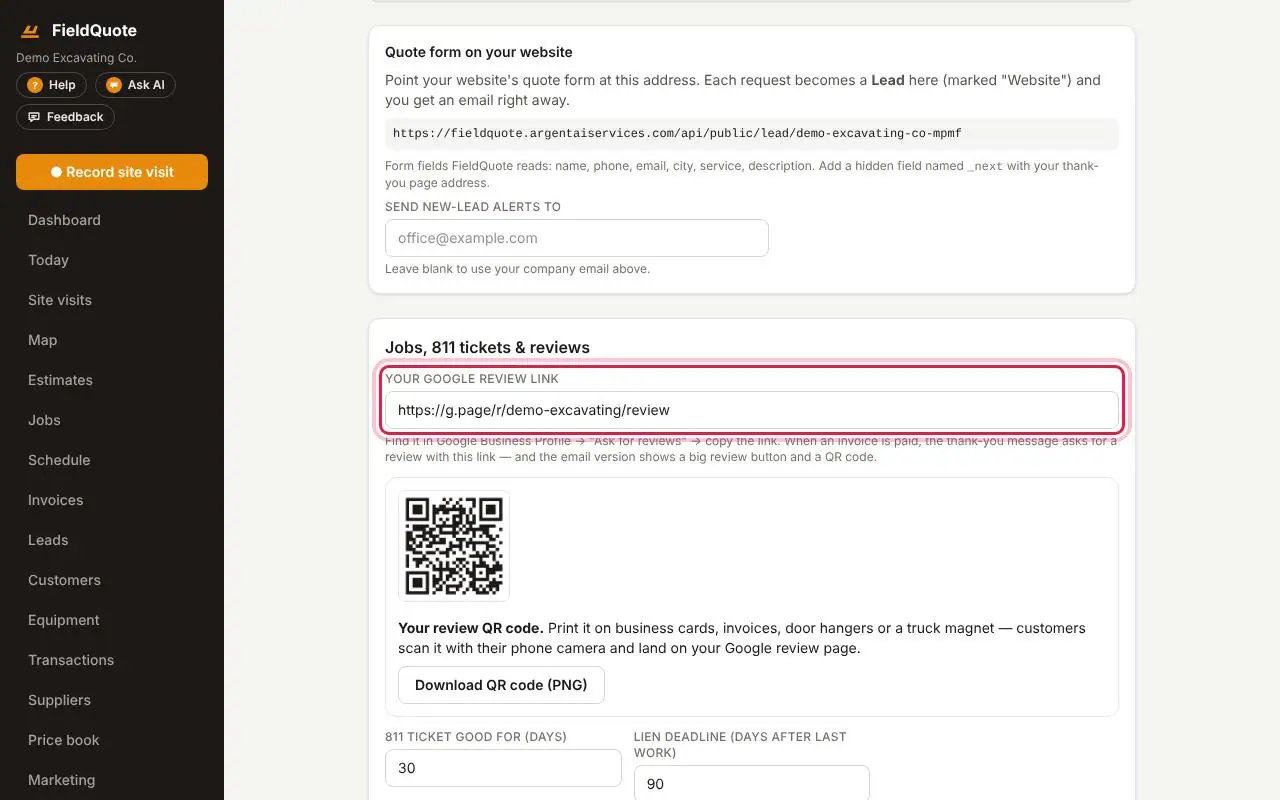
"Your review QR code." appears with the code. Tap Download QR code (PNG) and send the picture to your printer or sign shop.
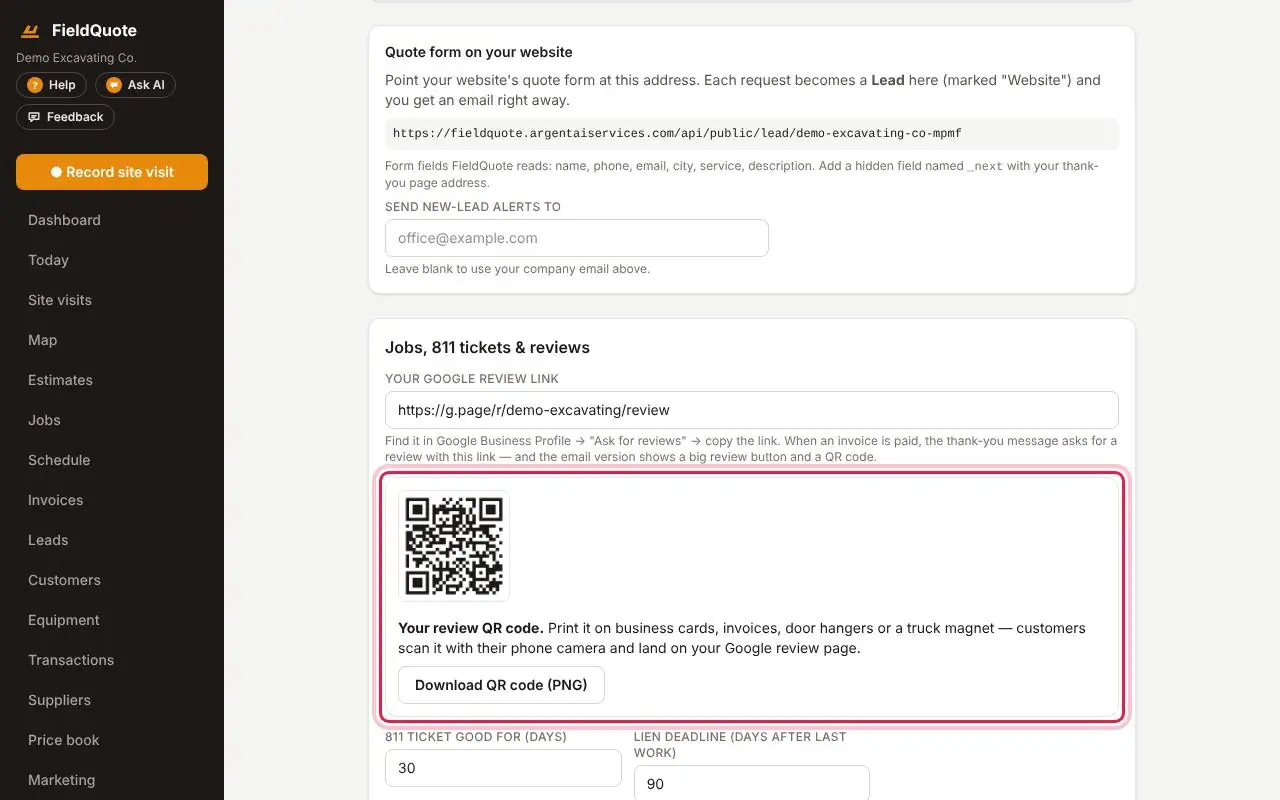
What you'll see
A PNG picture named google-review-qr.png.
The same QR code in the thank-you email FieldQuote sends when an invoice is paid (when that message is on).
Common mistakes
A link that doesn't start with
https://. The QR code only shows for a full web address.Printing the code very small. Keep it at least about an inch wide so phones can read it.
Limits
Only the owner or an admin can add or change Your Google review link. Anyone can download the QR code once it's there.
The code opens whatever link is saved; if you change the link, download and print the code again.
Checked against the app on Nov 9, 2026. Pictures are from Demo Excavating Co., a made-up company.