Jobs, scheduling, weather, 811 tickets & lien deadlines
Guide 3 of 14
What it's for
See at a glance who's where this week, which machine is on which job, and what's coming next month.
Where
Schedule in the menu.
Watch it
Steps
Tap Schedule.
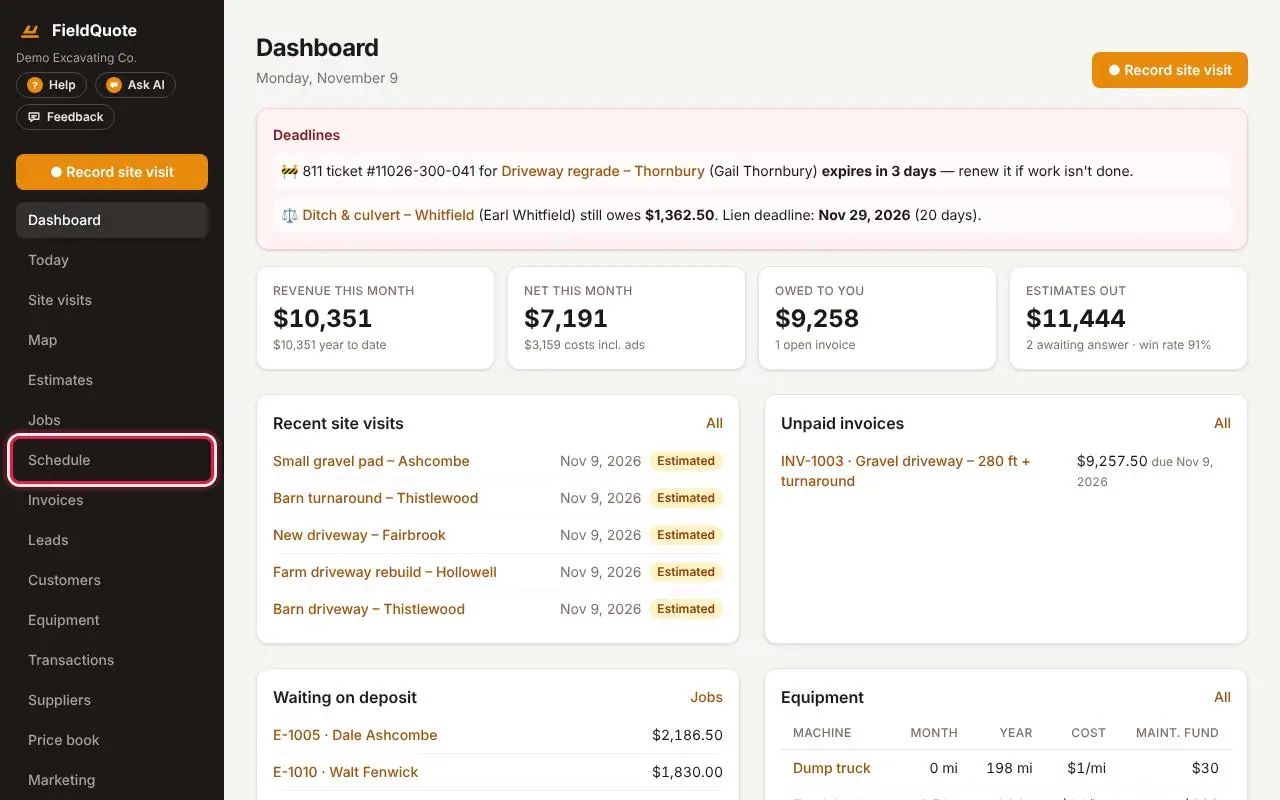
The week, Monday to Sunday, with today highlighted. Each job shows its start time, customer, address, crew and machines, on every day from its start to its finish.
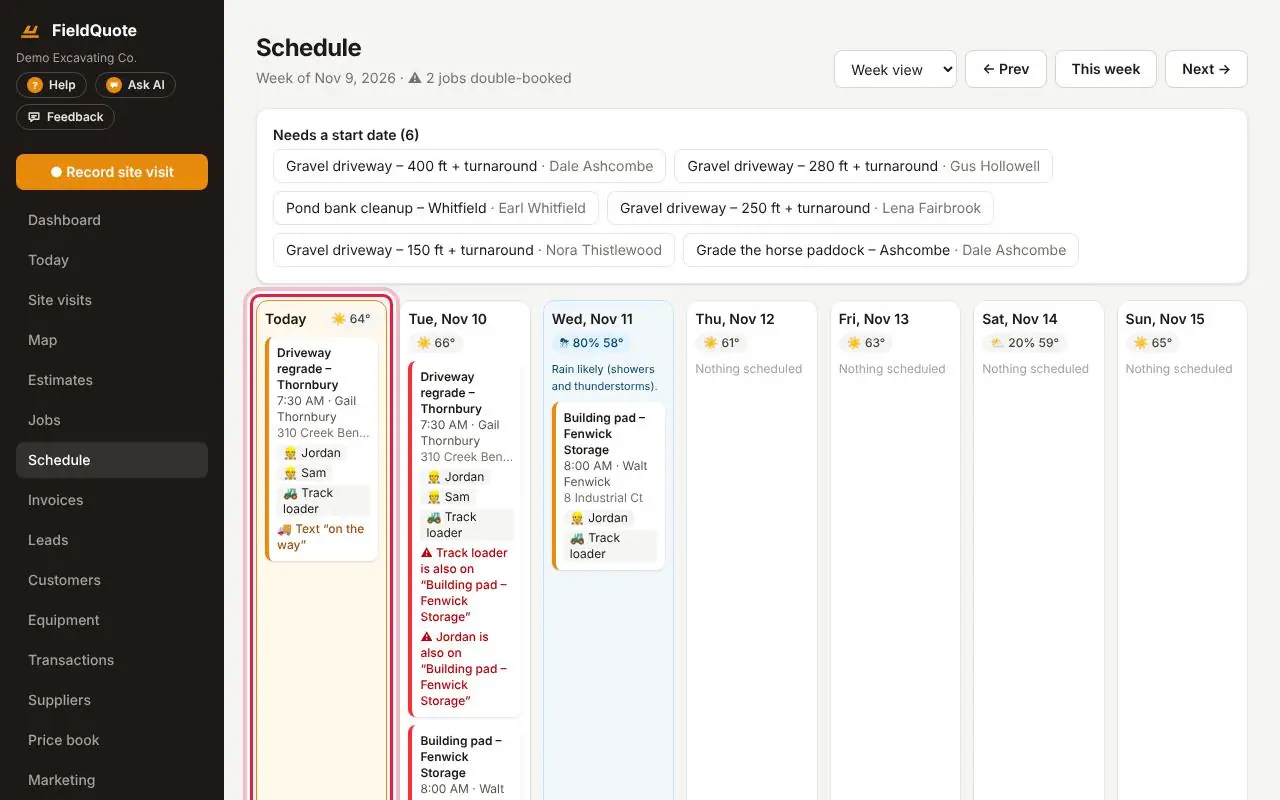
Use ← Prev, This week and Next → to move between weeks.
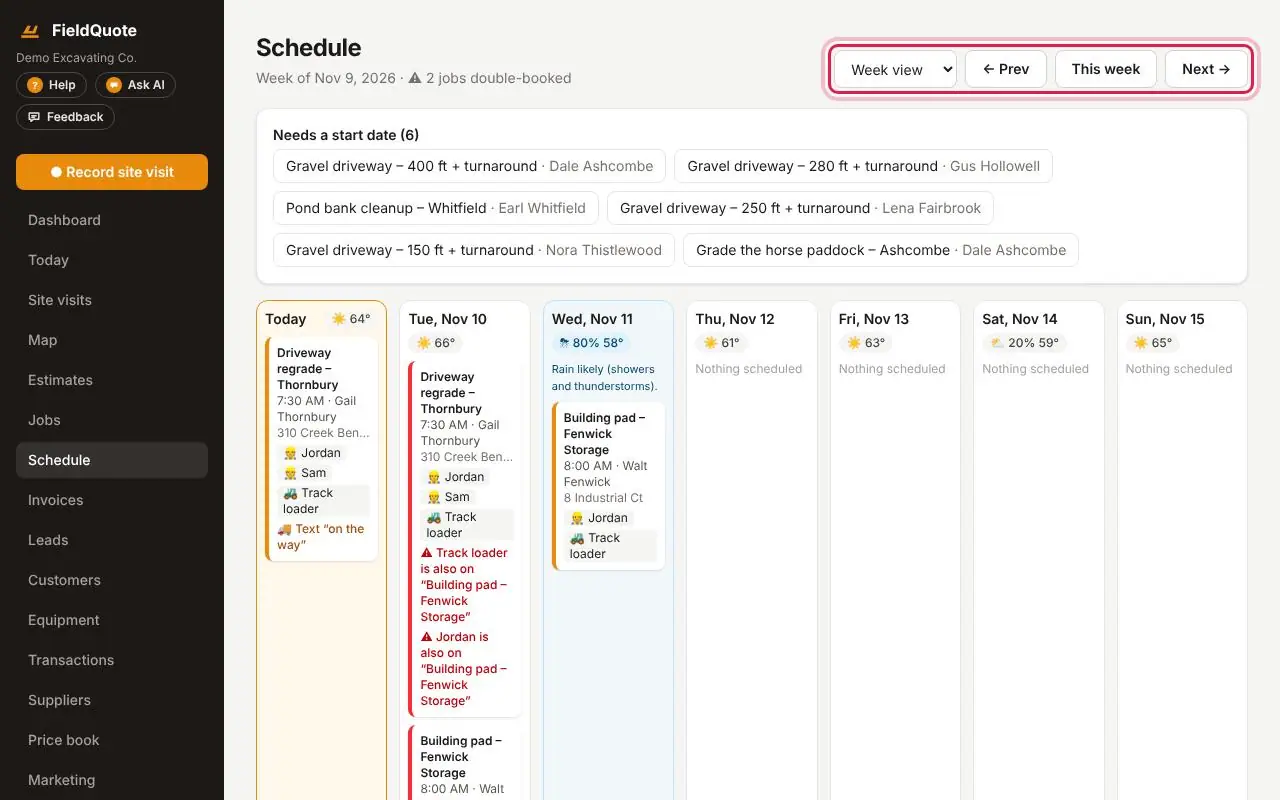
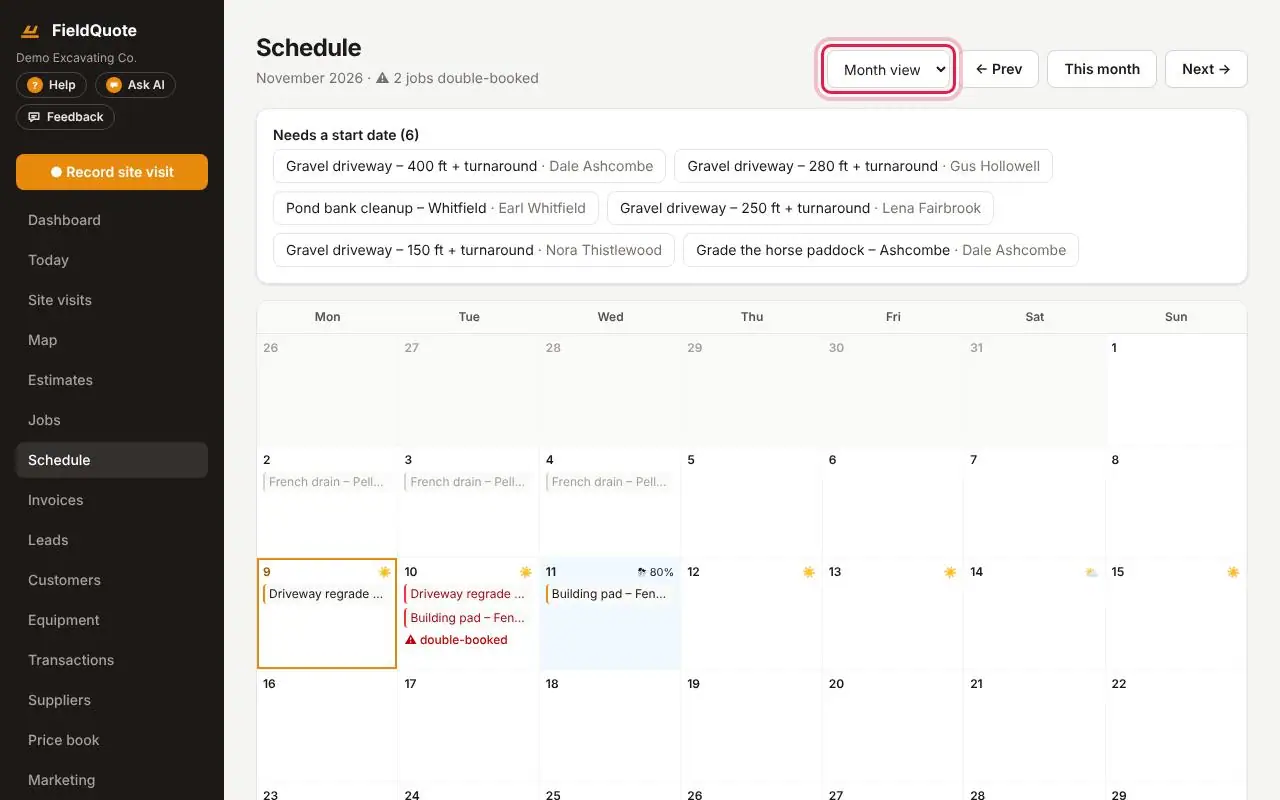
Jobs without a start date are listed under Needs a start date. Tap one to give it dates.
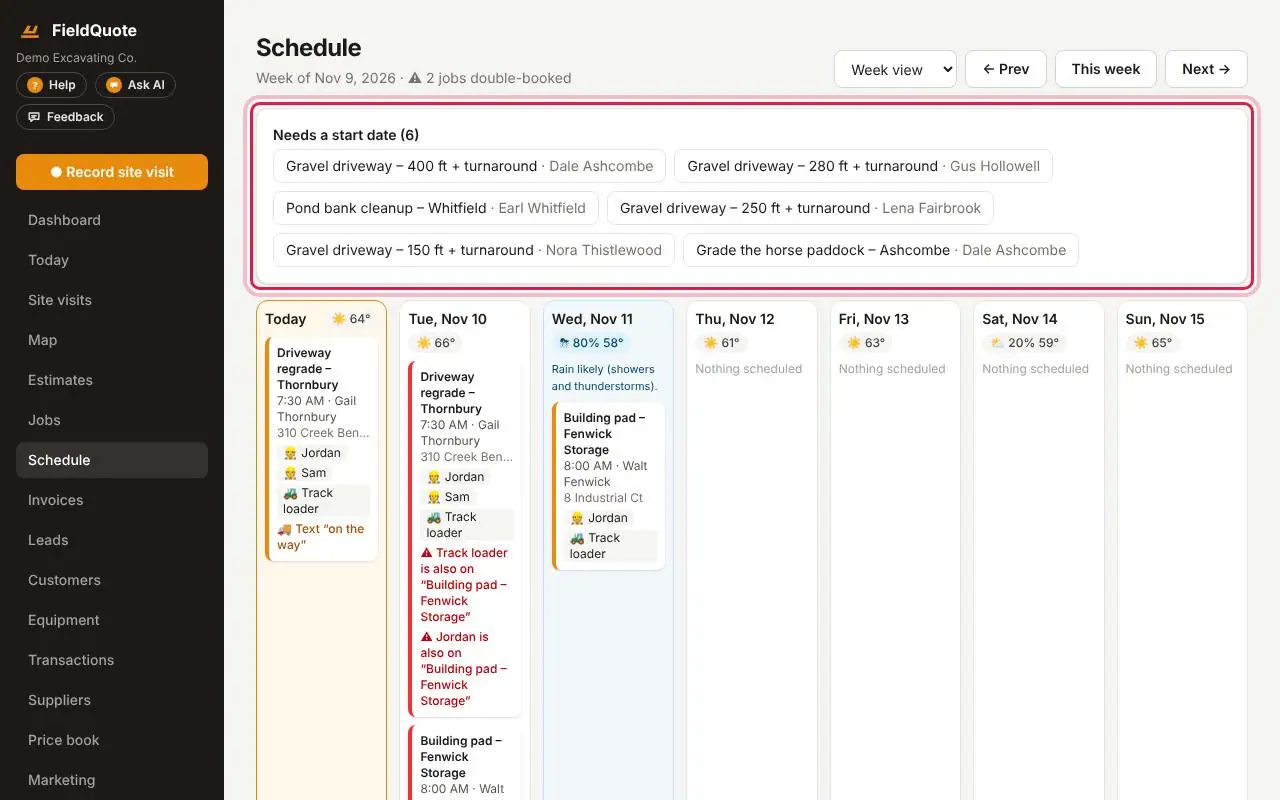
Pick Month view in the view menu to see the whole month. Tap a day to open that week.
What you'll see
Each day's weather from the National Weather Service; days where rain is likely are shaded.
"No crew or machines assigned" on jobs nobody's on yet, and red warnings when someone or something is double-booked.
Finished jobs in grey; past days faded.
In the month view, up to three jobs a day ("+… more" for the rest) and "⚠ double-booked".
Common mistakes
Looking for canceled jobs. They're left off the schedule.
Trying to drag jobs to a new day. Change the dates on the job's Schedule box, or use Rain day… to push everything back.
Limits
On a phone the month view shows how many jobs are on each day; tap the day for the details.
The rain-day button and crew details are only on the week view.
Checked against the app on Nov 9, 2026. Pictures are from Demo Excavating Co., a made-up company.