Marketing, leads & ad spend
Guide 5 of 11
What it's for
Lead-form ads collect a name and phone right inside Google or Facebook. Connecting them means you see each lead in FieldQuote within seconds, tied to the campaign that paid for it, so you can call while they're still at the phone.
Where
Marketing › Get ad leads in automatically (on the right). Only the owner or an admin sees the address, the key and the links.
Watch it
Steps
Open Marketing. Get ad leads in automatically has the steps for Google Ads lead forms and for Facebook & Instagram lead ads.
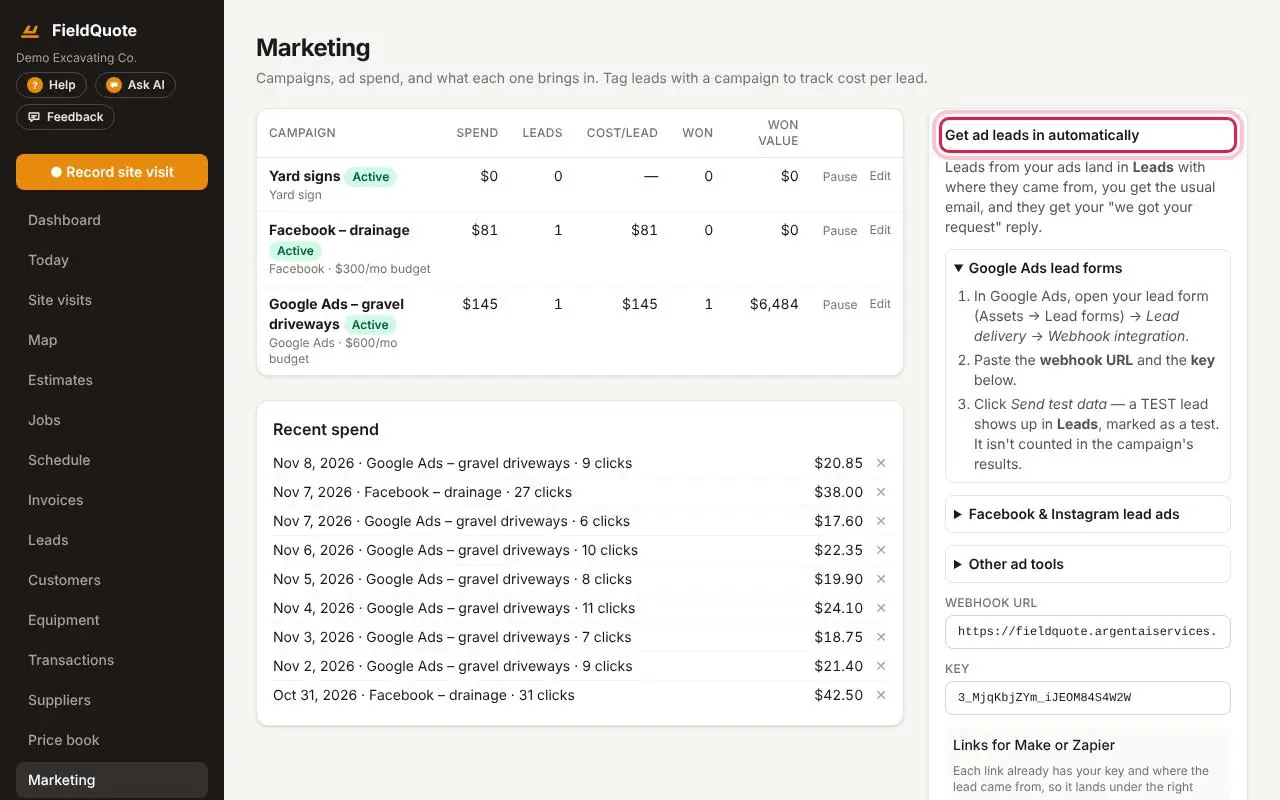
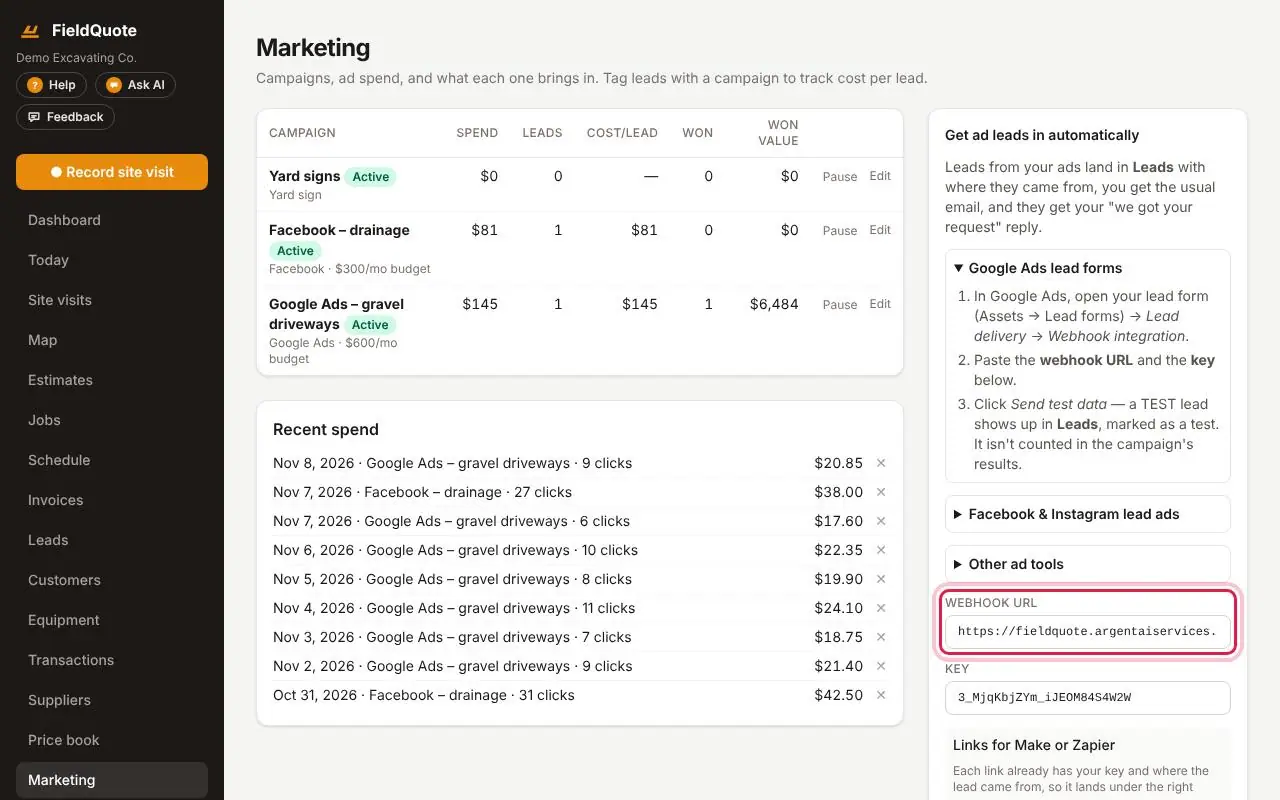
For Google Ads: in Google Ads open your lead form, then Lead delivery › Webhook integration. Copy the Webhook URL and the Key from FieldQuote into it.
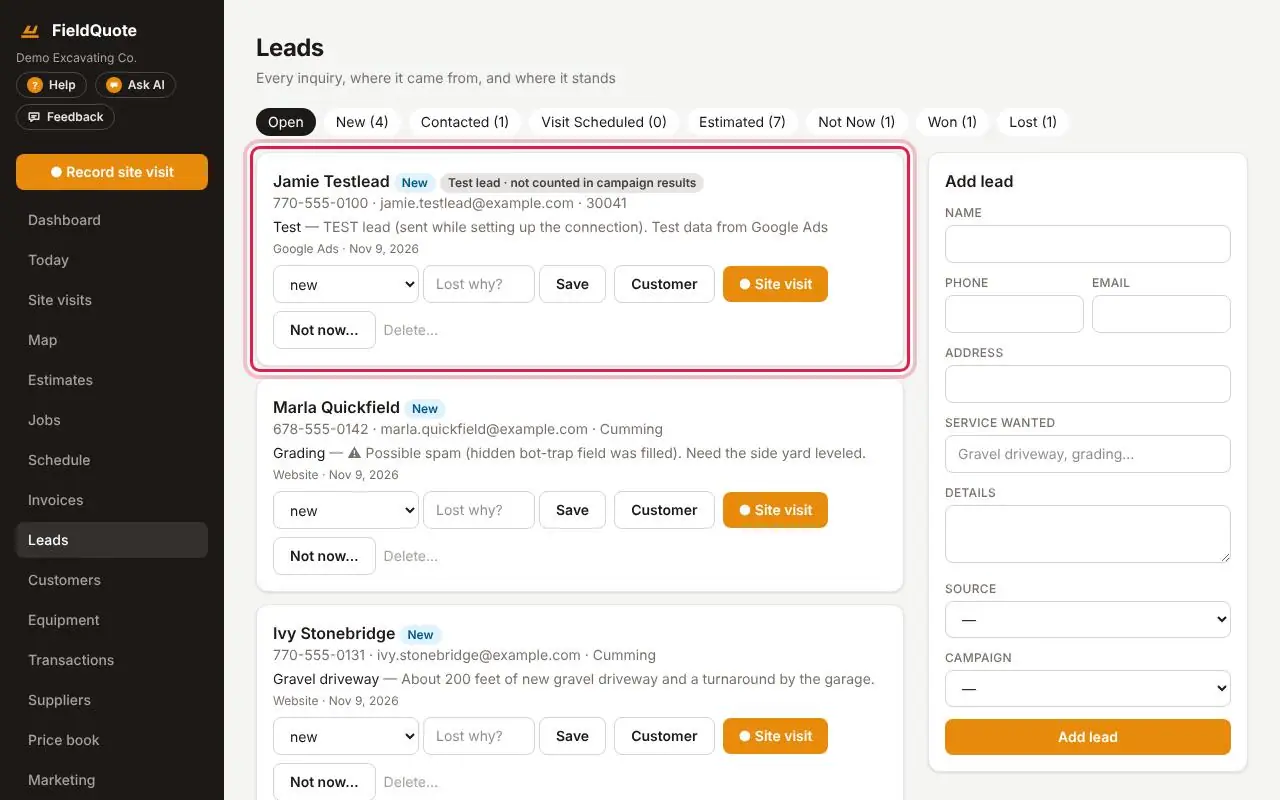
In Google Ads, click Send test data. A test lead shows on Leads with Google Ads as its source, a "Test lead · not counted in campaign results" tag, and a note at the top of its details that it's a test.
For Facebook and Instagram: open Facebook & Instagram lead ads. In Make.com or Zapier, start with Facebook Lead Ads › New lead, then send the lead to FieldQuote with an HTTP or webhook step.
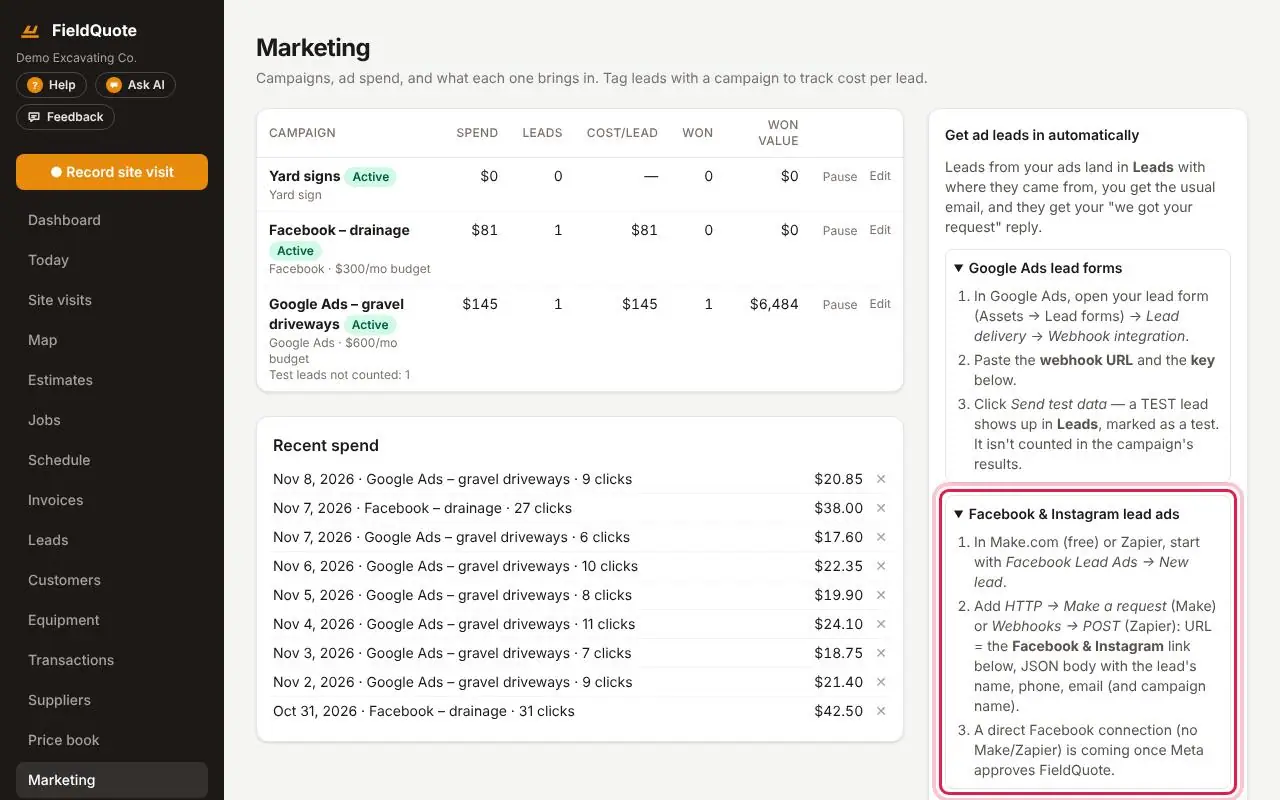
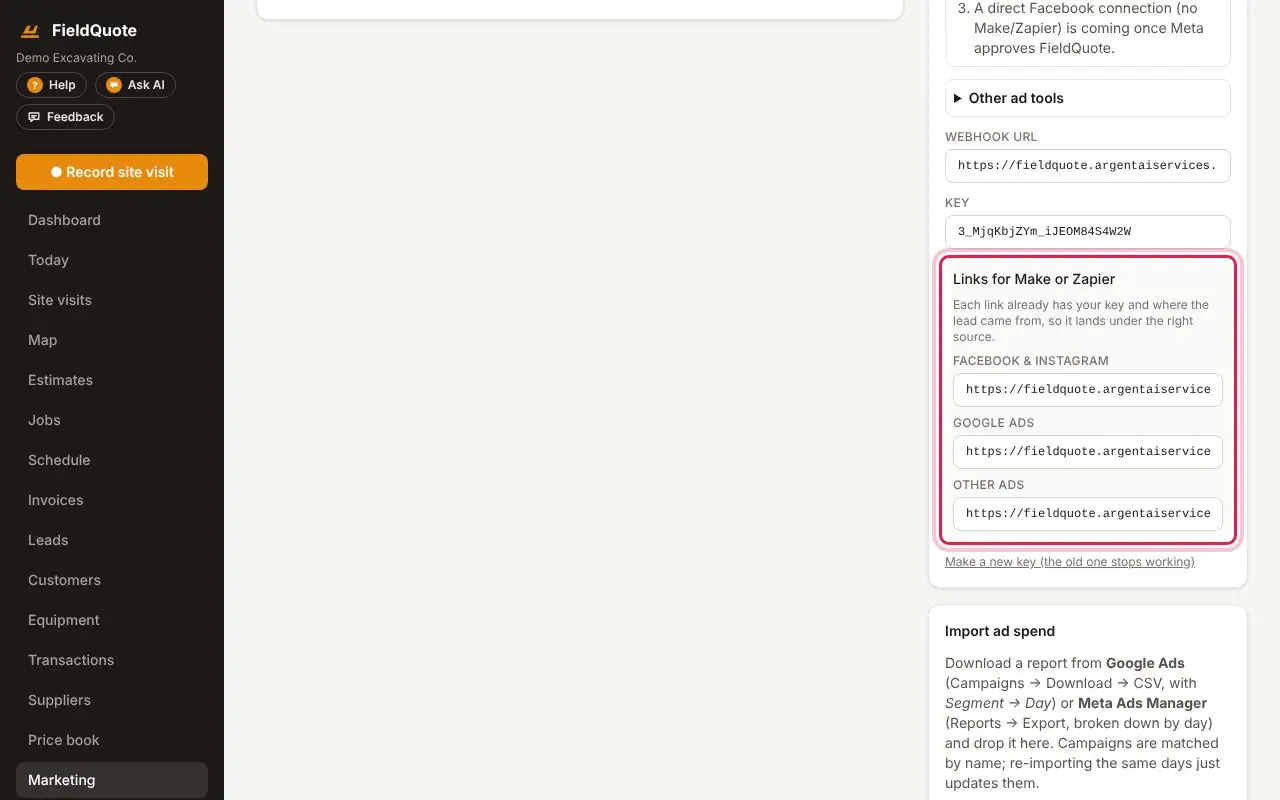
Under Links for Make or Zapier, copy the Facebook & Instagram link and use it as the address. Send the lead's name, phone, email and campaign name. The link already has your key and says the lead came from Facebook, so it lands under Facebook (or Instagram, when Make or Zapier passes along that it came from Instagram). Sending Google Ads leads or other ads through Make or Zapier? Use the Google Ads or Other ads link the same way.
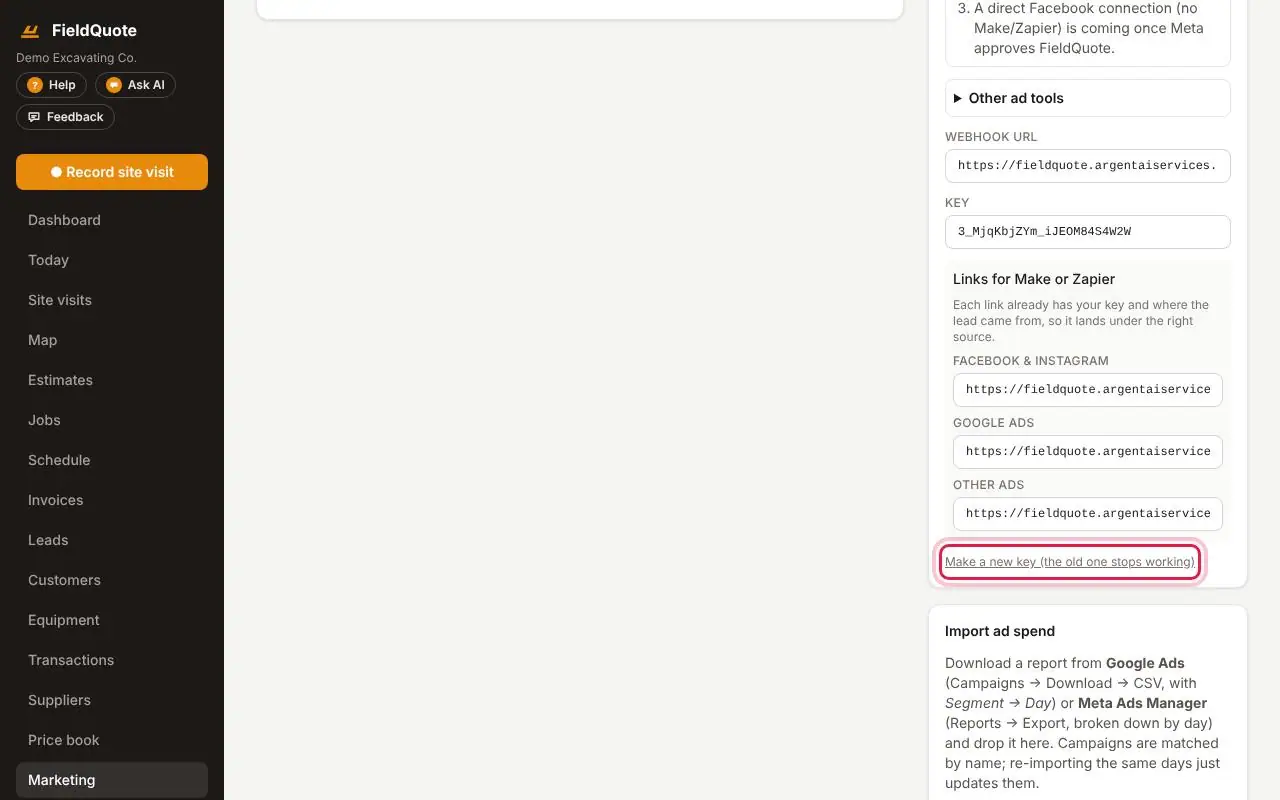
If the key ever gets out, tap Make a new key (the old one stops working) and paste the new one into Google Ads and Make or Zapier.
What you'll see
Each ad lead on Leads with its source, the date, and anything extra the form asked in its details.
It's tied to a campaign: the one named in the lead (Make or Zapier can send the campaign name), or else your only active campaign on that channel. The campaign name shows once at the end of its details.
A test lead is tied to its campaign too, so you can see where real leads will go, but it isn't counted: the campaign's line on Marketing says "Test leads not counted: …", and the Dashboard leaves it out of Where jobs come from.
An email to your lead-alert address headed with where it came from, and your automatic "we got your request" reply by email if it's switched on (test leads don't get one).
Common mistakes
Using an old full link without
&source=on the end, from before the ready links. It still works and the lead still gets its campaign, but a lead sent as plain name, phone and email shows as Other. Swap in the Facebook & Instagram link.Two active campaigns on the same channel and no campaign name sent. FieldQuote can't tell which one it was, so the lead has no campaign. Send the campaign name, or pause the old campaign.
Worrying about the test lead. It doesn't count in the campaign's leads or cost per lead; delete it on Leads whenever you like.
Making a new key and not updating Google Ads, Make or Zapier. Leads are turned away until the new key (or a new link) is pasted in. The links show the new key right away.
Limits
A lead needs a name and a phone number or email, or it's turned away.
A direct Facebook connection without Make or Zapier isn't available yet.
Team members see "Ask the owner or an admin for the webhook link and key." instead of the address, key and links.
Checked against the app on Nov 9, 2026. Pictures are from Demo Excavating Co., a made-up company.