Site visits, recording & AI write-ups
Guide 2 of 14
What it's for
A recording nobody can hear makes a useless estimate. Before you walk the job, make sure FieldQuote is using the right microphone and actually hearing you.
Where
Site visits › Record site visit, on the Record tab.
Watch it
Steps
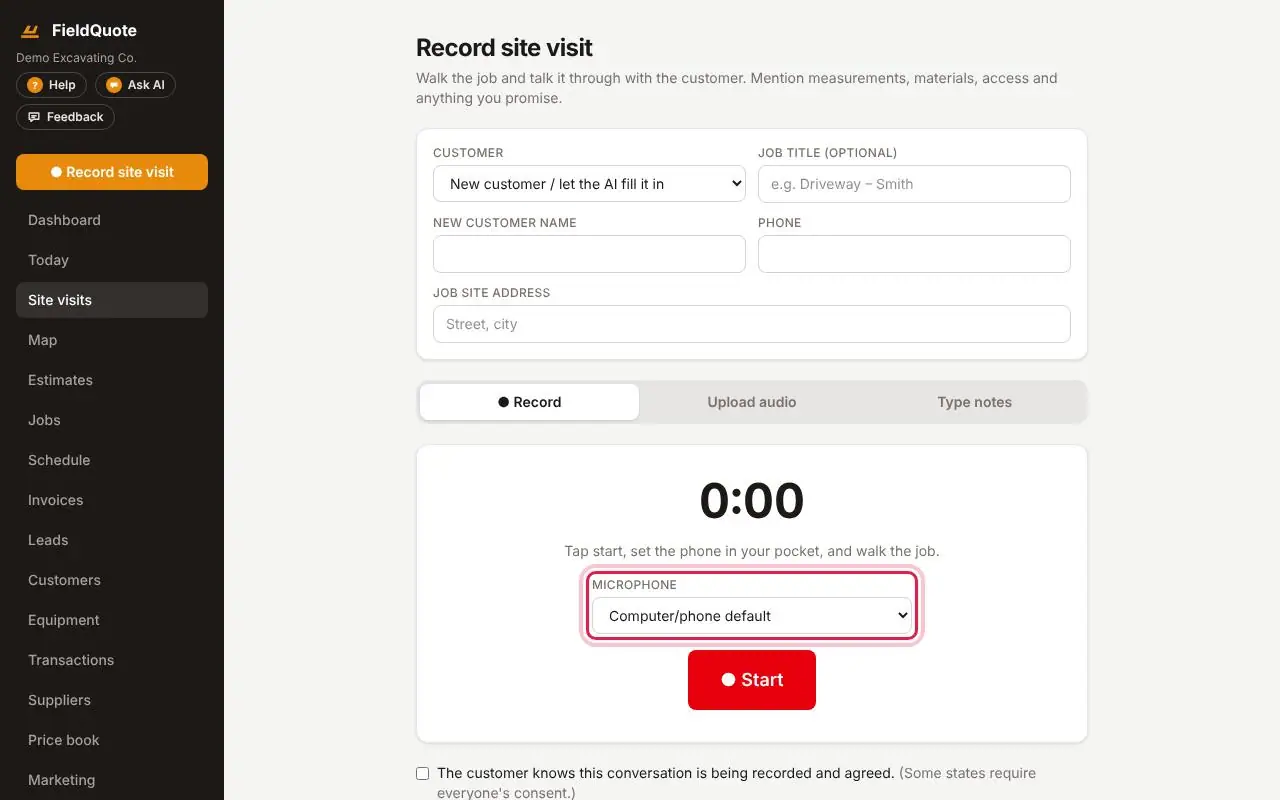
If your phone or computer has more than one microphone (for example a plug-in or wireless mic), pick it under Microphone before you start. FieldQuote remembers your choice on that device. The list only shows when there's more than one microphone.
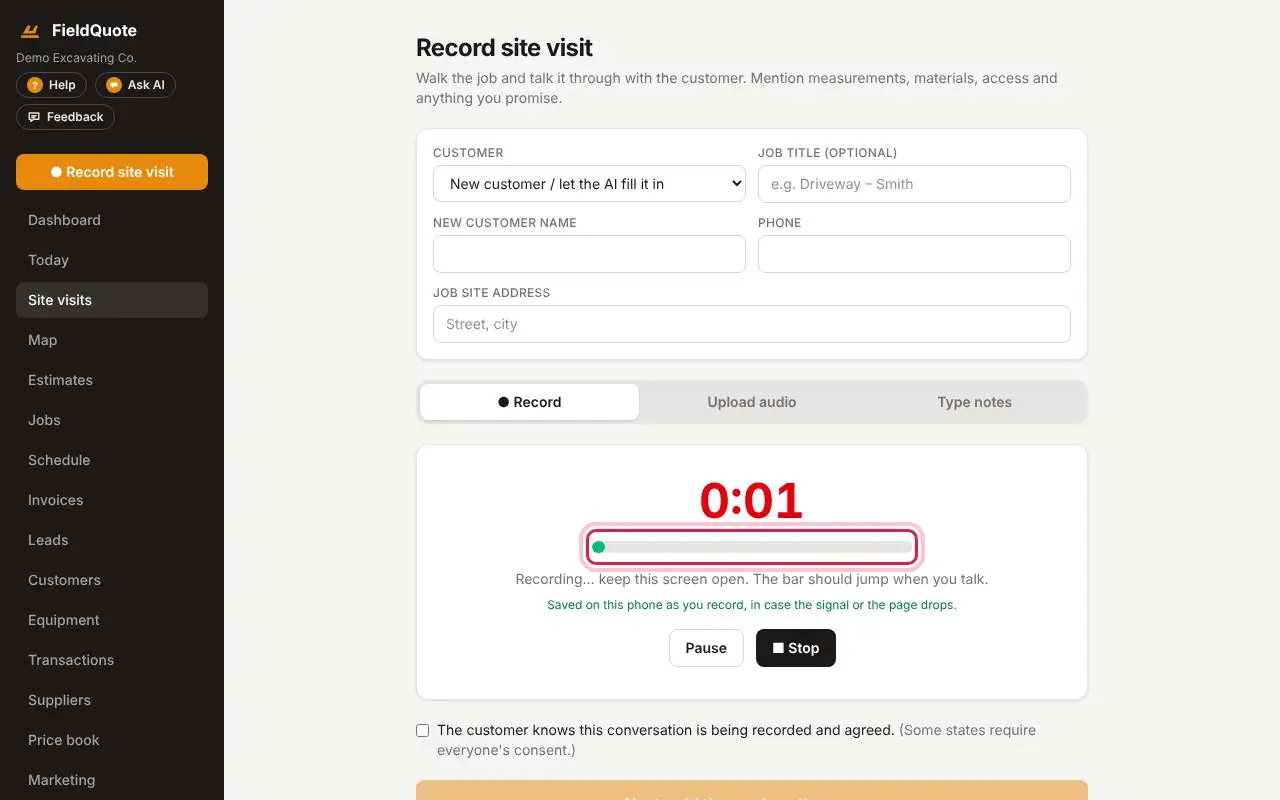
Tap Start and talk. Watch the bar under the timer. It should jump when you talk. If it stays flat, the microphone isn't hearing you.
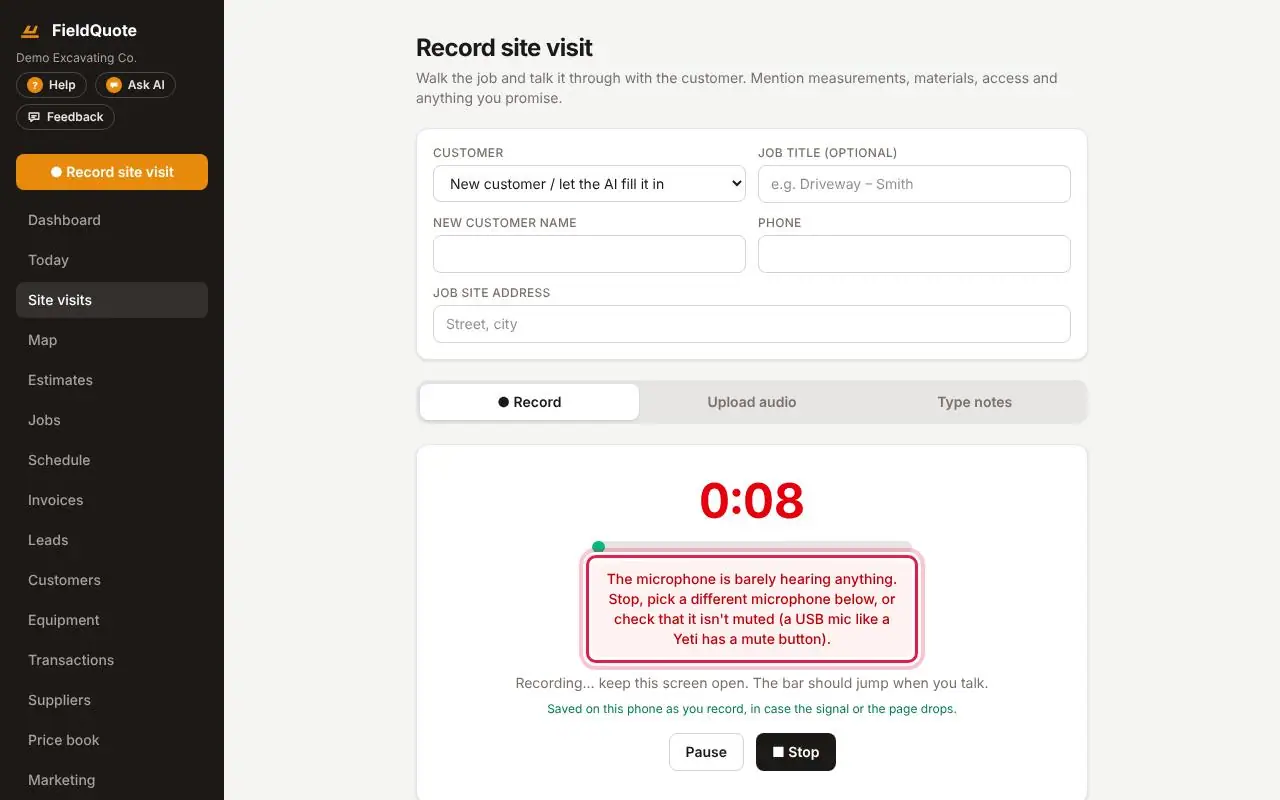
If it hears almost nothing for the first few seconds, a red warning shows: "The microphone is barely hearing anything." Check that the mic isn't muted (some plug-in mics have a mute button), or pick a different one.
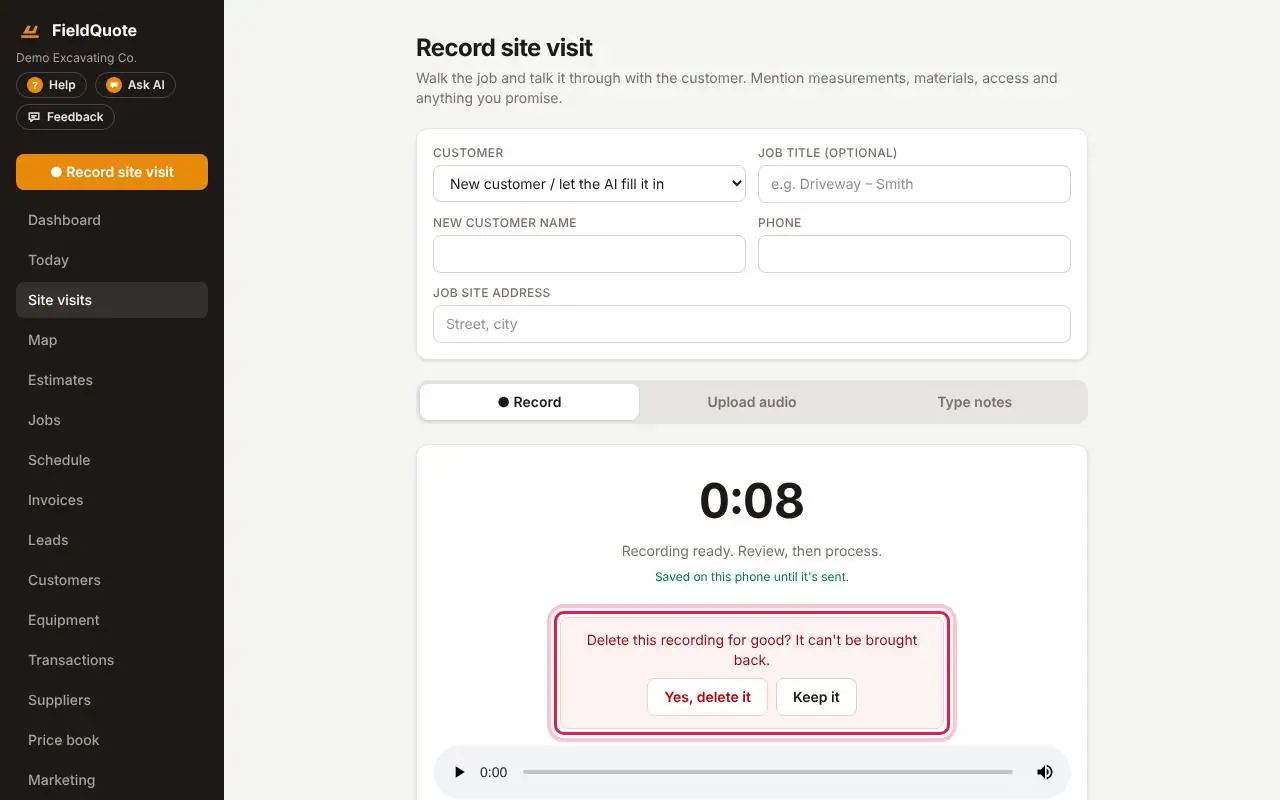
To start over, tap Stop, then Discard & re-record, then Yes, delete it. Pick another microphone and tap Start again.
What you'll see
The timer turns red while it records.
"Recording… keep this screen open. The bar should jump when you talk."
The warning shows about 8 seconds in if the bar has barely moved.
If the browser isn't allowed to use the microphone, you'll see "Microphone not available. Allow microphone access, or upload a file instead."
Common mistakes
Starting before picking the microphone. The choice can only be changed before you tap Start.
Deleting a recording you wanted. Yes, delete it removes it for good. Tap Keep it if you're not sure.
Ignoring the red warning. A recording that's too quiet comes back with no words, and nothing gets built.
Limits
The bar only shows that sound is coming in. It can't tell if the words are clear. Hold the phone toward whoever is talking, out of the wind.
If the browser was never allowed to use the microphone, fix that in the phone's or browser's settings, or use Upload audio or Type notes instead.
Checked against the app on Nov 8, 2026. Pictures are from Demo Excavating Co., a made-up company.