Site visits, recording & AI write-ups
Guide 1 of 14
What it's for
Record the conversation while you walk the job with the customer. Say the measurements and materials out loud. FieldQuote types up the conversation, writes a summary of the visit and drafts an estimate from your price book.
Where
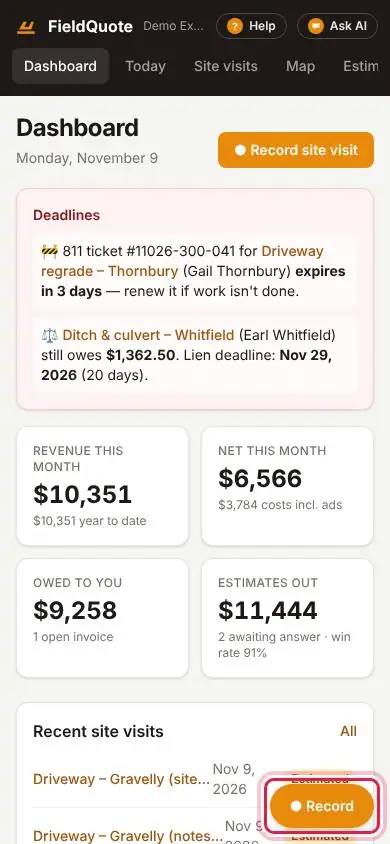
On a phone: the round Record button in the bottom-right corner of most screens.
On a computer: Record site visit at the top of the menu, or Site visits › Record site visit.
Watch it
Steps
Tap Record. The Record site visit page opens.
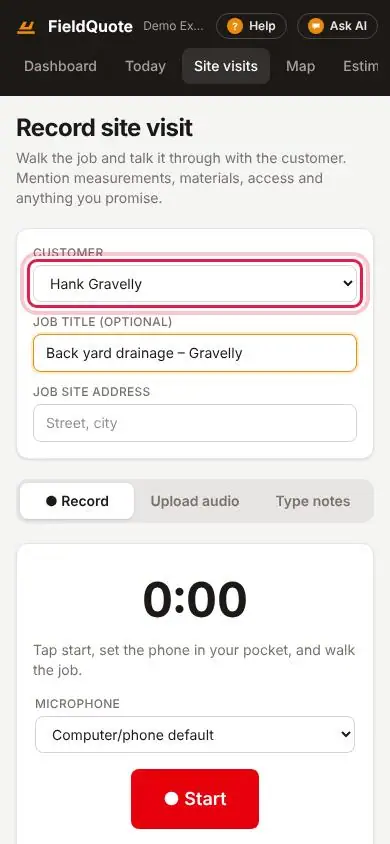
Under Customer, pick the customer. For someone new, leave New customer / let the AI fill it in and fill in New customer name and Phone. You can also add a Job title (optional) and the Job site address.
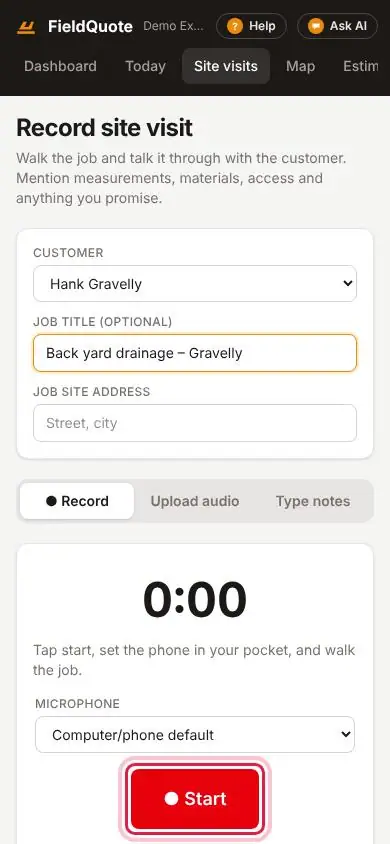
Leave the Record tab picked and tap Start. If the phone asks to use the microphone, allow it.
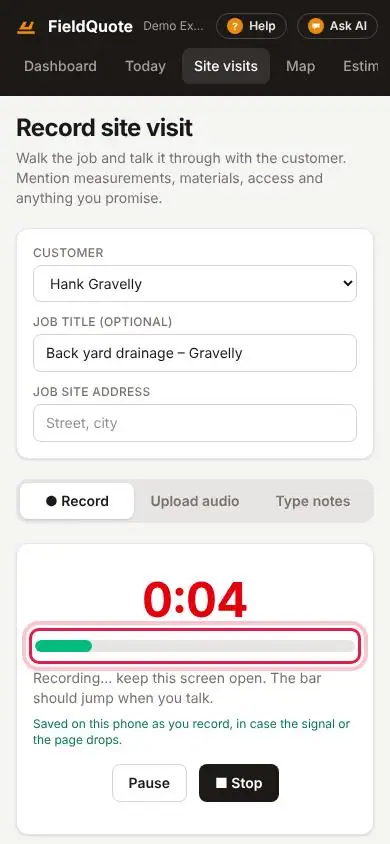
Walk the job and talk. The timer counts up and the green bar jumps when someone talks. Tap Pause to stop for a minute and Resume to keep going.
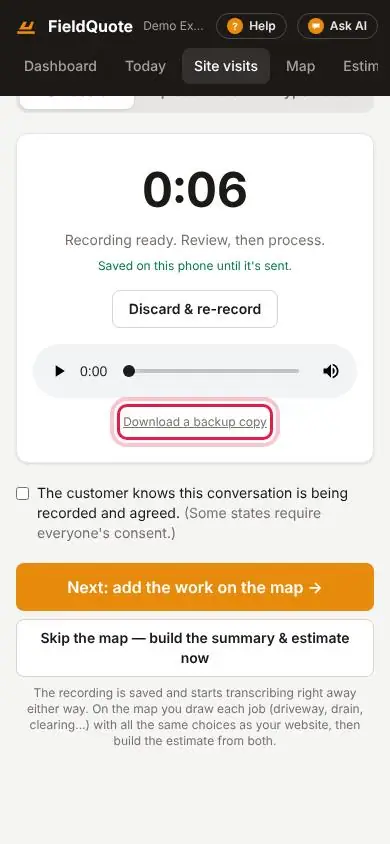
Tap Stop when you're done. You can play it back, and a Download a backup copy link shows up.
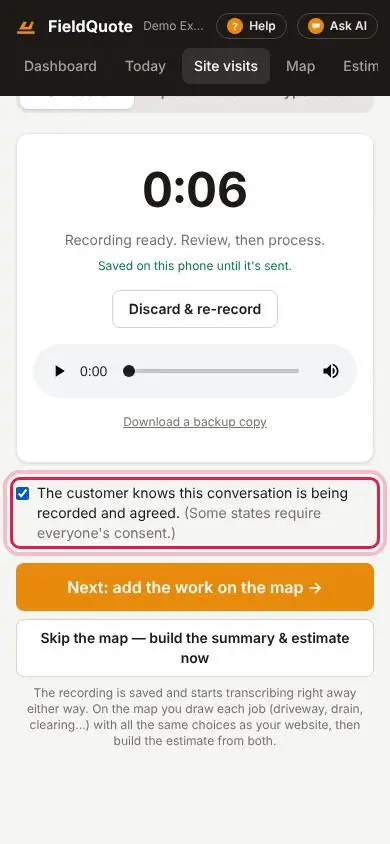
Check the box that says the customer knows the conversation is being recorded and agreed.
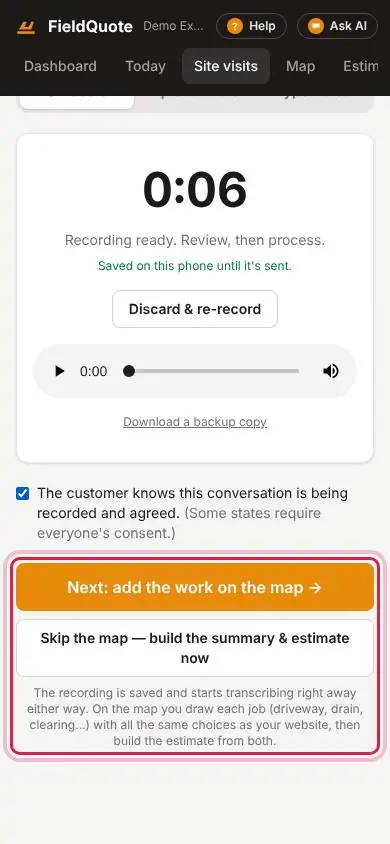
Pick what happens next: Next: add the work on the map to draw the job on the map first, or Skip the map — build the summary & estimate now.
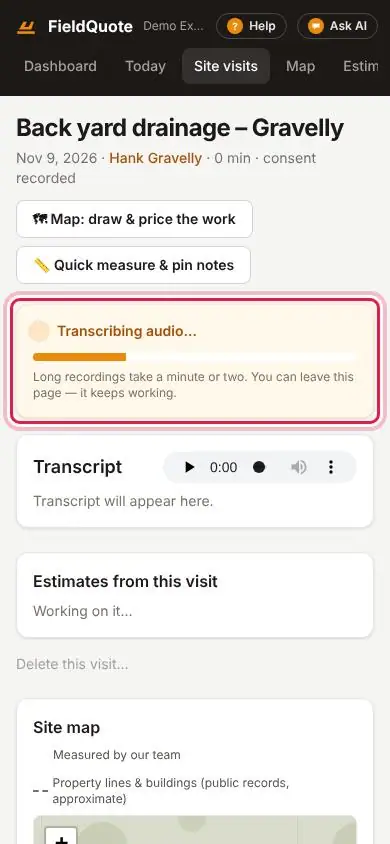
The recording is sent and the visit page opens. A bar shows what it's working on.
When it's done, tap Open estimate at the top to check the draft.
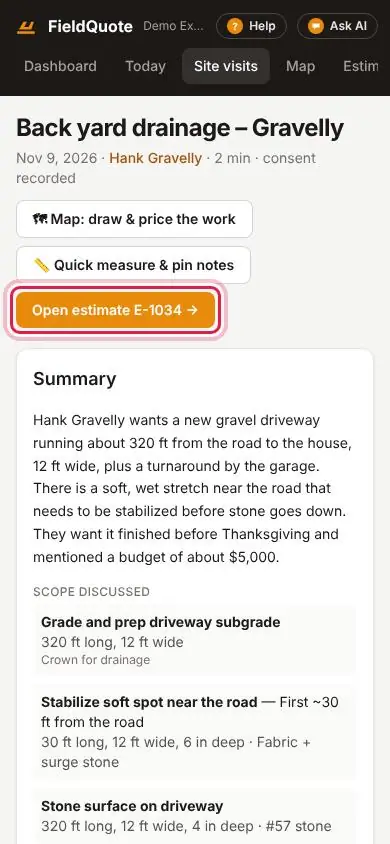
What you'll see
While it sends: "Sending…" with a percent. If you lose signal it keeps the recording on the phone and keeps trying.
On the visit page the bar moves through "Transcribing audio…", "Summarizing the conversation…" and "Building the line-item estimate…". You can leave the page. It keeps working.
When it's done: the Summary, the Transcript with each speaker labeled, a Site sketch, and the draft estimate under Estimates from this visit.
The top of the visit shows the date, the customer, how long it was, and "consent recorded".
Common mistakes
Locking the phone. Most phones stop recording when the screen locks or you switch apps. FieldQuote asks the phone to keep the screen on. Keep the app open while you walk.
Forgetting the consent box. You'll see "Confirm the customer agreed to be recorded." Check the box and send again.
Typing the address again for a customer who already has a job site. That adds a second job site. Leave Job site address blank to use the one on file.
Not saying the numbers. The estimate is only as good as what was said. Say lengths, widths, depths and materials out loud, like the driveway is about 250 feet long and 12 feet wide, four inches of 57 stone.
Trying to send while it's still recording. The two buttons at the bottom don't work until you tap Stop.
Limits
It does not record while the screen is locked on most phones.
A recording can be up to 250 MB, about 9 hours. Longer walks: record in parts, or type notes.
Typing up the recording and writing the estimate need your FieldQuote subscription to be active.
The estimate is a draft. Check every line before you send it.
Checked against the app on Nov 8, 2026. Pictures are from Demo Excavating Co., a made-up company.