Team, accounts & security
Guide 10 of 14
What it's for
Backup codes are your way in without your phone. Get a fresh set when you've used several, or if the old list might have been seen by someone.
Where
Team, billing & sign-in › Two-step sign-in (when it's on).
Watch it
Steps
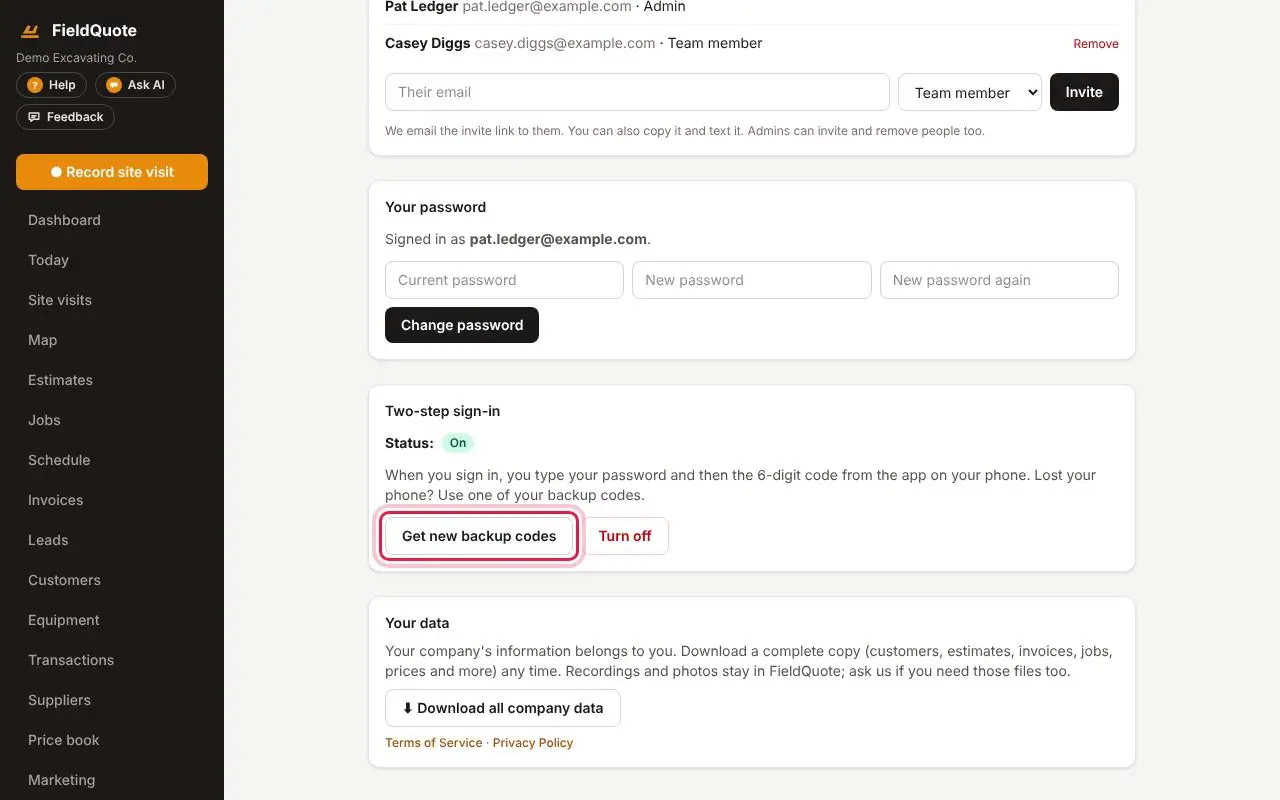
Under Two-step sign-in (status On), tap Get new backup codes.
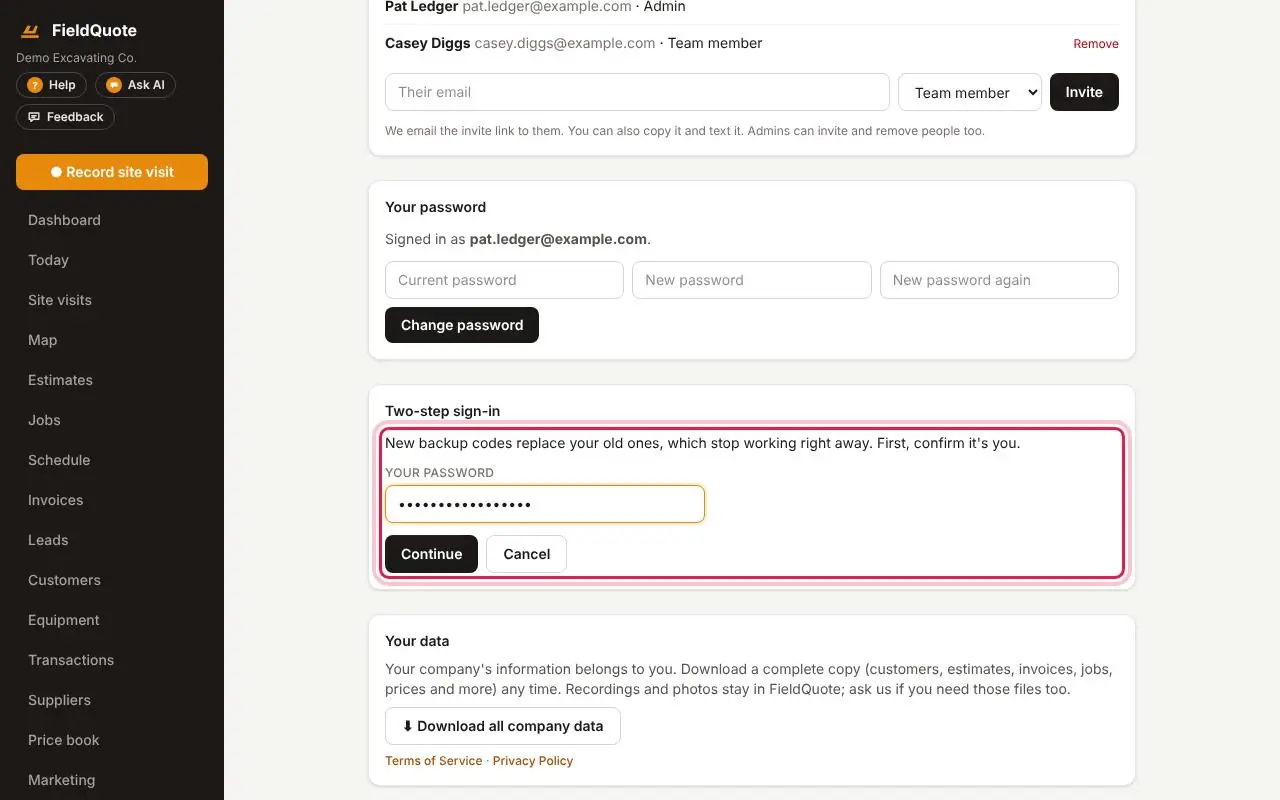
"New backup codes replace your old ones, which stop working right away. First, confirm it's you." Type Your password and tap Continue.
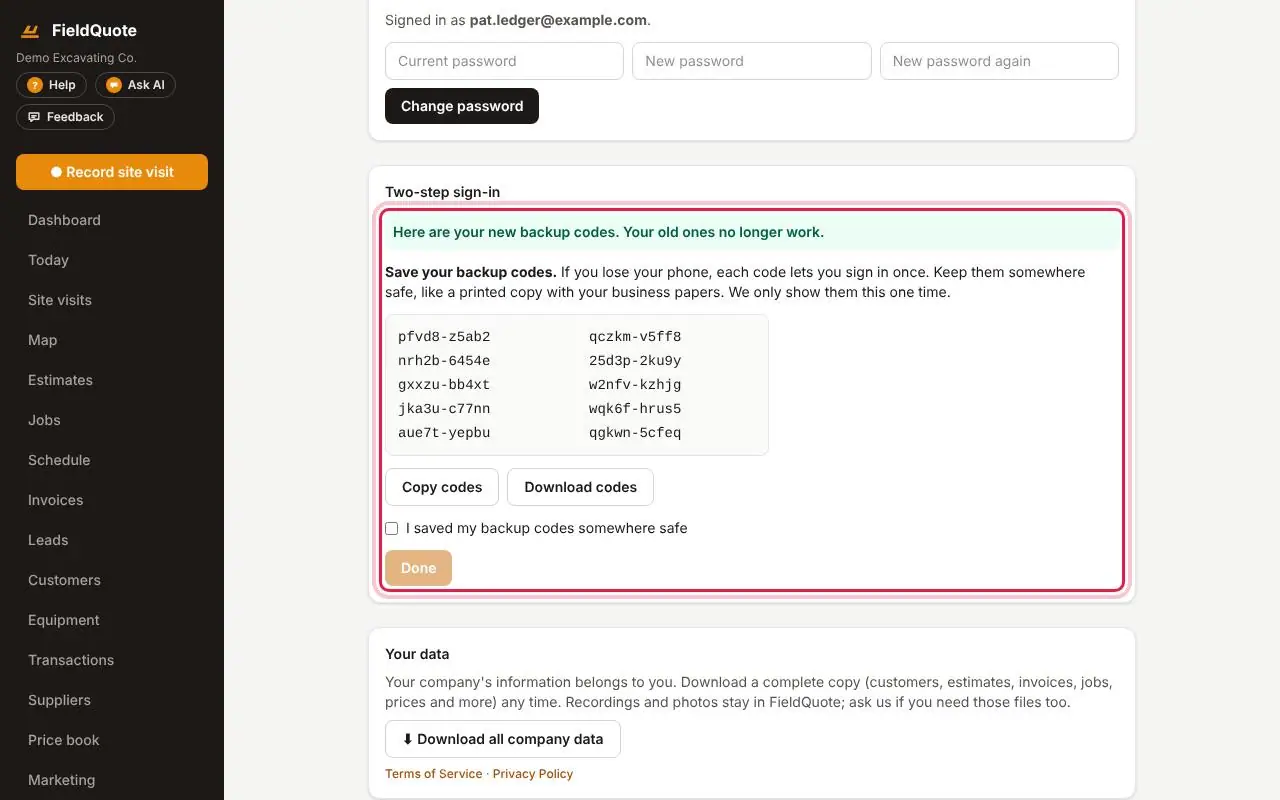
"Here are your new backup codes. Your old ones no longer work." Copy codes or Download codes and keep them somewhere safe.
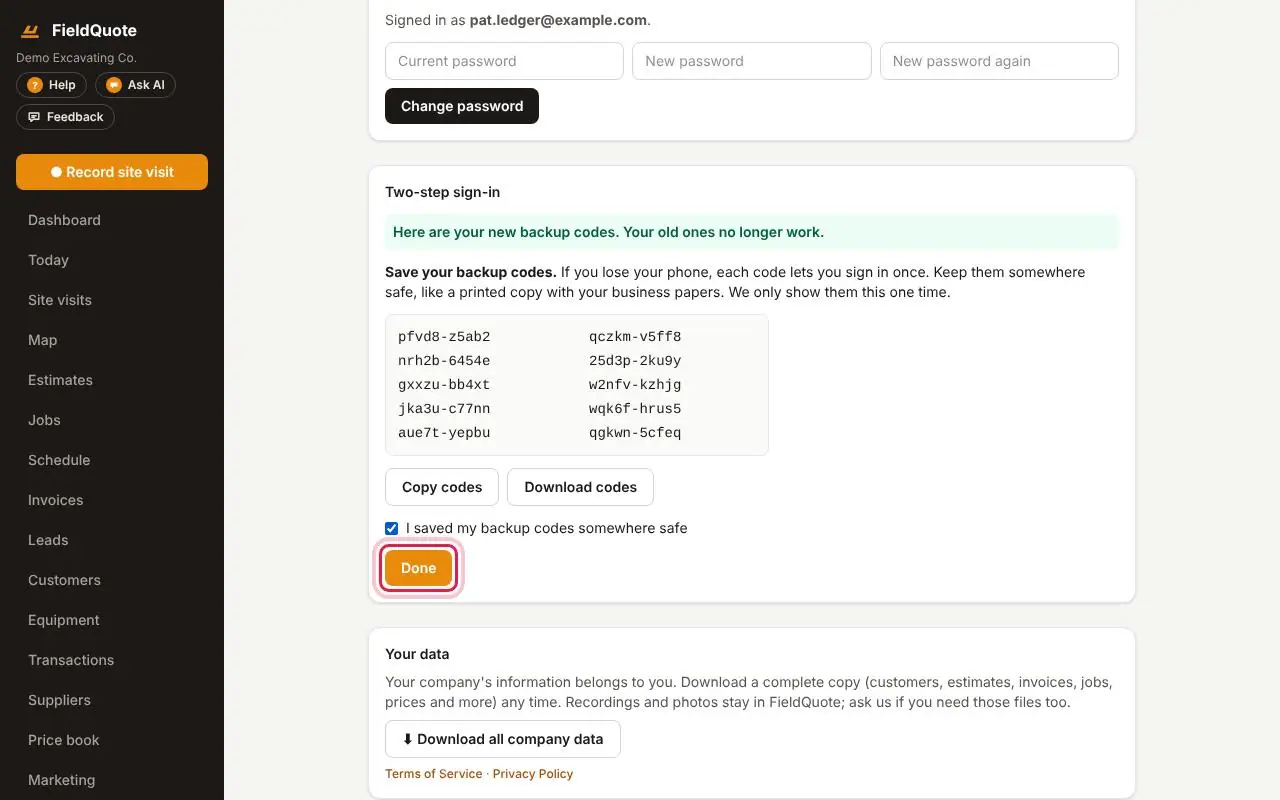
Check I saved my backup codes somewhere safe and tap Done.
What you'll see
10 codes like abcde-23456. Each works once.
Your authenticator app keeps working as before — only the backup codes change.
Common mistakes
Throwing away the old list before saving the new one. The old codes stop working the moment the new ones are made.
Limits
The codes are shown only this once.
Checked against the app on Nov 9, 2026. Pictures are from Demo Excavating Co., a made-up company.