Team, accounts & security
Guide 11 of 14
What it's for
When you're getting a new phone and want to set it up fresh, or you'd rather sign in with just your password.
Where
Team, billing & sign-in › Two-step sign-in › Turn off.
Watch it
Steps
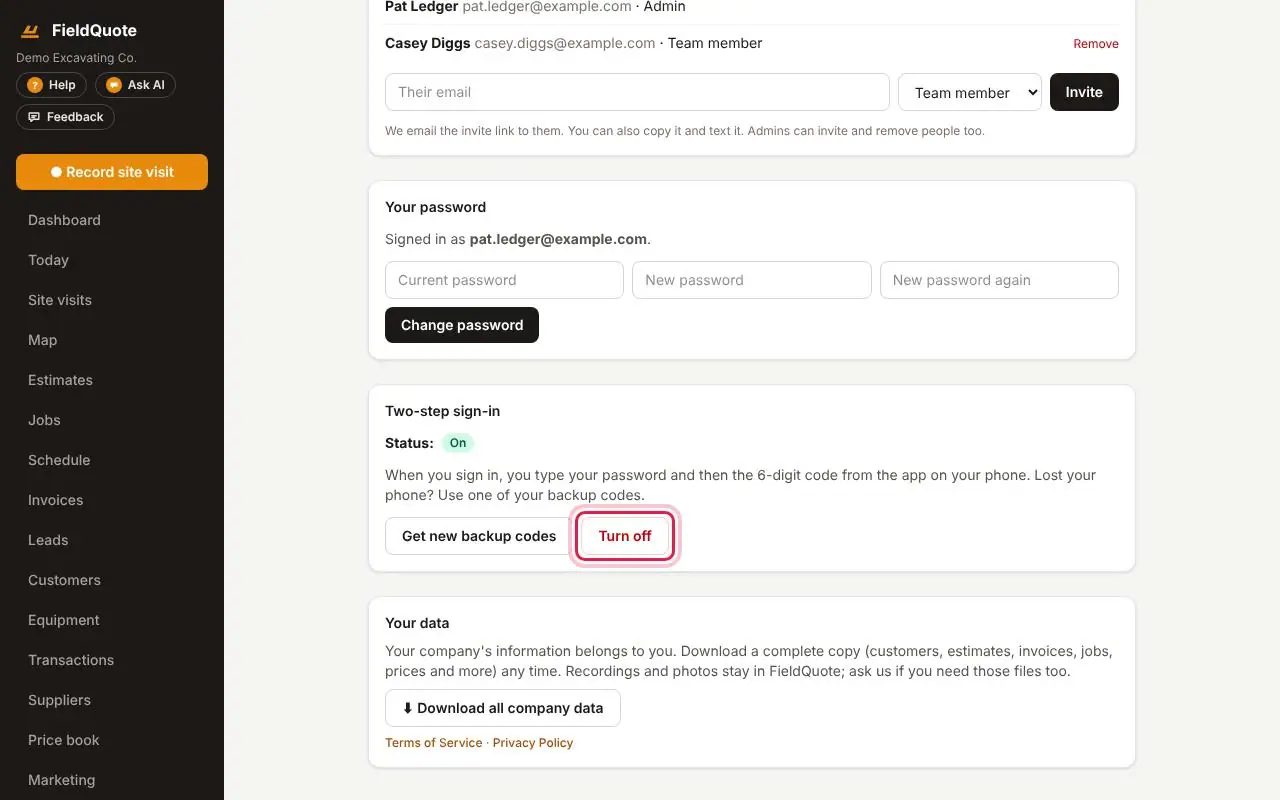
Under Two-step sign-in, tap Turn off.
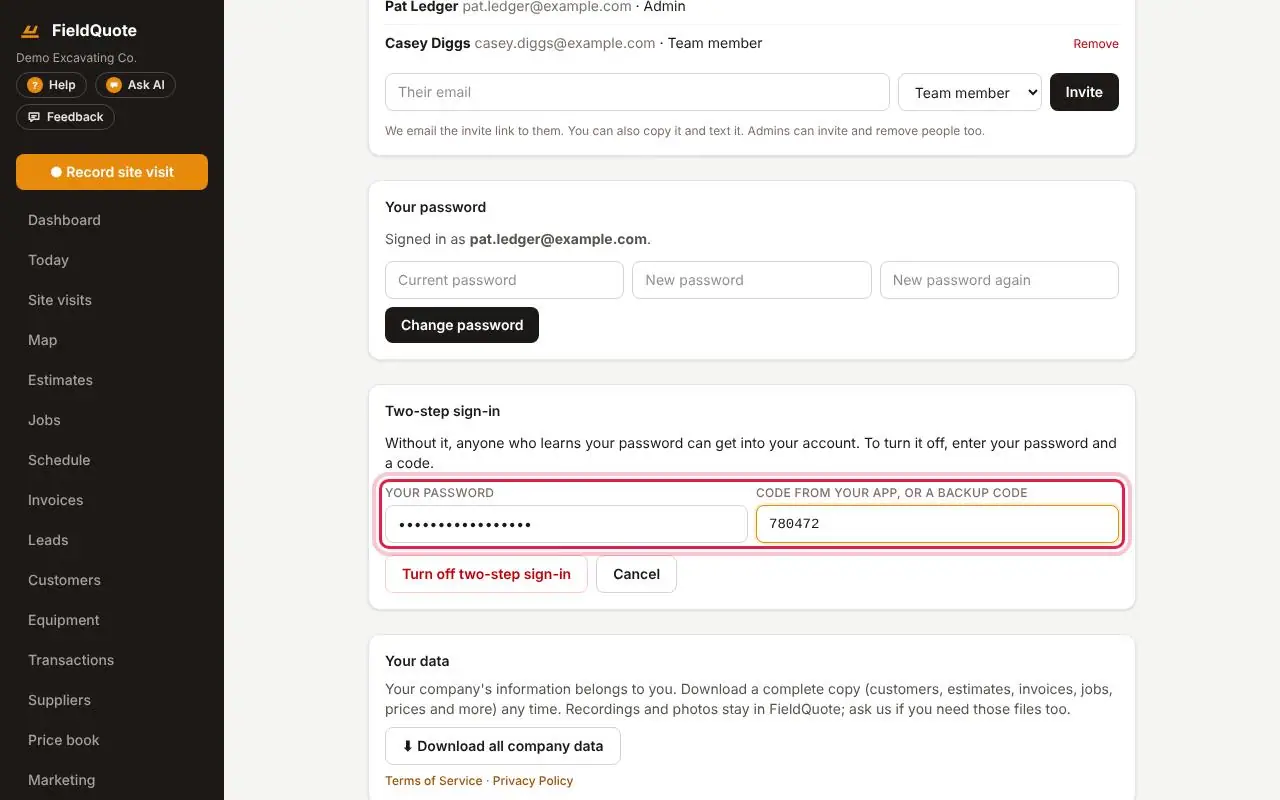
"Without it, anyone who learns your password can get into your account." Type Your password and a code under Code from your app, or a backup code.
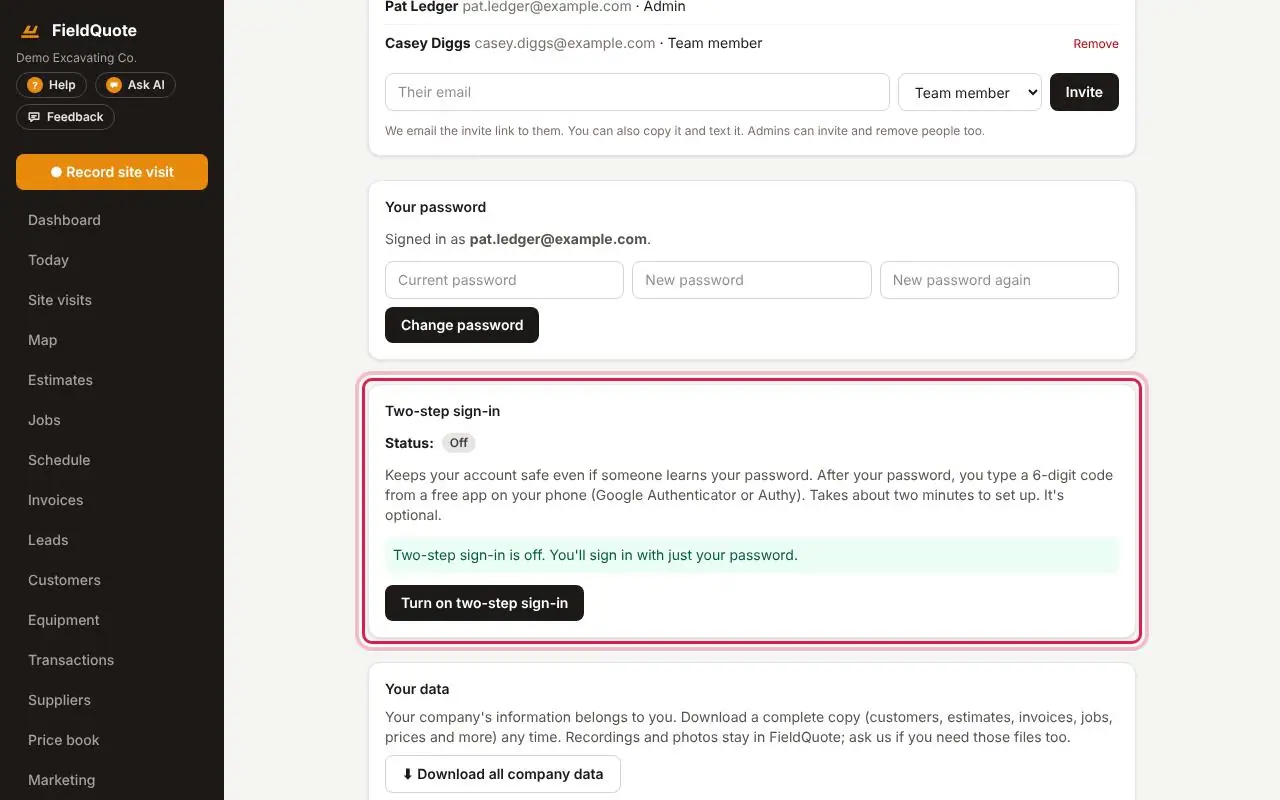
Tap Turn off two-step sign-in. A green line says it's off, and the status says Off.
What you'll see
From now on you sign in with just your email and password.
New phone? Turn it on again and scan the new code with the app on the new phone.
Common mistakes
Leaving the code box empty: "Enter the 6-digit code from your authenticator app, or one of your backup codes."
An old code: codes change every 30 seconds — type the one showing now.
Limits
Using a backup code here uses it up.
Checked against the app on Nov 9, 2026. Pictures are from Demo Excavating Co., a made-up company.