Customers, texting & email, automatic follow-ups
Guide 5 of 20
What it's for
Keep the whole conversation with a customer in one place, so anyone on your team can see what was said, by whom and when, instead of digging through personal phones and inboxes.
Where
Customers › the customer › Messages (the top box).
Watch it
Steps
Open the customer. Messages shows every email and text with them, oldest at the top.
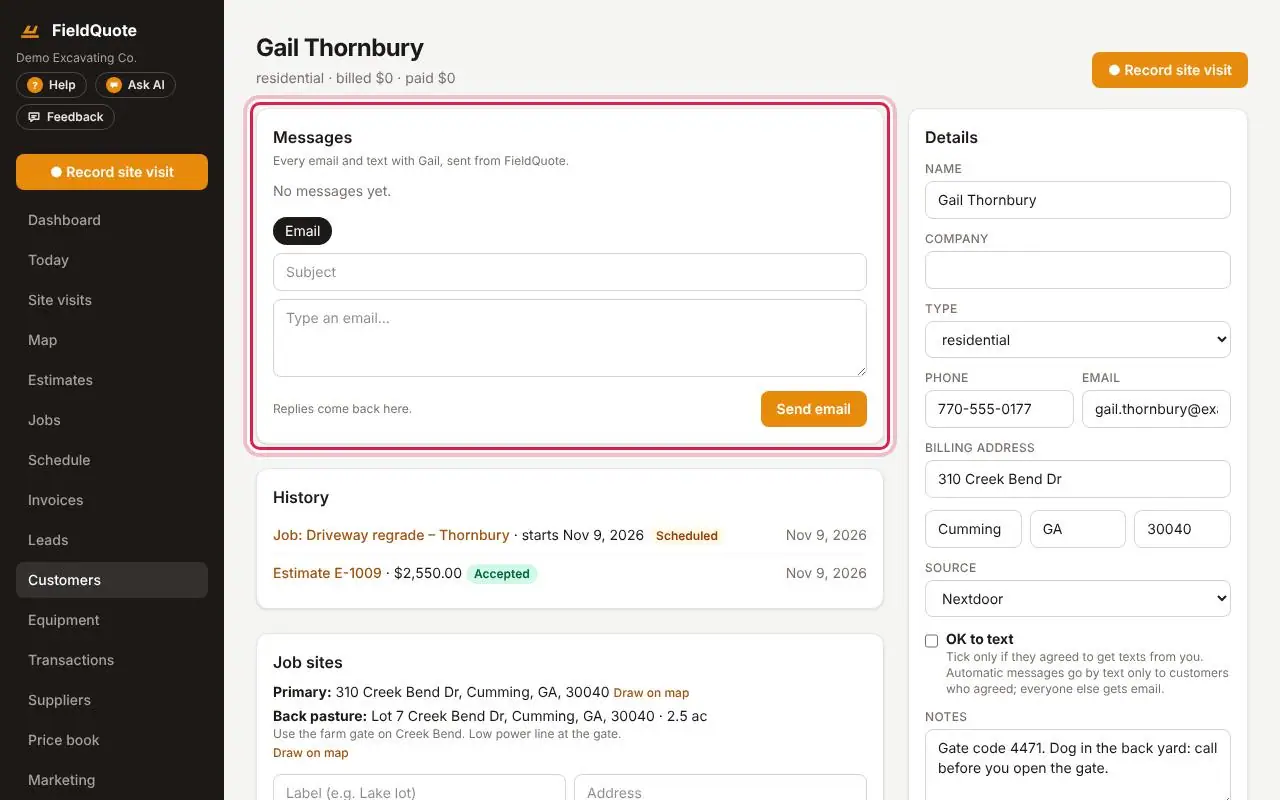
Pick Email (or Text once texting is connected), type a Subject for an email, and your message.
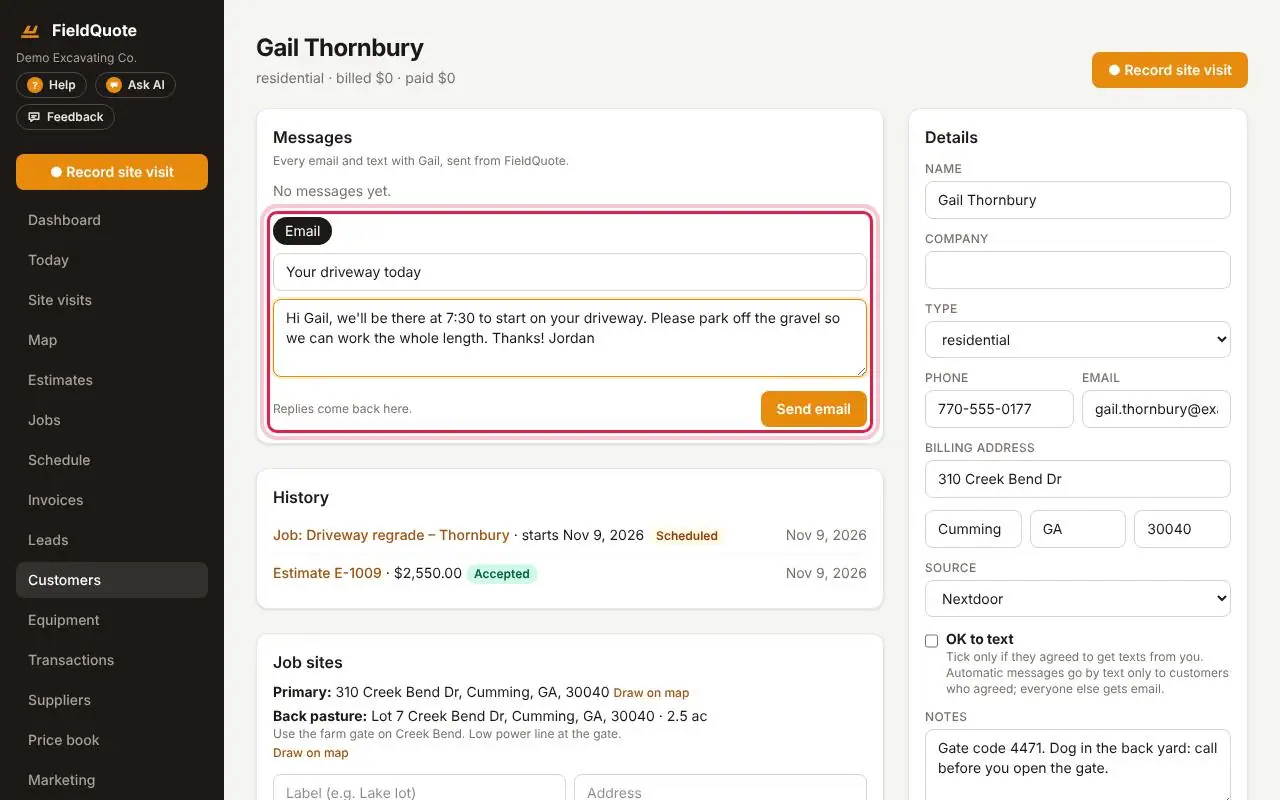
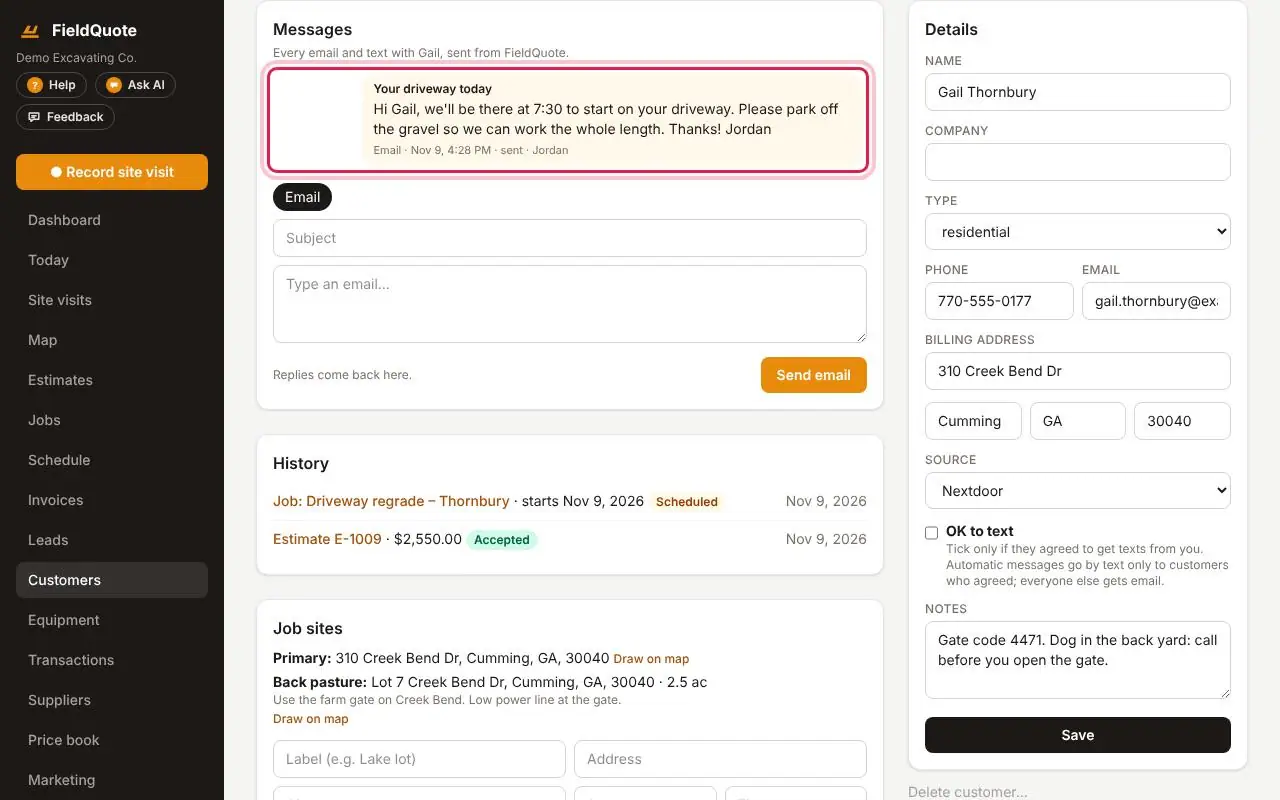
Tap Send email (or Send text). It shows in the thread with the time, how it went ("sent") and who sent it.
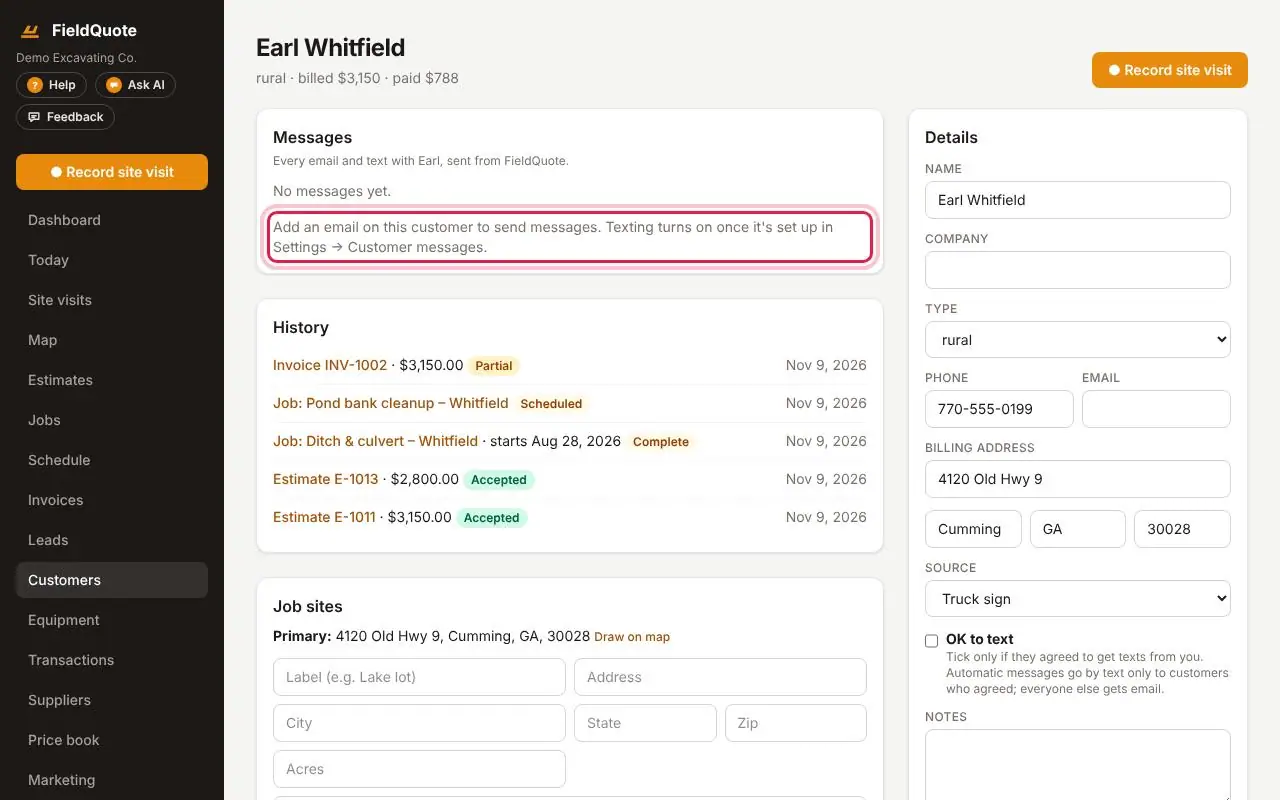
If a customer has no email and texting isn't connected, the box says "Add an email on this customer to send messages. Texting turns on once it's set up in Settings → Customer messages." Add an email under Details, or connect texting.
What you'll see
Your messages on the right, theirs on the left. Each says Email or Text, the time and the status: "waiting to send", "sent", "delivered" (texts only) or "not sent" in red with the reason. If Twilio can't be reached (no internet, or Twilio is down) the text shows "not sent" with "Couldn't reach Twilio (the texting service), so this text wasn't sent. Try again in a few minutes." and you can send it again.
An automatic message that waited for quiet hours and then couldn't go shows "skipped" with the reason.
Automatic messages are marked "automatic"; estimates and invoices you sent from FieldQuote show here too.
Opening the page marks their replies as read, so they drop off Waiting on you on the Today screen.
Once texting is connected: a Text tab (picked first when the customer has a mobile number) and a character count that warns when a long text will go as several texts. Texts they send back land in the same thread.
Common mistakes
Leaving the email subject empty. It goes out as "Message from" your company name.
Sending long texts. Over 160 characters a text is split into parts, and each part costs a text.
Expecting to text someone who texted STOP. FieldQuote won't, and says so in the thread.
Limits
Customer replies to emails come back into the thread only when reply-tracking is switched on for FieldQuote; otherwise they go to your company email (see Emails under your company name, and where replies go).
Pictures customers text in aren't shown; the thread notes that a picture or an empty text came in.
You can't edit or delete a message after it's sent.
Checked against the app on Nov 9, 2026. Pictures are from Demo Excavating Co., a made-up company.