Contracts, online signing & deposits
Guide 7 of 11
What it's for
Knowing what your customer sees helps you answer their questions on the phone, and walk them through it at the kitchen table.
Where
The customer link from the estimate (see Send the contract for the customer to sign). No sign-in, no app.
Watch it
Steps
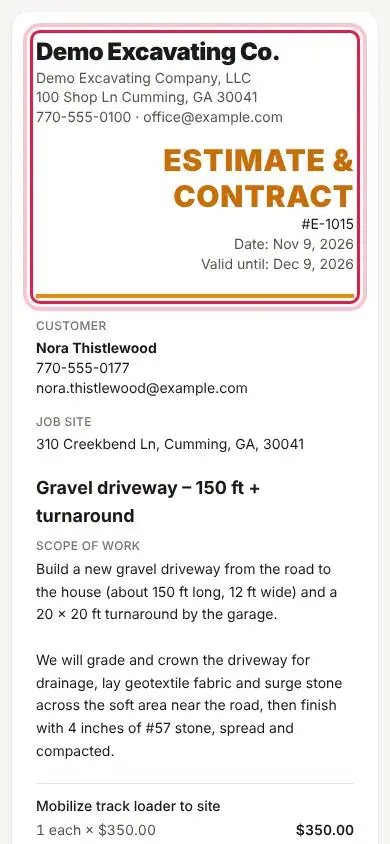
The link opens the Estimate & Contract: your company at the top, the estimate number, date and the date it's valid until, then the customer and the job site.
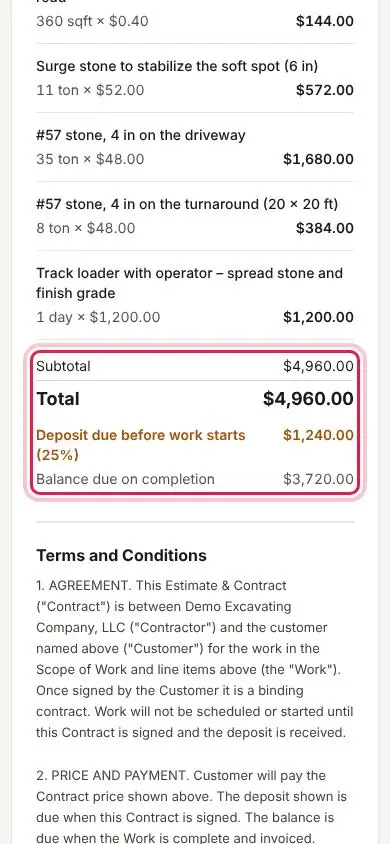
Below the scope of work and the lines: the Subtotal, tax, Total, the Deposit due before work starts (…%) and the Balance due on completion.
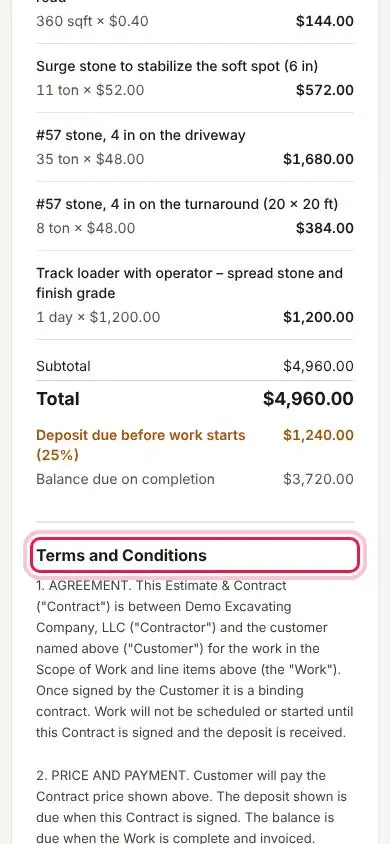
Then the Terms and Conditions.
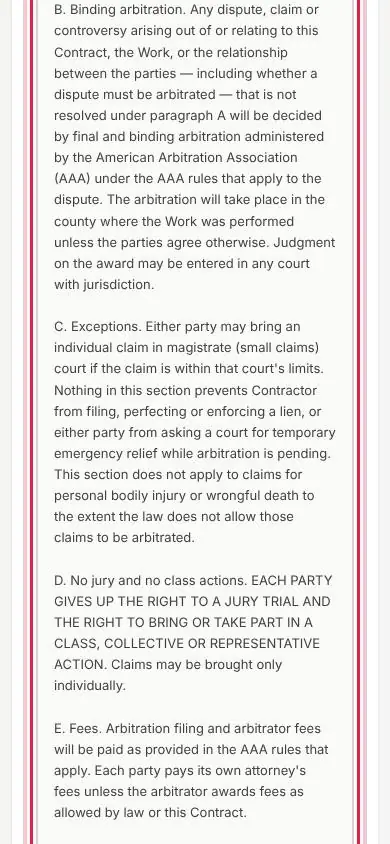
Then the Arbitration Agreement in its own box, with a line for Customer initials:. If the cancel notice is on, the NOTICE OF CANCELLATION form follows.
In the Sign this contract box, the customer types Your full legal name and Your initials — arbitration agreement.
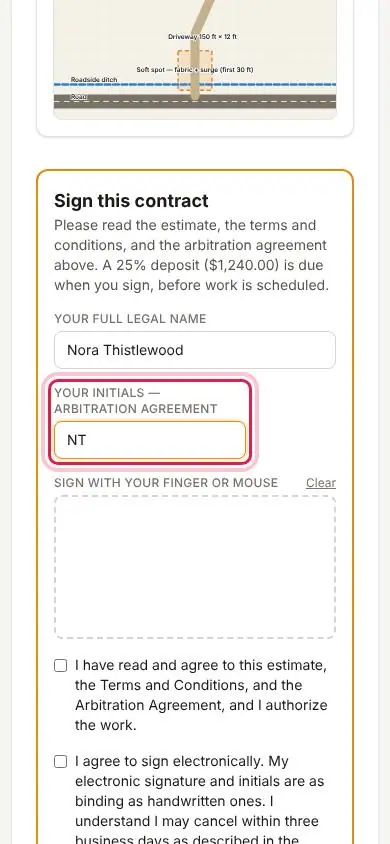
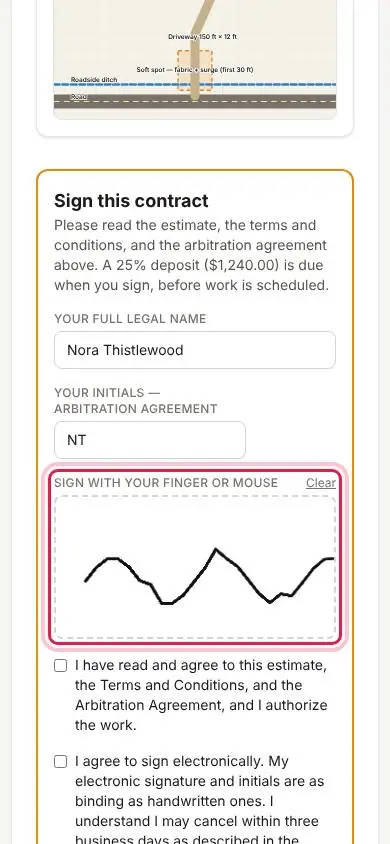
They sign in the box under Sign with your finger or mouse. Clear starts the signature over.
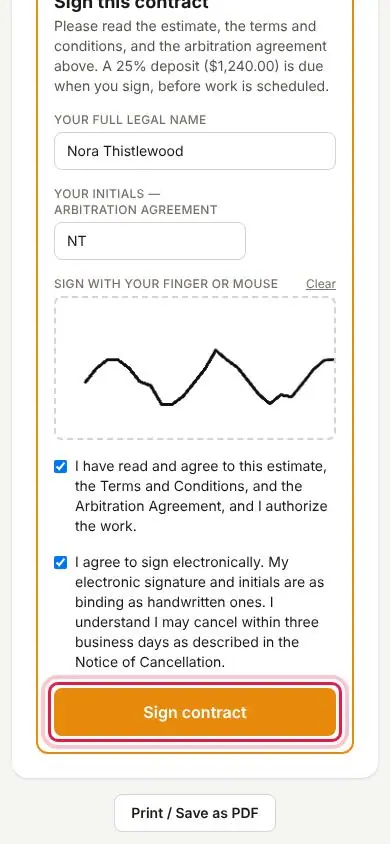
They check both boxes (they agree to the estimate, terms and arbitration agreement and authorize the work; they agree to sign electronically) and tap Sign contract.
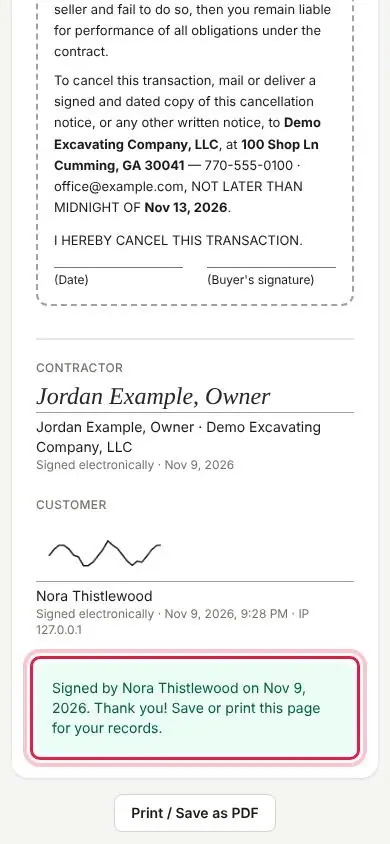
The page now shows the signed contract, with their initials, signature, date and time, and "Signed by … on …. Thank you! Save or print this page for your records."
What you'll see
Until a signature is drawn, the button says Draw your signature to continue.
With a deposit, the signing box says the deposit is due when they sign, before work is scheduled. If you've connected PayPal, Pay your deposit shows under the signed contract.
On your side, the estimate is Accepted, a job is made, and the Contract box shows who signed.
Common mistakes
These are the messages the customer may see, and what to tell them:
"Please type your full legal name." The name needs at least 3 letters.
"Please initial the arbitration agreement." Initials are 1 to 5 letters.
"Please draw your signature." The signature box was cleared or left empty.
"This estimate has expired. Please contact us for an updated one." The Valid until date has passed. Change it on the estimate and save; the same link works again.
"This estimate can no longer be signed. Please contact us." It was already signed, marked won or lost, or turned into an invoice.
Limits
The customer can't change anything on the page. If they want a change, change the estimate and they reload the link.
After signing, the page shows exactly what they signed, even if you change your settings later. The site map isn't on the signed copy.
The signing boxes and buttons don't print.
Checked against the app on Nov 9, 2026. Pictures are from Demo Excavating Co., a made-up company.