Contracts, online signing & deposits
Guide 6 of 11
What it's for
No printer, no scanner, no second trip. The customer signs the estimate and contract on their own phone, and you know the moment they do.
Where
On the estimate: the Send & close, Send from FieldQuote and Send from your own phone boxes on the right.
Watch it
Steps
Check the Contract box on the right. Before signing it says "Not signed yet. Send the customer link — they read the terms, initial the arbitration agreement and sign."
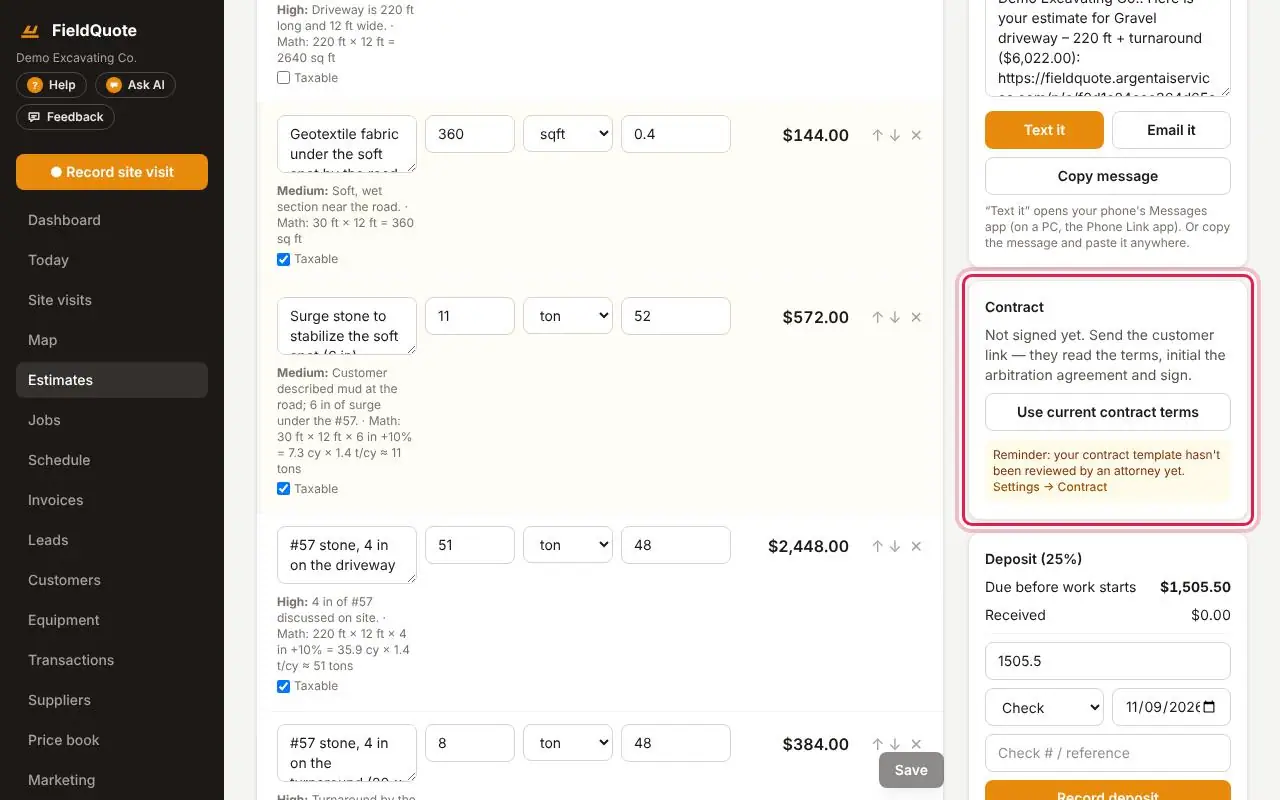
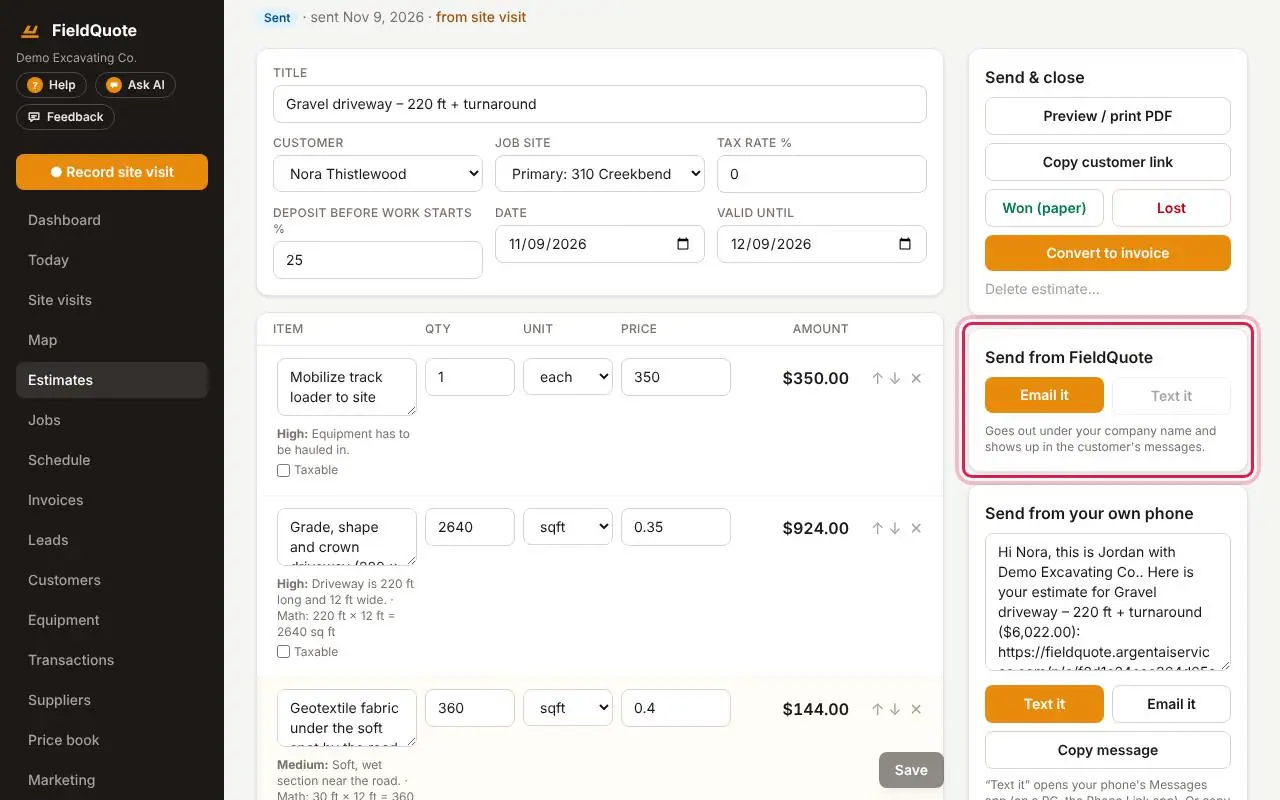
To send it from FieldQuote, tap Email it (or Text it, if texting is set up) under Send from FieldQuote. It goes out under your company name and is saved in the customer's messages.
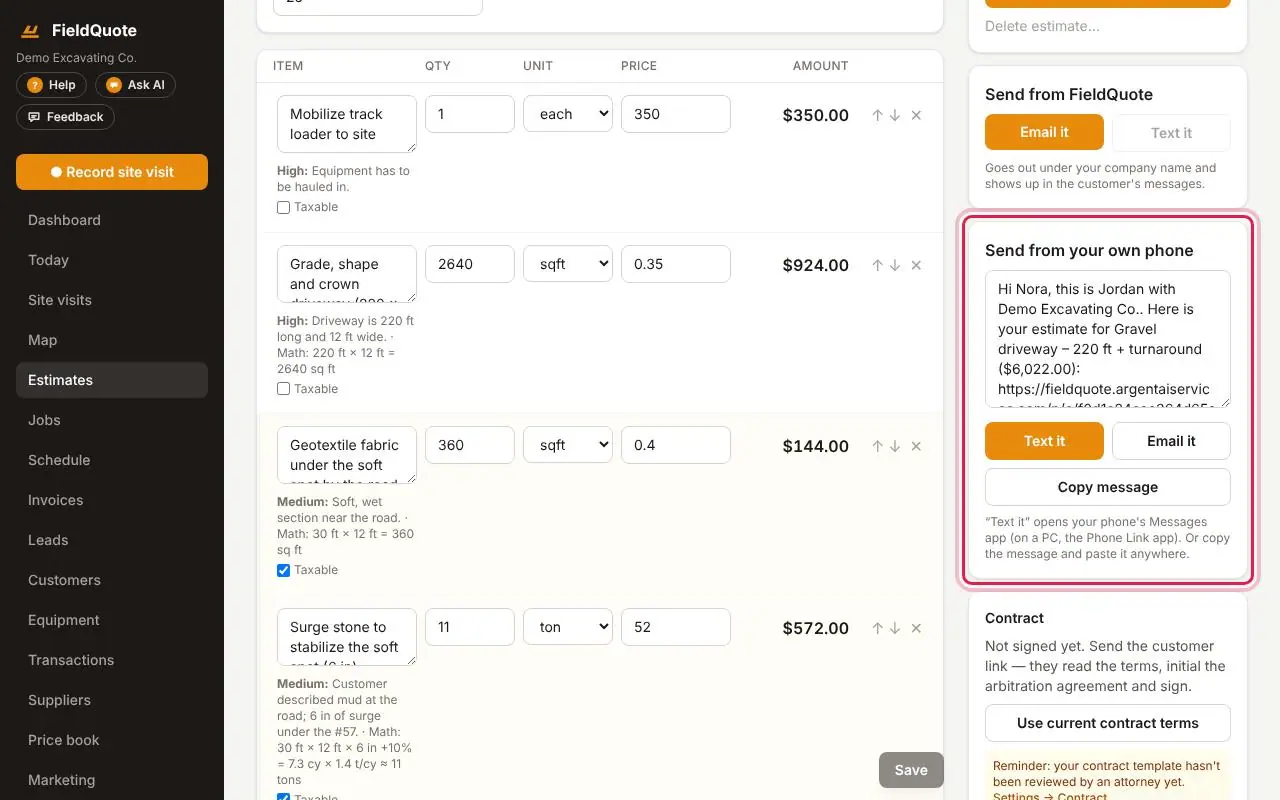
Or send it yourself: under Send from your own phone, check the message, then tap Text it or Email it to open your phone's messages or email with the message and link filled in. Copy message copies it to paste anywhere.
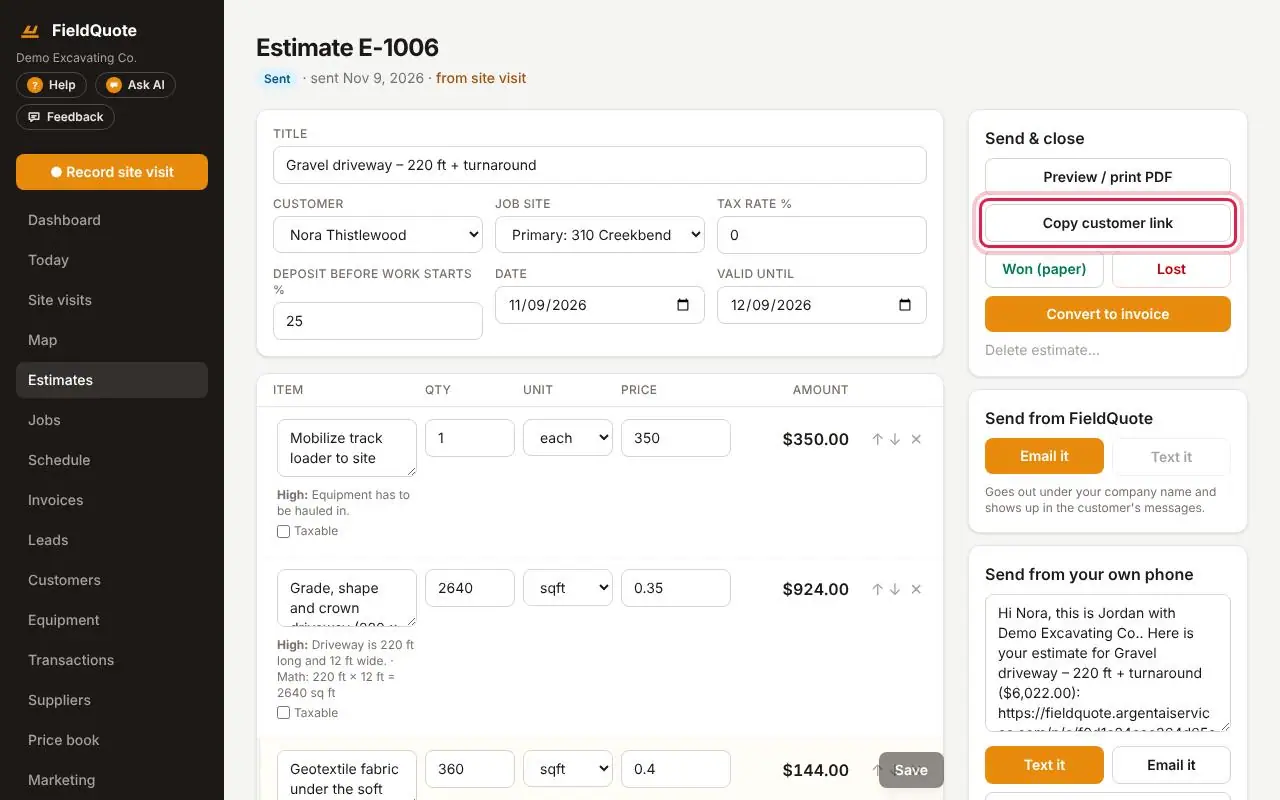
To send just the link, tap Copy customer link under Send & close.
What you'll see
Sending from either box marks a draft estimate Sent. Copying the link doesn't. Tap Mark as sent yourself.
When the customer signs, the estimate turns Accepted, the Contract box shows who signed and when, and a job is made.
Common mistakes
Sending before checking the lines, the scope and the deposit. Once it's signed, nothing can be changed.
Editing the ready-written message and then changing the lines. The message follows the estimate's total after each Save until you type in it; once you've edited it, check the total in it yourself.
Sending a link to an estimate whose Valid until date has passed. It shows Expired, and the customer sees "This estimate expired on …" instead of the signing box. Change the date and save first.
Limits
The link works for anyone who has it. Send it only to the customer.
The customer can sign only while the estimate is a draft or sent, and before its Valid until date.
Text it under Send from FieldQuote needs your texting number set up and a mobile number on the customer, who hasn't opted out of texts.
Checked against the app on Nov 9, 2026. Pictures are from Demo Excavating Co., a made-up company.