Estimating & price book
Guide 4 of 18
What it's for
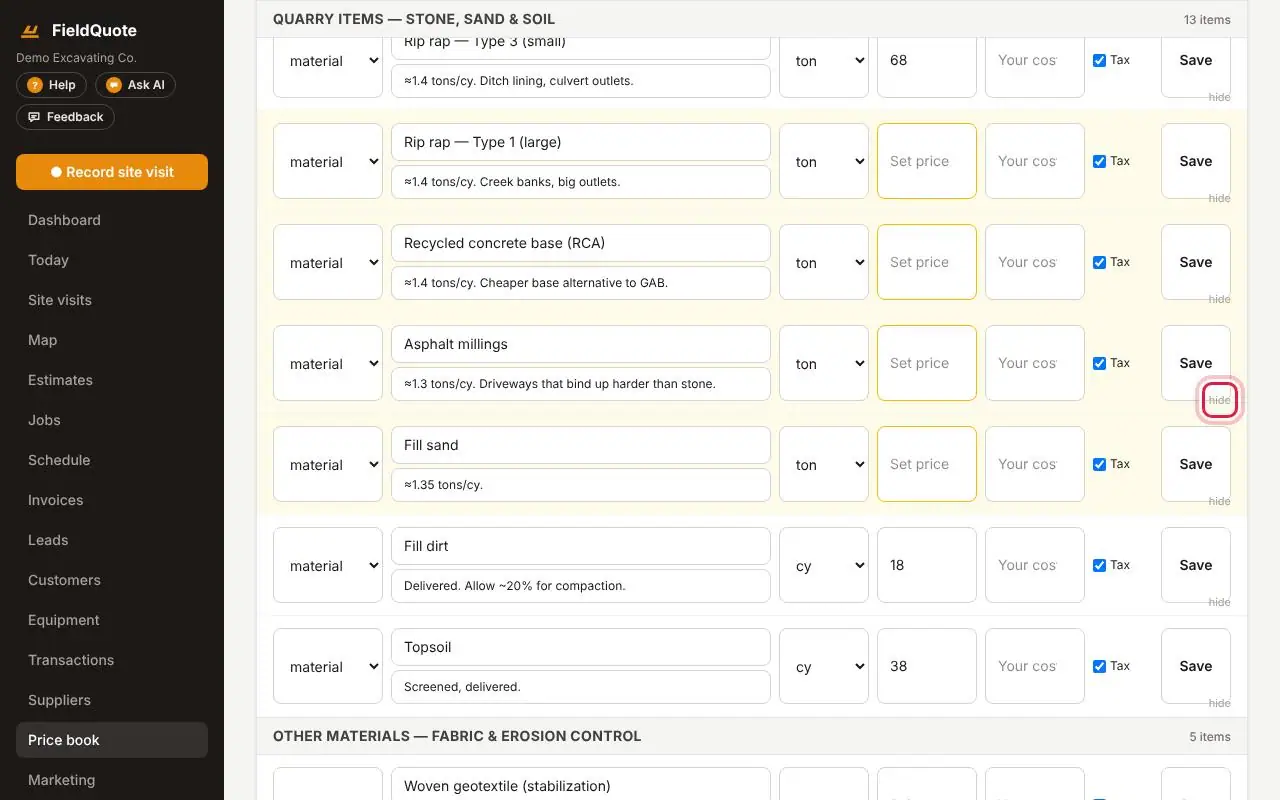
The starter list has items you may never use, like asphalt millings or a rental you don't do. Hiding them keeps the list short, stops the AI from using them, and stops them counting as "still need a price".
Where
Price book › the small hide link at the bottom right of an item's row.
Watch it
Steps
Find the item and tap hide at the bottom right of its row.
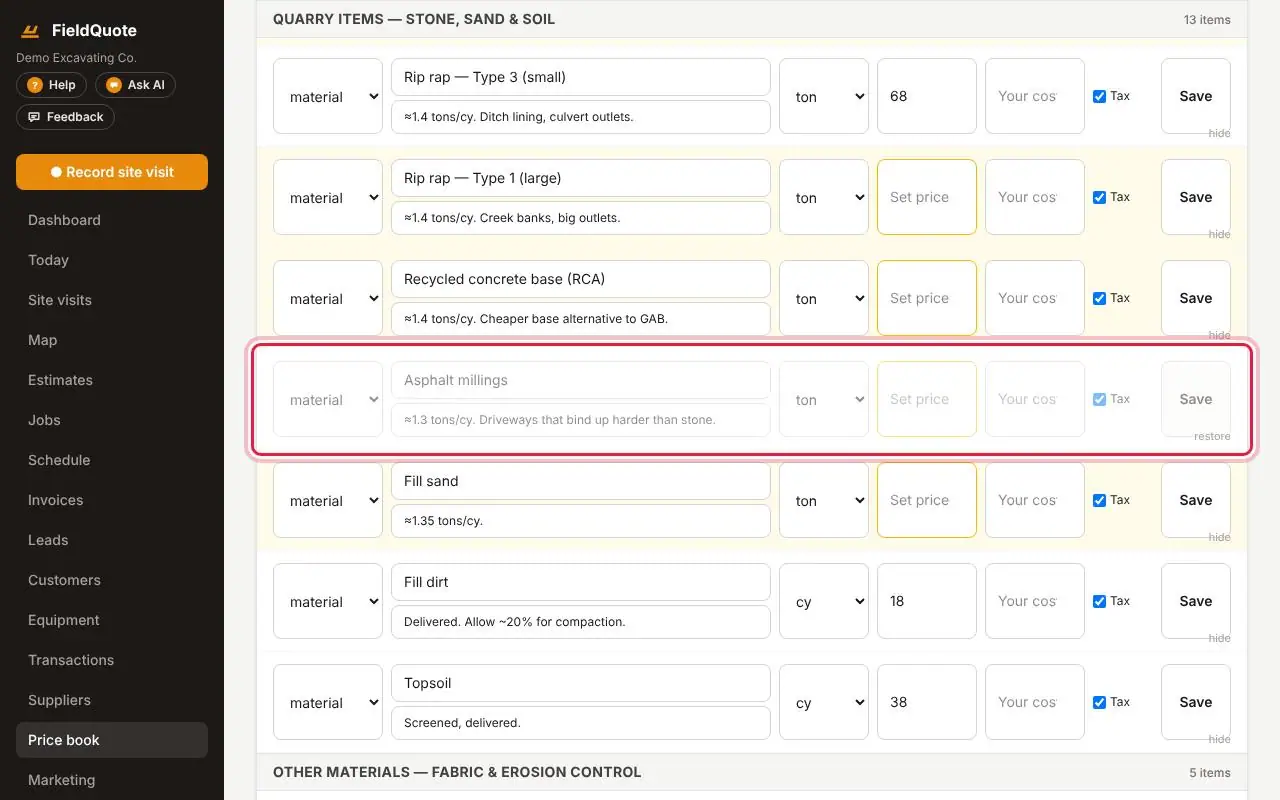
The row fades. The item is still in the list, but it's off your estimates.
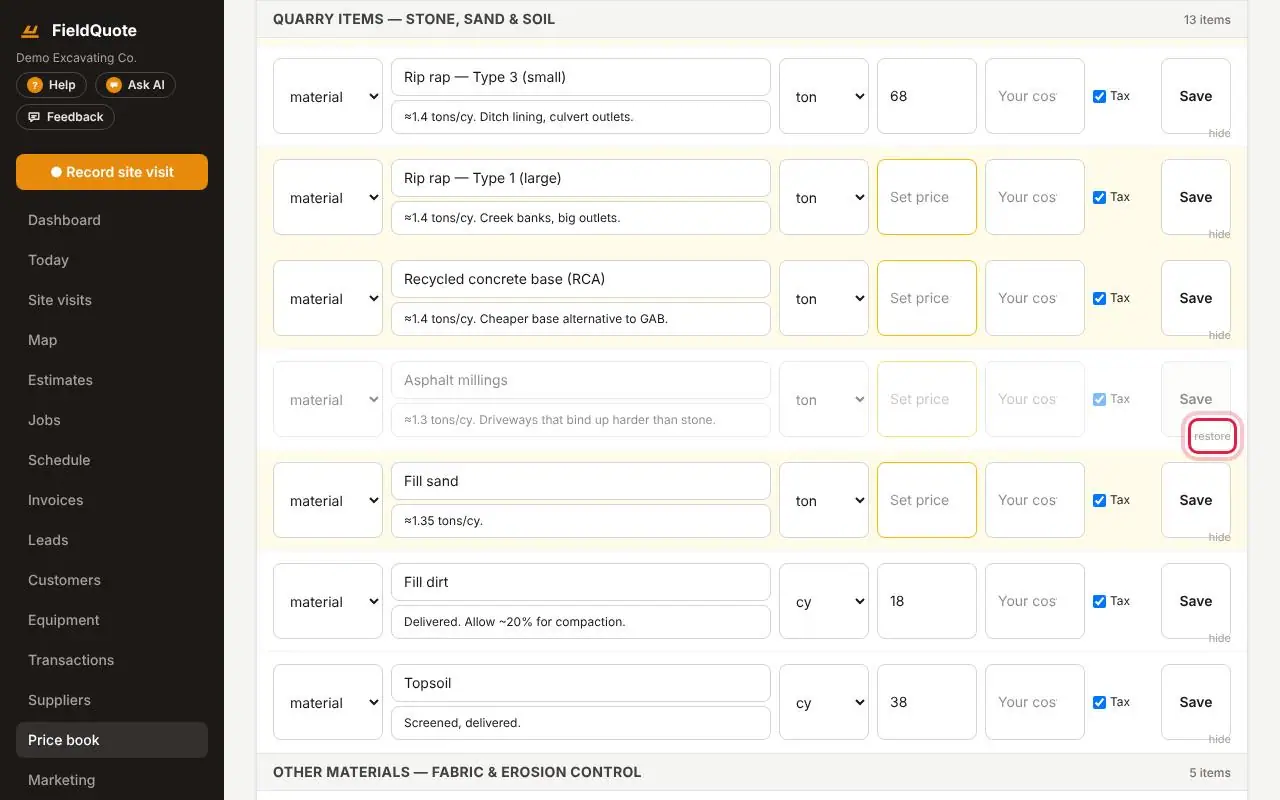
To bring it back, tap restore on the faded row.
What you'll see
A hidden item isn't offered in + Add from price book… on estimates, invoices or change orders.
The AI estimator doesn't see it, so it can't put it on a draft.
It isn't counted in "… items still need a price (shaded)." and isn't on the Suppliers list of prices you still need.
Common mistakes
Hiding an item to change its price. Just type the new price and tap Save.
Hiding one of the clearing or mulching items. Saving your clearing rates (Settings › Set clearing rates) turns those items back on, because the clearing calculator uses them.
Limits
Only the owner or an admin can change the price book. Team members see the prices grayed out, without Add item or hide, and "View only. Only the owner or an admin can change this."
Hiding doesn't remove the item from estimates and invoices it's already on.
There's no delete. Hidden items stay in the list, faded, so you can restore them.
Checked against the app on Nov 9, 2026. Pictures are from Demo Excavating Co., a made-up company.