Estimating & price book
Guide 5 of 18
What it's for
These are the numbers every estimate starts from. Set them once and you don't have to remember your minimum, your tax rate or your deposit on every job.
Where
Settings › Pricing rules.
Watch it
Steps
Open Settings and find Pricing rules.
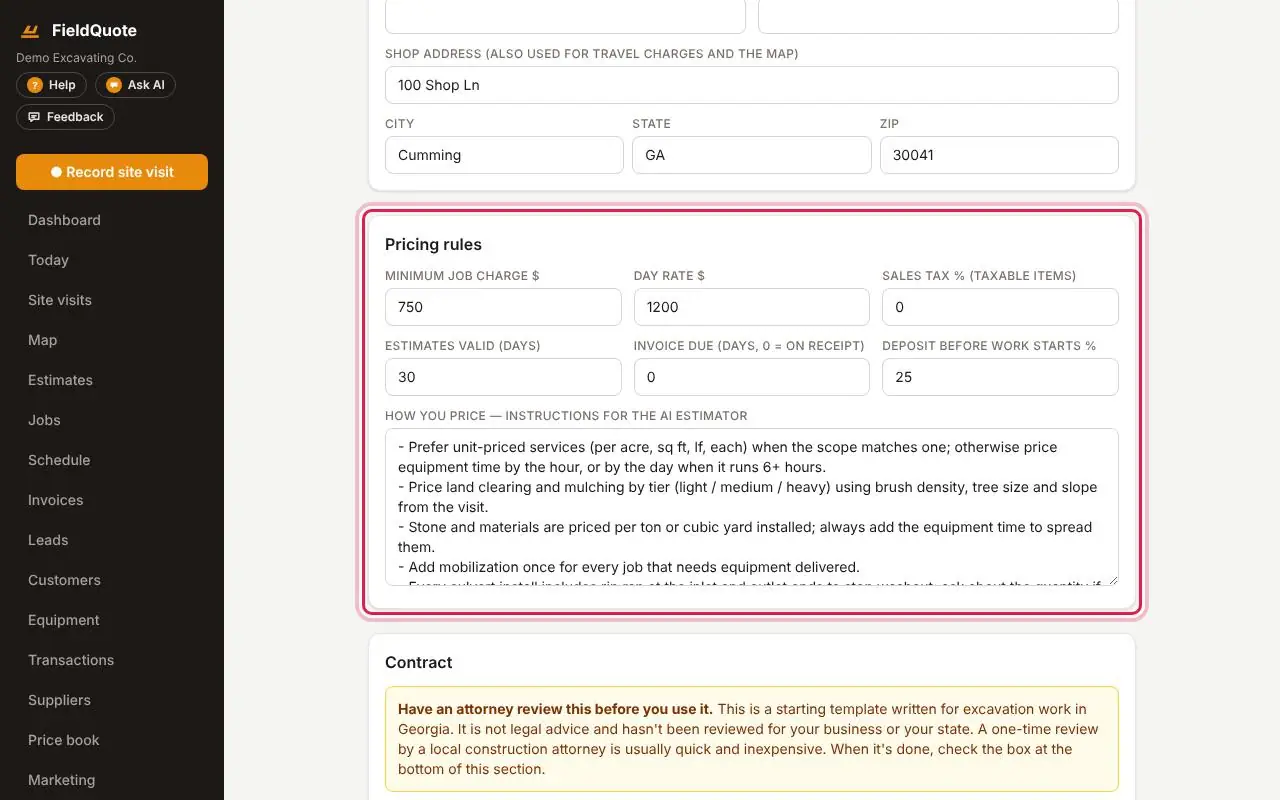
Fill in the boxes:
- Minimum job charge $: the least you'll do a job for.
- Day rate $: what a day of machine and operator costs the customer.
- Sales tax % (taxable items): the rate on lines marked taxable.
- Estimates valid (days): how long the customer has to sign.
- Invoice due (days, 0 = on receipt): when invoices are due.
- Deposit before work starts %: the deposit on new estimates.
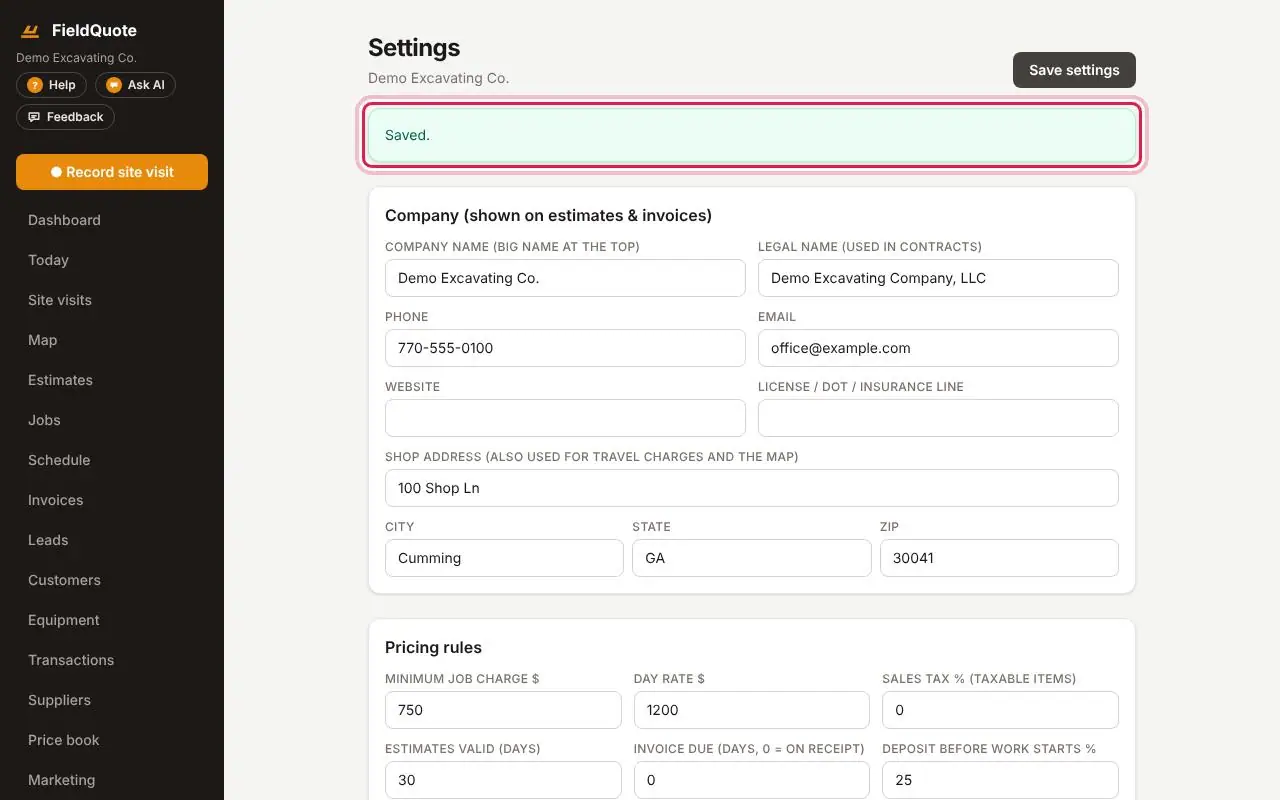
Tap Save settings (at the top or the bottom of the page). You'll see "Saved."
What you'll see
New estimates get your tax rate and deposit, and a Valid until date that many days from today. New invoices get a due date that many days out.
When the AI drafts an estimate from a site visit and it comes in under your minimum (before tax), it adds a "Minimum job charge adjustment" line for the difference.
The AI estimator is told your day rate, and the standard contract uses it for extra work (see Start over with the standard contract).
Common mistakes
Expecting estimates you've already made to change. They keep their own tax rate, deposit and dates. Change those on the estimate itself.
Typing the tax rate as a decimal. For 7%, type 7, not 0.07.
Limits
Only the owner or an admin can change this. Team members see Settings grayed out, with "View only. Only the owner or an admin can change this." On one estimate, anyone can still change its tax rate and deposit.
Sales tax is added only on lines checked Taxable. Materials from the starter list start out taxable; labor and machine time don't.
After the Valid until date the customer can't sign online. They see "This estimate expired on …".
The minimum is added only when the AI drafts the estimate. It isn't added to blank estimates or invoices, and it isn't checked again when you edit the lines.
Checked against the app on Nov 9, 2026. Pictures are from Demo Excavating Co., a made-up company.