Suppliers & material prices
Guide 4 of 14
What it's for
Typing a quarry's whole price sheet takes an evening. Importing it takes a minute, and every price lands next to the item it matches in your price book.
Where
Suppliers › Import a price list (PDF, Excel, or photo) at the top of the page. (Each supplier's box has one too, with the supplier already picked.)
Watch it
Steps
Tap Import a price list (PDF, Excel, or photo).
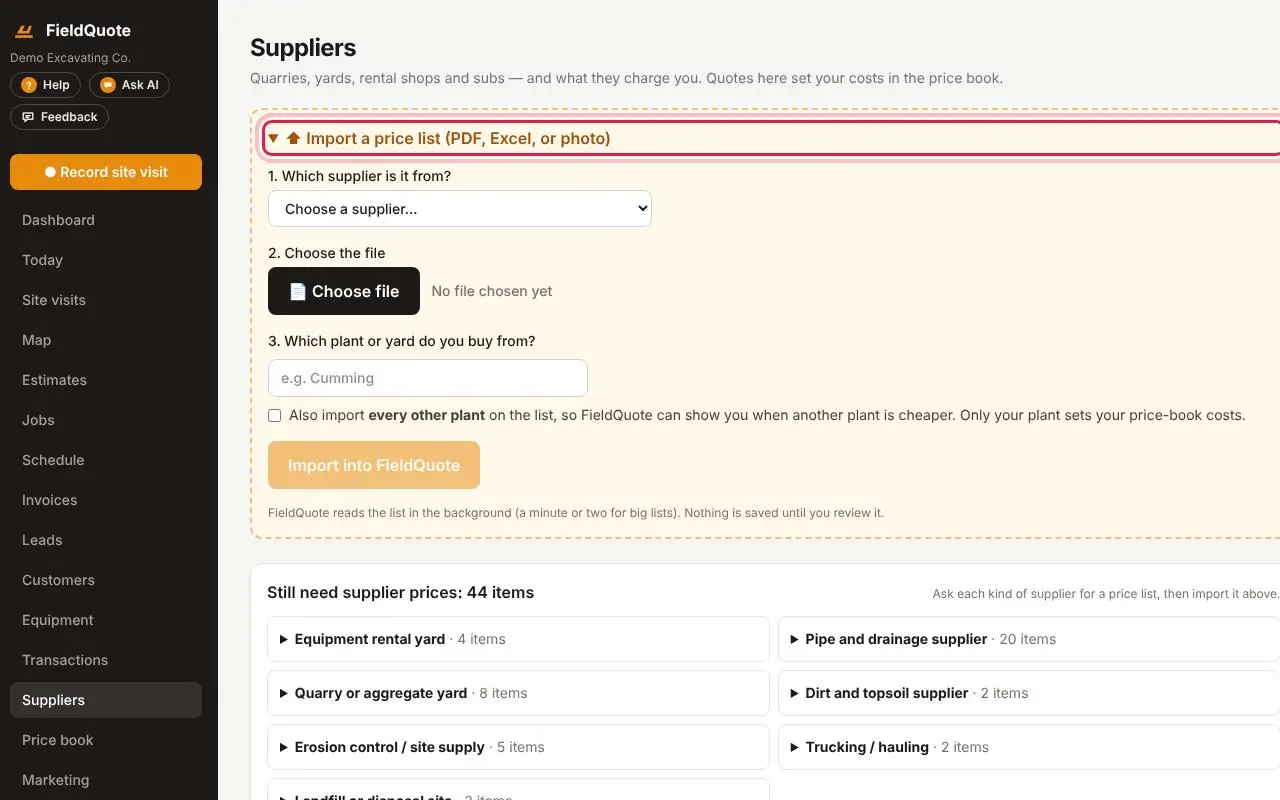
Under 1. Which supplier is it from? pick the supplier. Under Choose the file, tap Choose file and pick the PDF, spreadsheet or photo. Under Which plant or yard do you buy from? check the plant (it starts with the supplier's city). Tap Import into FieldQuote.
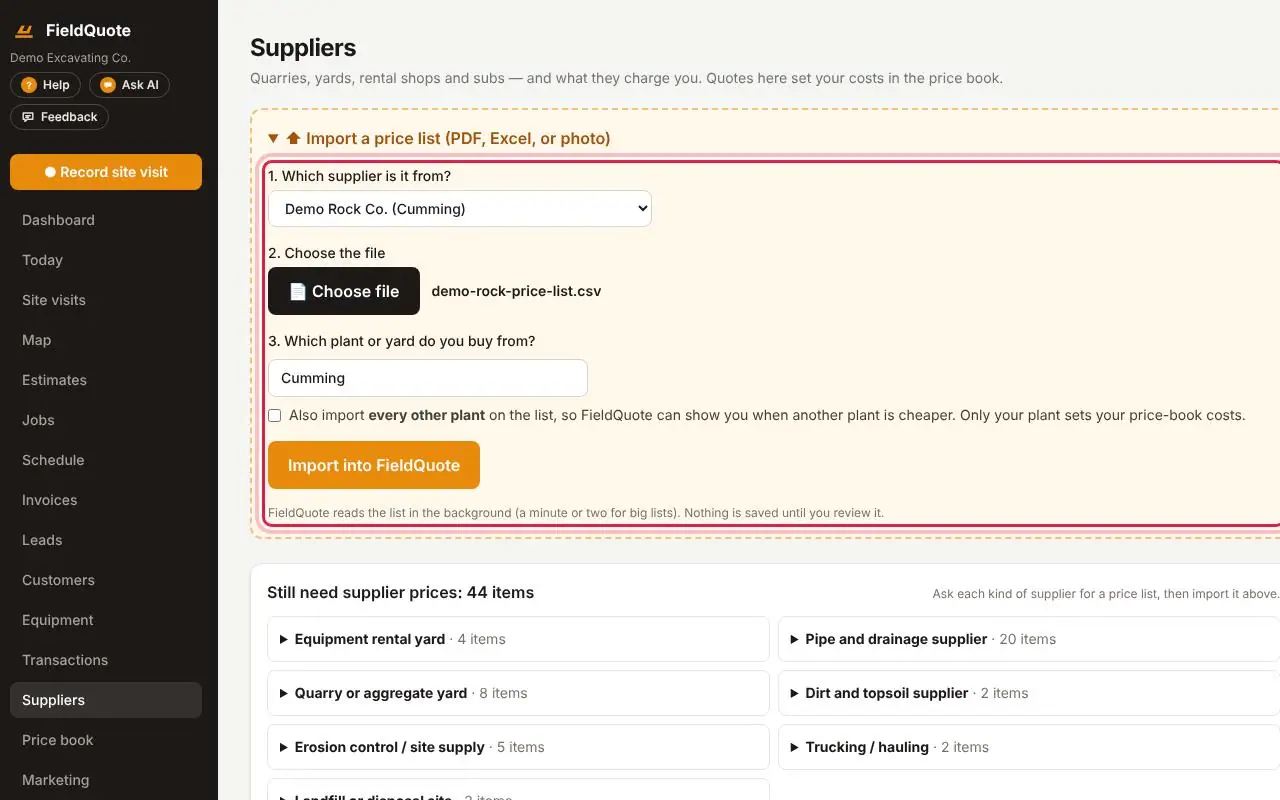
FieldQuote reads the list. The page says "Big lists can take a minute or two. This page updates by itself, or you can leave and come back from Suppliers."
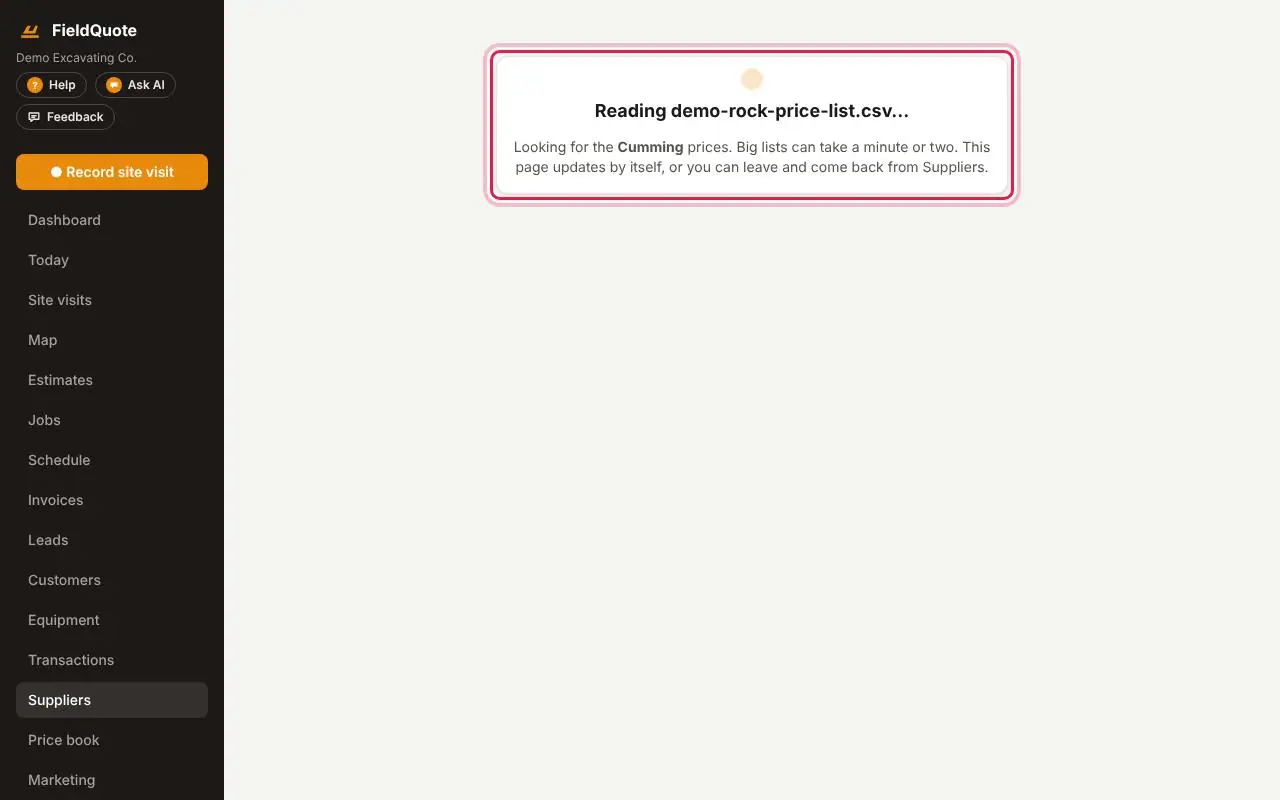
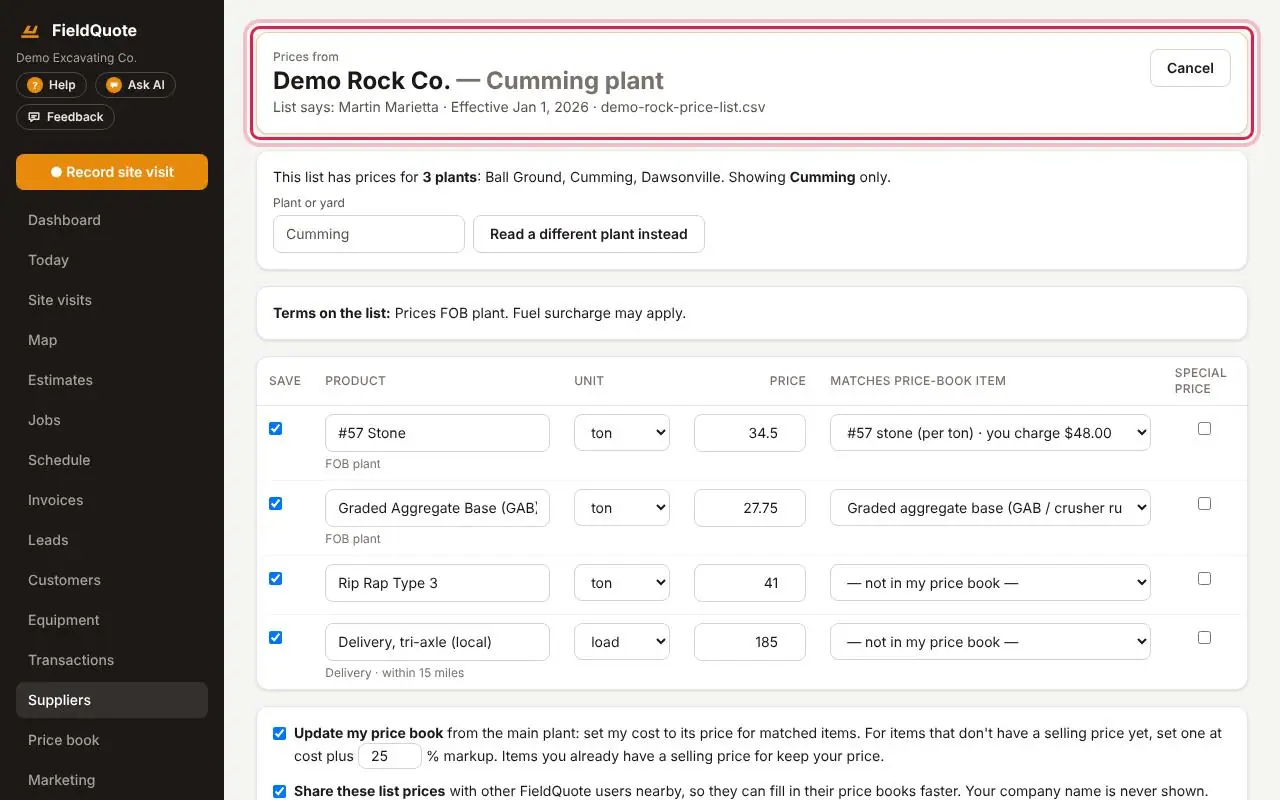
When it's read, the page shows the supplier, the plant, the date the prices take effect and every row it found, ready for you to check (see Check the prices before they're saved).
If you left while it was reading, or tapped Cancel to finish later, open Suppliers. The list is under Price lists in progress at the top, marked "Still reading…", "Ready to check" or "Couldn't be read". Tap Check the prices (Open while it's still reading, See why if it couldn't be read). Remove takes a list you don't want off the page.
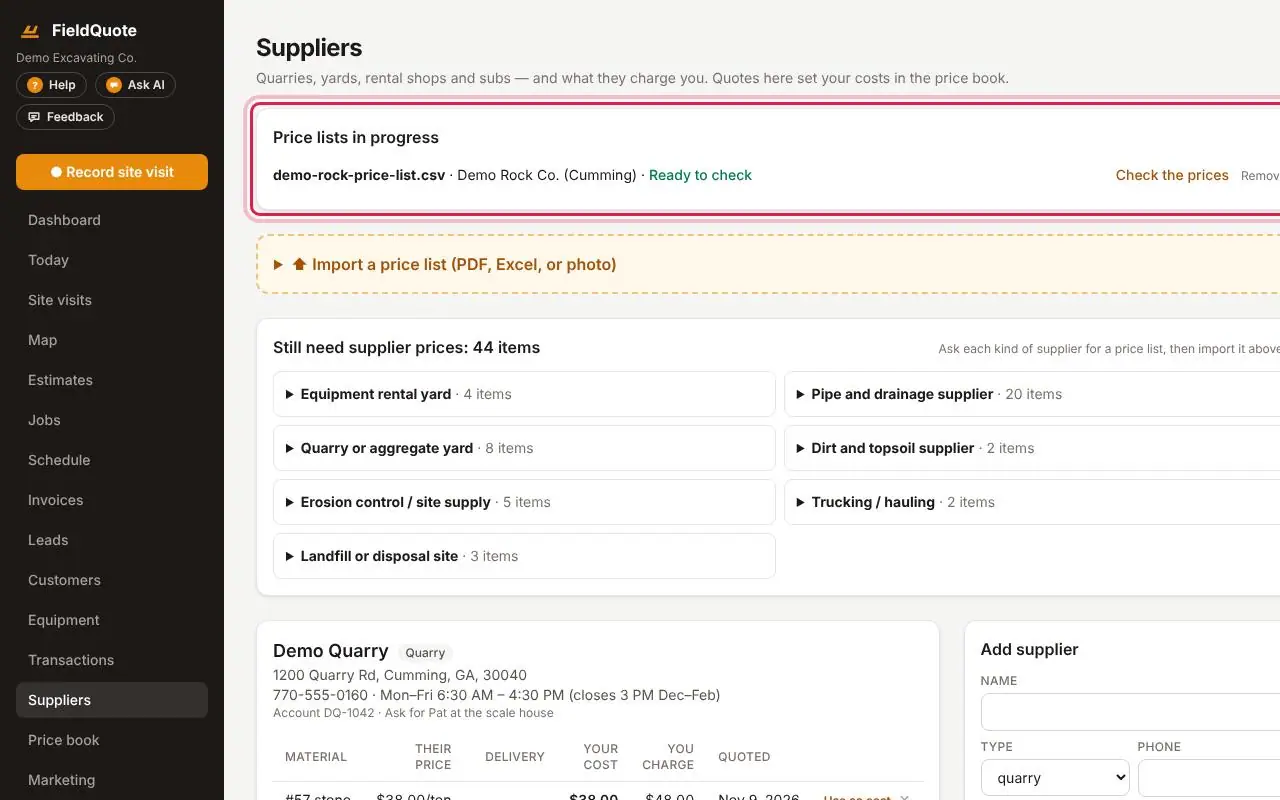
What you'll see
"Terms on the list:" with things like minimum orders or fuel surcharges, when the list has them.
Nothing is saved until you tap Save checked prices on that page. Remove doesn't save anything either.
Common mistakes
An old .xls spreadsheet. Open it and save it as .xlsx first.
A blurry photo. If no prices come out, you'll see "That price list couldn't be read" with "No prices were found…". Try a clearer photo or the PDF, or check the plant name, then tap Try again.
Picking the wrong supplier. The prices are saved on whichever supplier you picked. Tap Cancel and start again.
Limits
Only the owner or an admin can change suppliers and their prices, because they set your price-book costs. Team members see the suppliers and prices with "View only. Only the owner or an admin can change this."
PDF, Excel (.xlsx), CSV, or a photo (JPG, PNG or WEBP), up to 20 MB.
Lines with no price are skipped. FieldQuote never makes up a price.
Reading a list needs an active subscription.
Price lists in progress shows lists from the last two weeks that haven't been saved. A saved list leaves it.
Checked against the app on Nov 9, 2026. Pictures are from Demo Excavating Co., a made-up company.