Suppliers & material prices
Guide 5 of 14
What it's for
Reading a price list isn't perfect. You see every price before it's saved, and you decide what changes in your price book.
Where
The page that opens after Import into FieldQuote.
Watch it
Steps
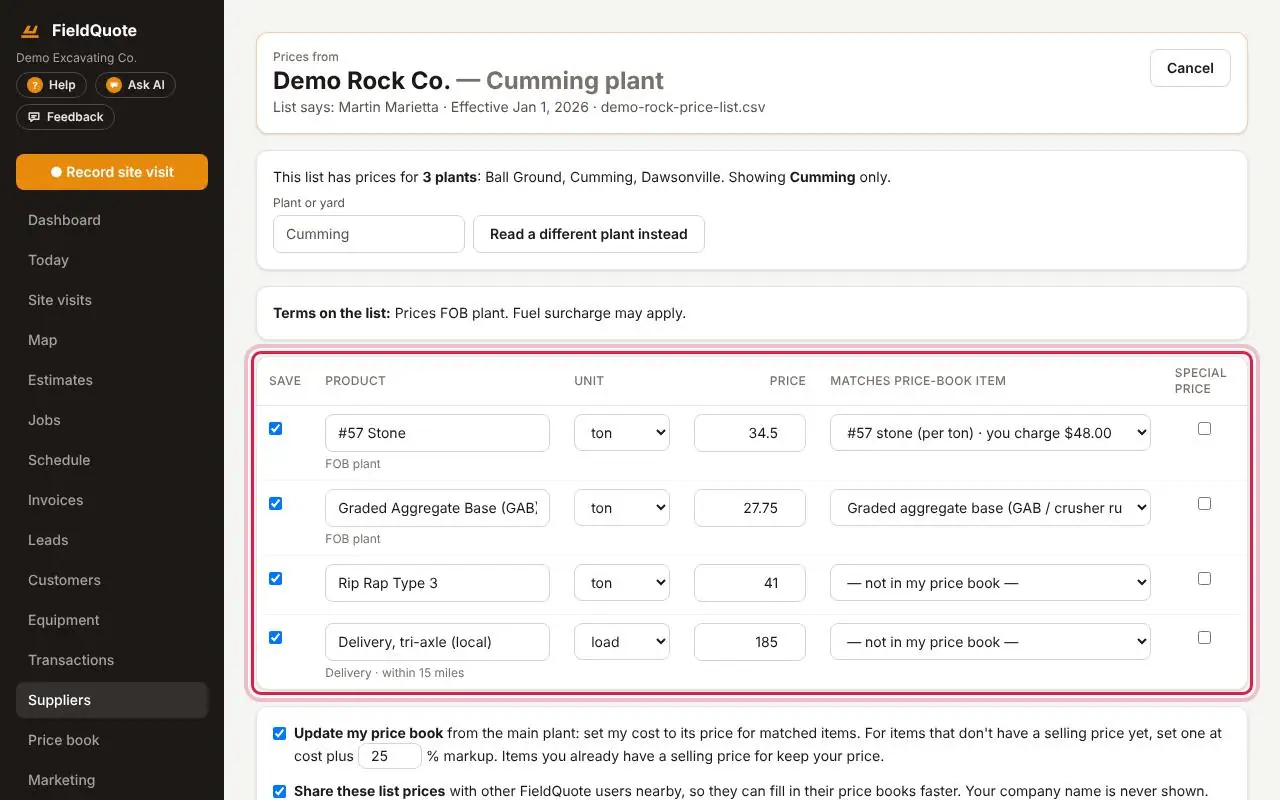
Check each row: Product, Unit and Price can all be changed. Uncheck Save on rows you don't want. Delivery and fee rows are labeled under the product name.
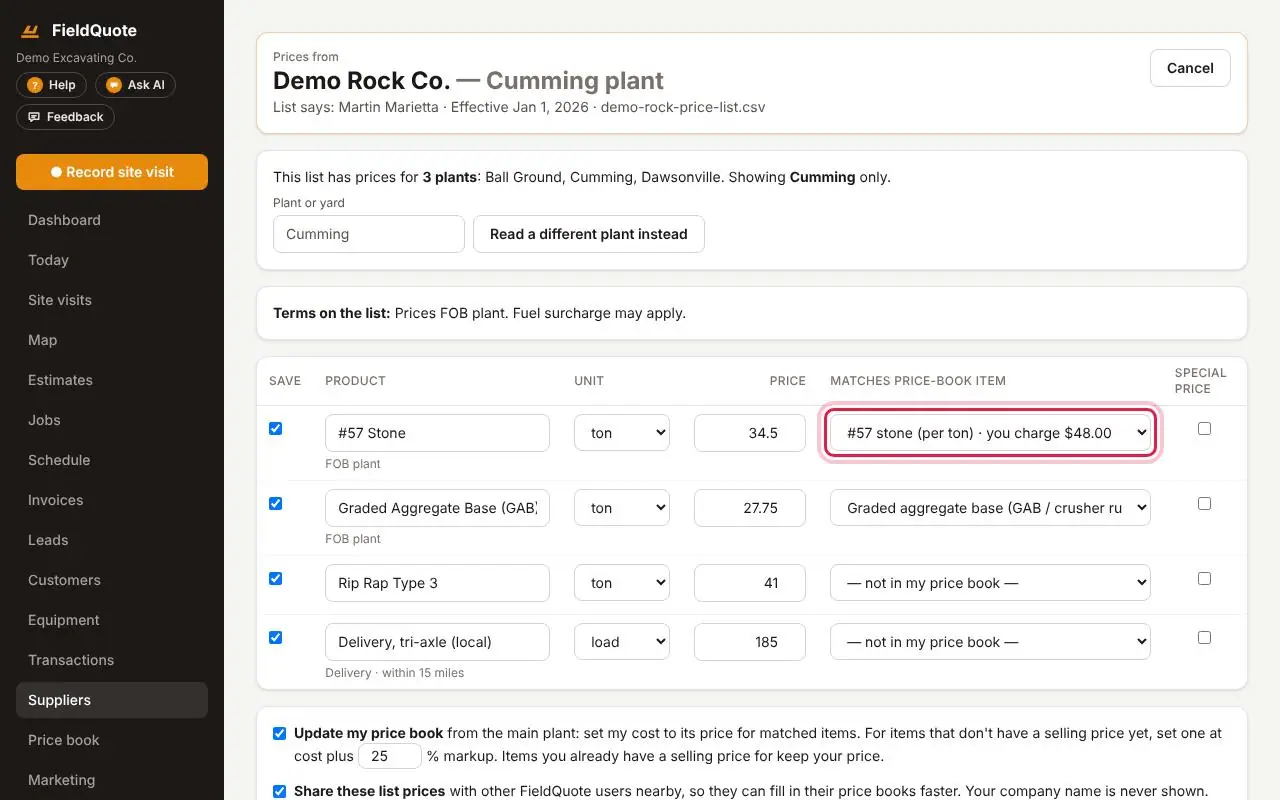
Under Matches price-book item, check the match. Pick the right item, or "— not in my price book —".
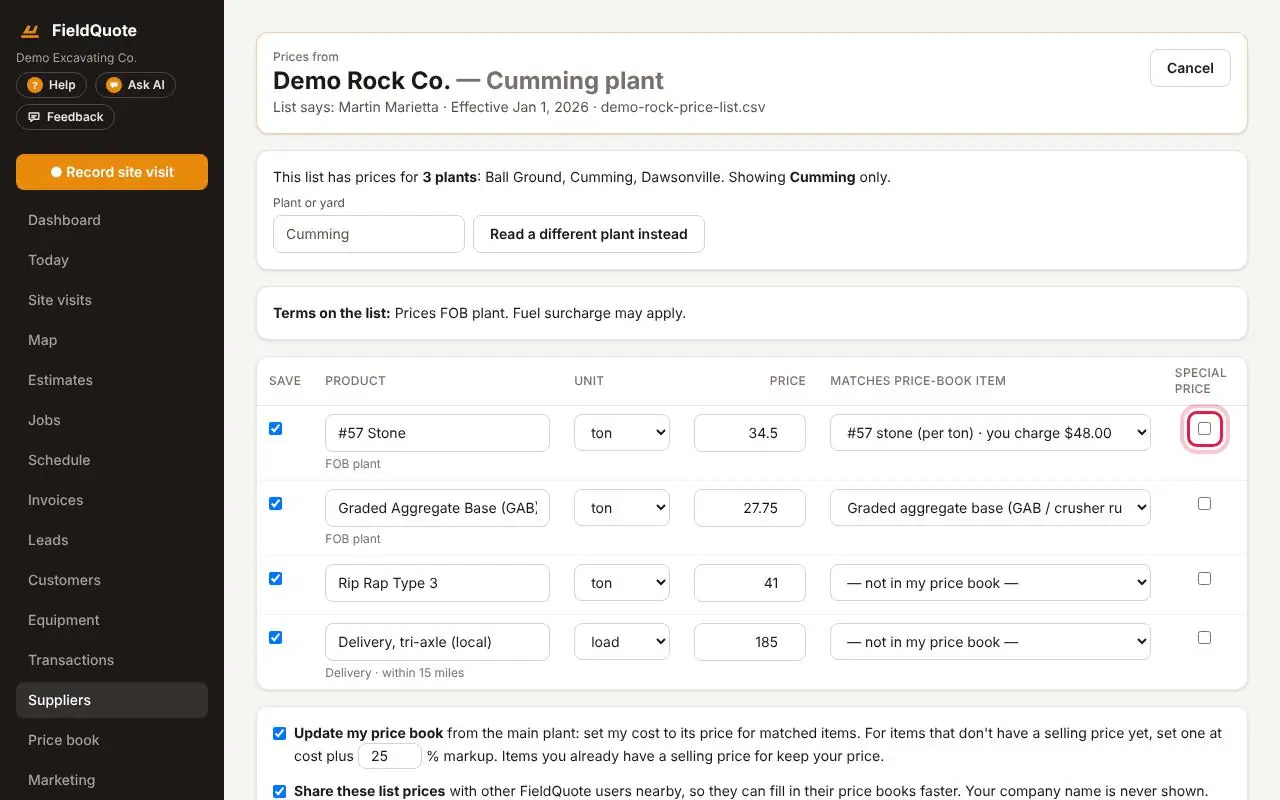
Check Special price on any price negotiated just for you. Special prices are never shared.
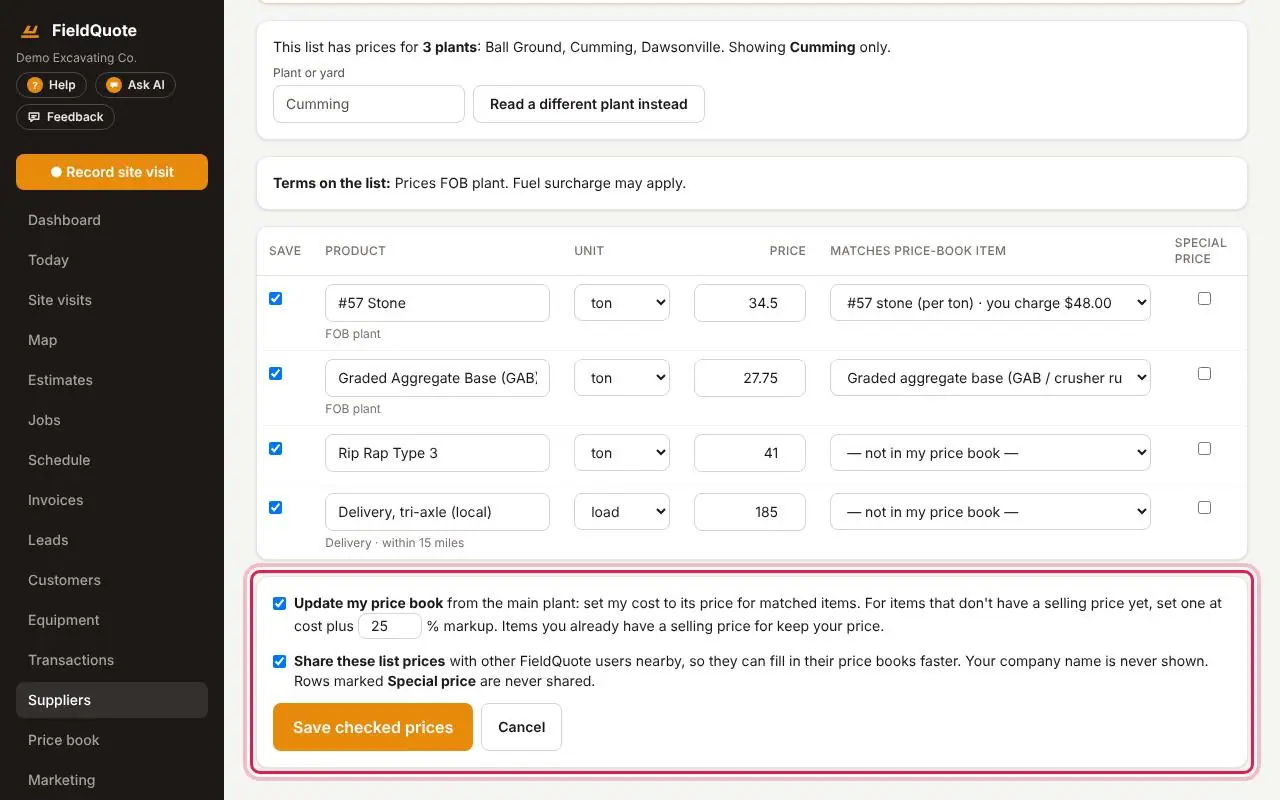
At the bottom: leave Update my price book checked to set your cost from this list for matched items, and set the markup for items that don't have a selling price yet. Leave Share these list prices checked to share list prices with contractors nearby, or uncheck it.
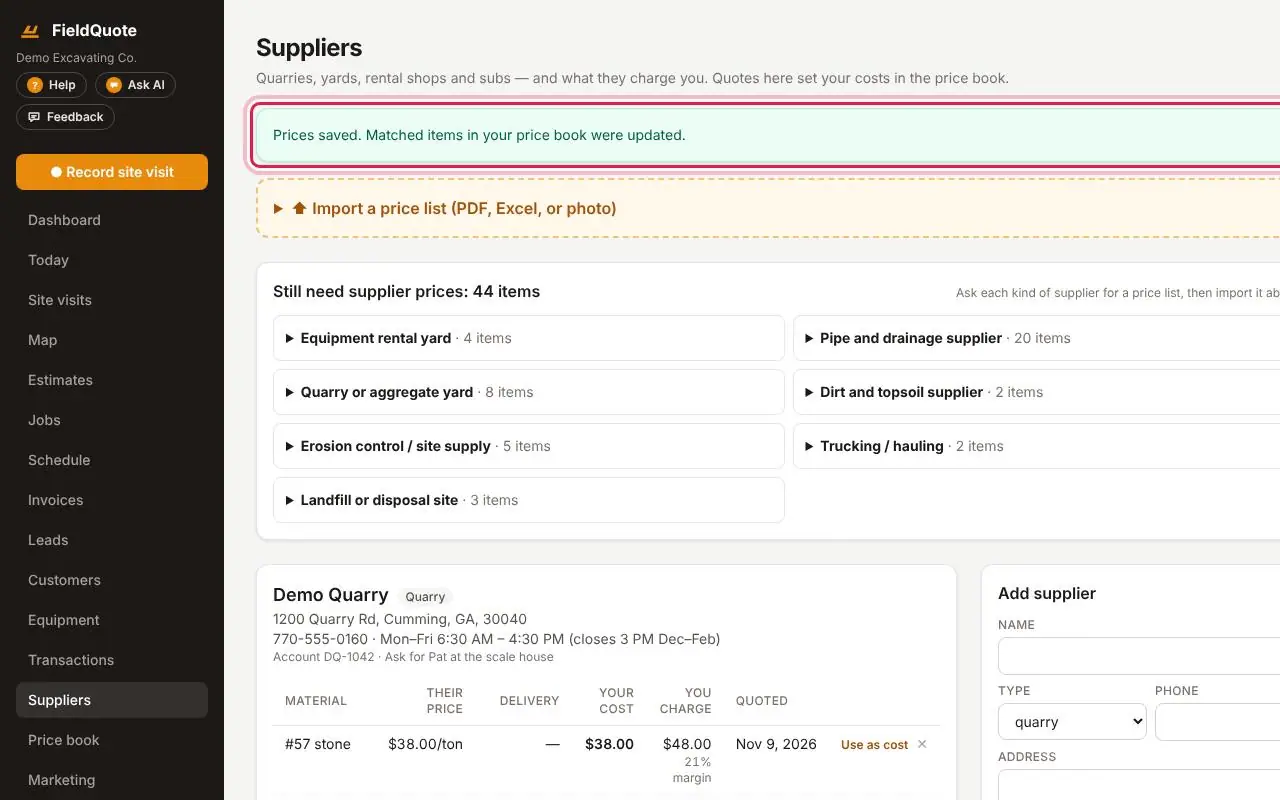
Tap Save checked prices. Back on Suppliers you'll see "Prices saved. Matched items in your price book were updated."
What you'll see
The new prices in the supplier's table, each with the date the list takes effect.
For matched items whose preferred supplier is this one (or that have none yet): your cost set from the list price. Items with no selling price get one at your cost plus the markup.
Items you already sell keep your selling price. If the cost changed, the Dashboard shows the change.
Common mistakes
Leaving a wrong match. A price matched to the wrong item sets the wrong cost. Fix the match before saving.
Matching across units. A price per load won't update an item sold per ton. Change the Unit or leave it unmatched.
Limits
Only the owner or an admin can change suppliers and their prices, because they set your price-book costs. Team members see the suppliers and prices with "View only. Only the owner or an admin can change this."
Only the main plant's prices update your price book. Other plants are saved as their own suppliers (see Price lists with several plants).
Shared prices are the list prices of material rows only, never special prices, never delivery or fees, and never your company name.
Once saved, the import can't be opened again. Fix single prices on Suppliers.
Checked against the app on Nov 9, 2026. Pictures are from Demo Excavating Co., a made-up company.