Site visits, recording & AI write-ups
Guide 14 of 14
What it's for
Go back to a visit to read the write-up, listen to the recording, fix the transcript or make another estimate. Delete test visits and mistakes.
Where
Site visits in the menu.
Watch it
Steps
Tap Site visits. The newest visits are at the top, with Customer, Date, Length and Status.
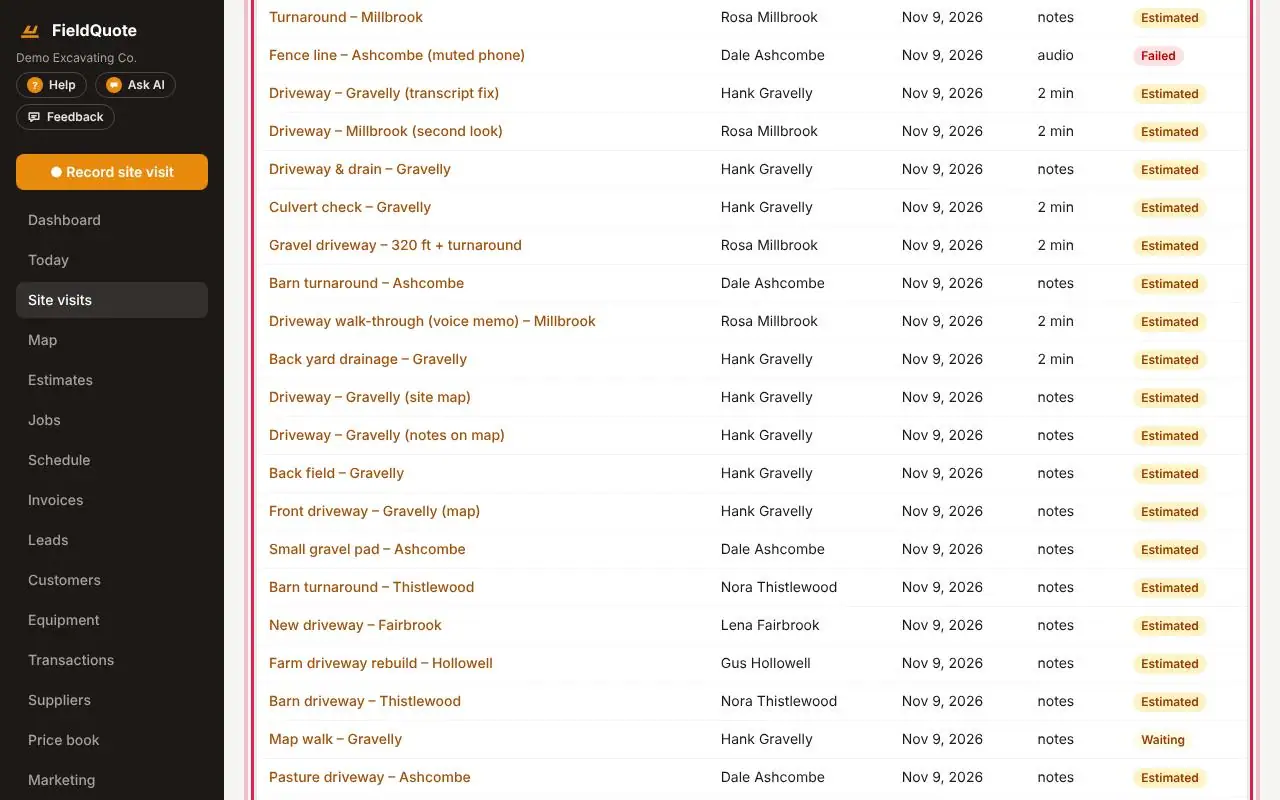
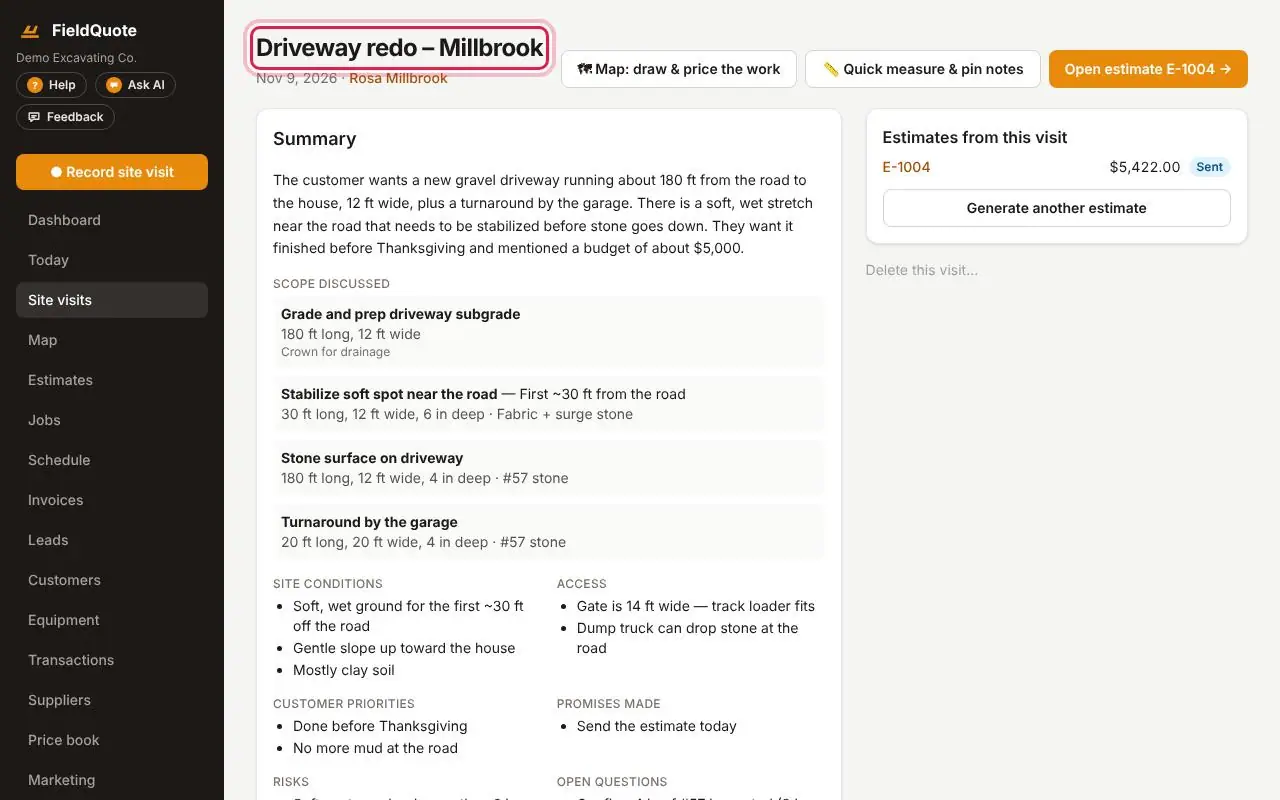
Tap a visit's name to open it.
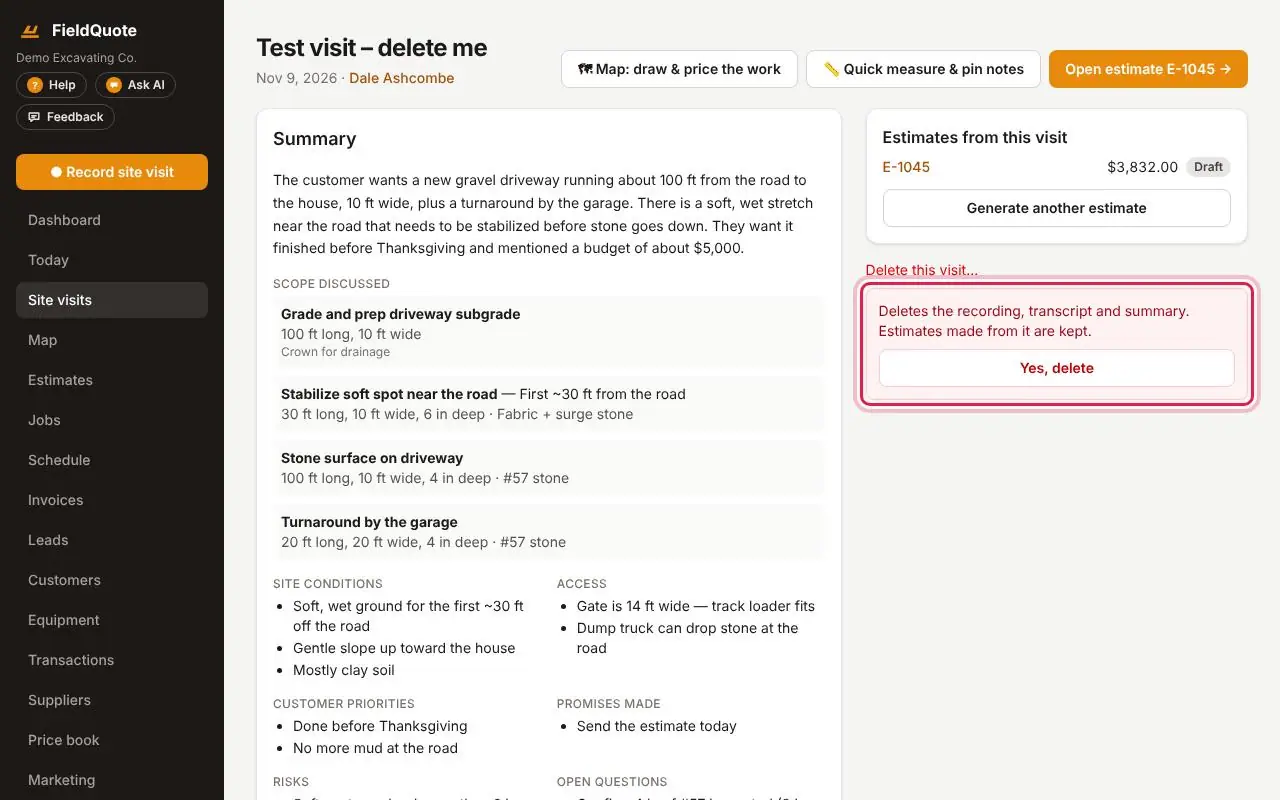
To delete a visit, open it, tap Delete this visit at the bottom of the right-hand column, read the warning, and tap Yes, delete.
What you'll see
Length shows minutes for recordings, "audio" for an uploaded file without a length, and "notes" for typed notes.
Status shows where it is: for example Waiting (for the map), Estimated (done) or Failed (see the red box on the visit).
A visit's customer page lists it under History.
Common mistakes
Deleting a visit to get rid of its estimate. Deleting the visit keeps its estimates. Delete the estimate itself from the estimate page.
Limits
Deleting removes the recording, the transcript and the summary for good. It can't be undone.
The list has no search. Find a visit by its customer: open the customer and look under History.
Checked against the app on Nov 8, 2026. Pictures are from Demo Excavating Co., a made-up company.