Customers, texting & email, automatic follow-ups
Guide 12 of 20
What it's for
Let FieldQuote do the follow-up you never have time for: thank people for a request, remind them before a job, nudge an unsigned estimate, ask for a review. You decide which ones go out and what they say.
Where
Settings › Open message settings › Automatic messages.
Watch it
Steps
Open Automatic messages. Every message is off until you turn it on. The top lists the words you can use:
{first_name},{company},{sender},{phone}, plus the ones in each default message.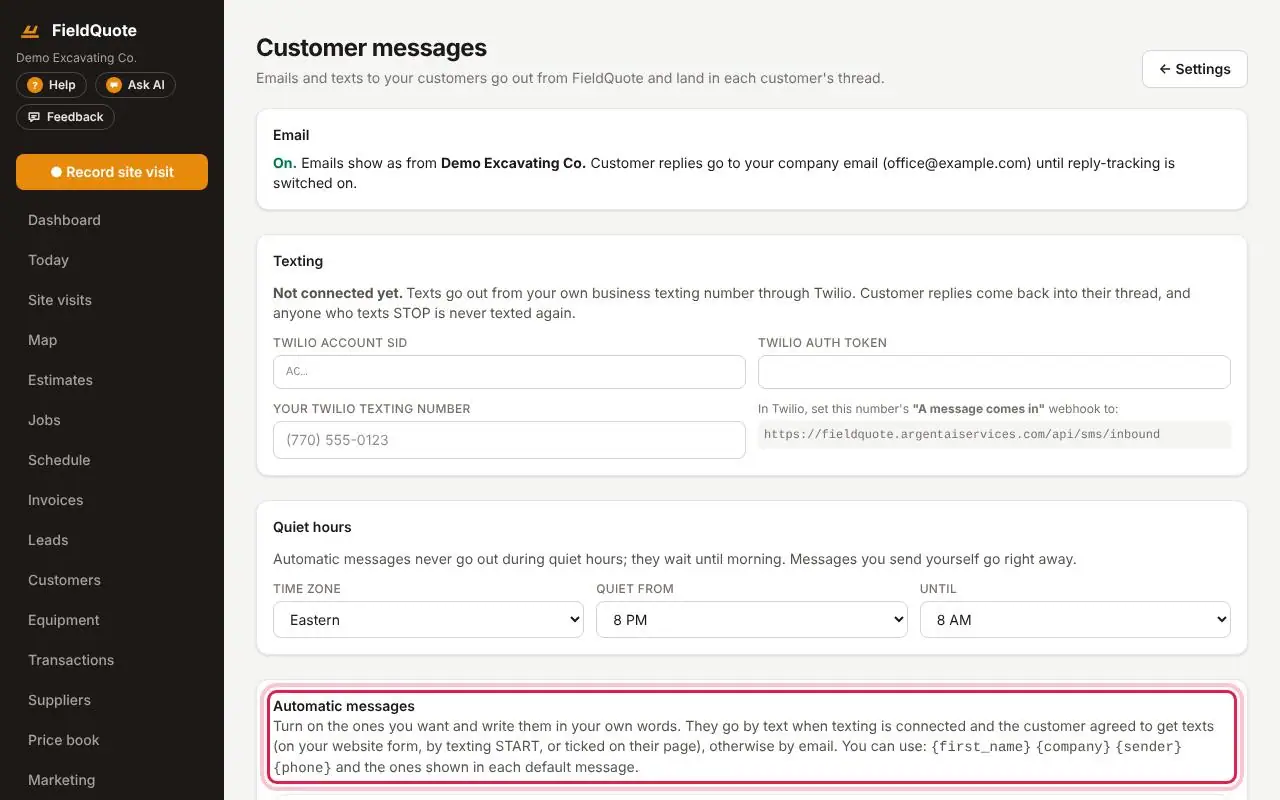
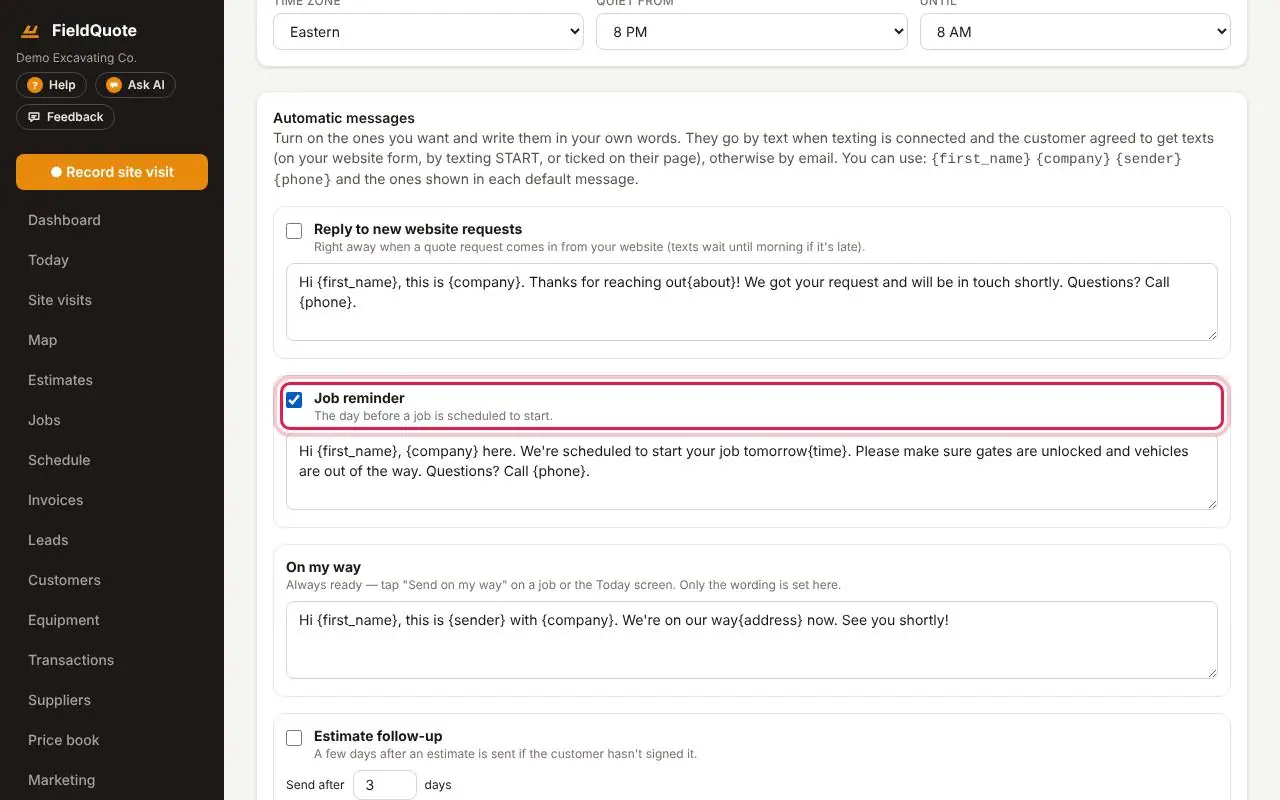
Tick the box next to a message to turn it on. Under its name it says when it goes out.
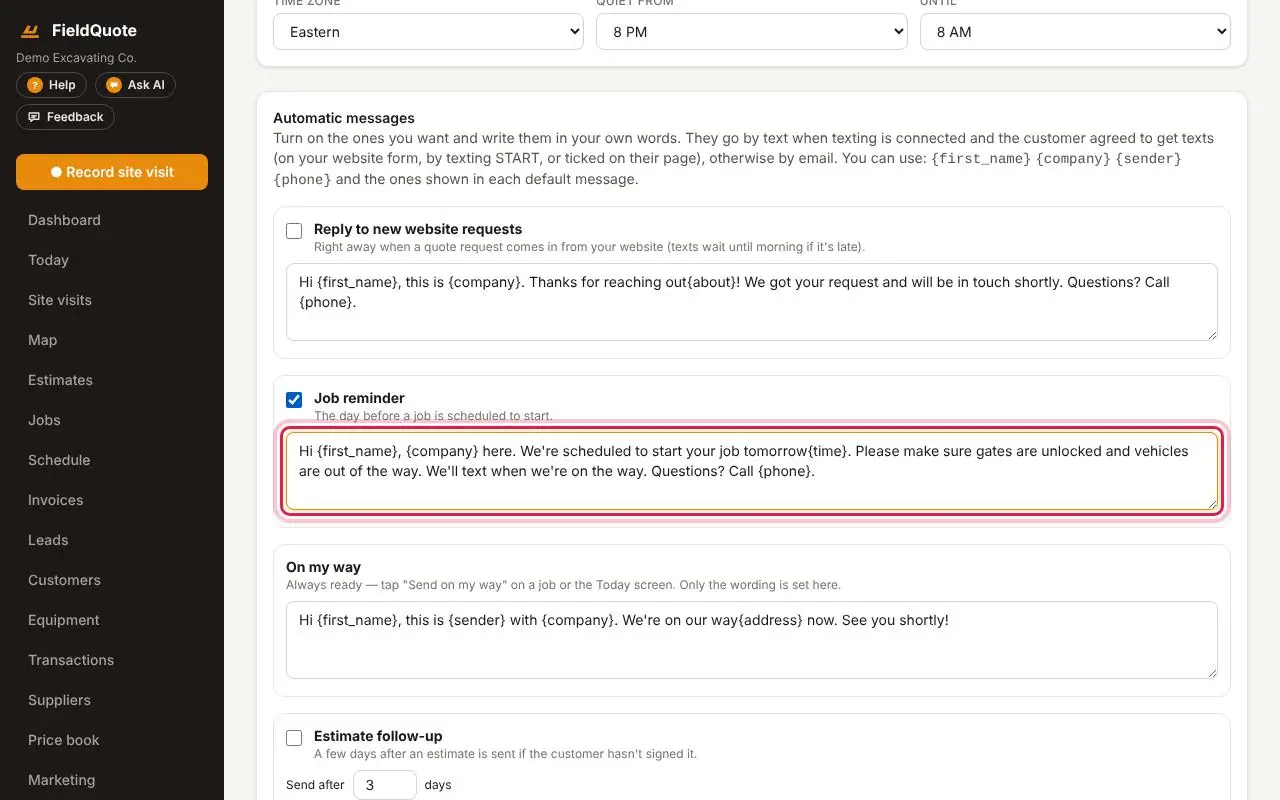
Change the wording in its box if you like. Keep the words in curly brackets; FieldQuote fills them in (the customer's first name, your company, the link…).
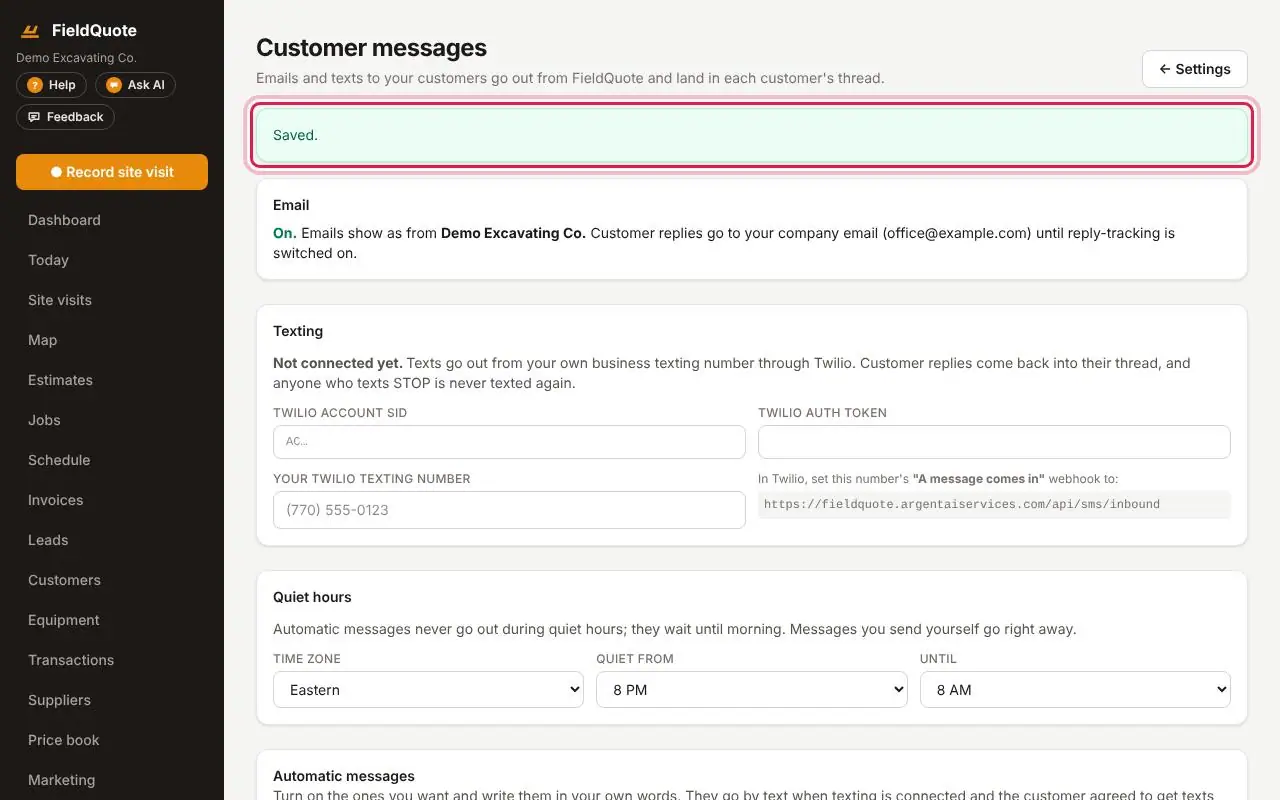
Tap Save at the bottom. You'll see "Saved."
What you'll see
Automatic messages in the customer's Messages, marked "automatic".
The ones you can turn on: Reply to new website requests, Job reminder, Estimate follow-up, Second estimate follow-up, Last estimate follow-up, Nudge if no answer, Check back later ("Not now"), Thank you + review request and Invoice due reminder. On my way has no box: it only goes when you tap it, and you set its wording here.
Common mistakes
Deleting a word in curly brackets, such as
{link}. The message then goes without it. To start over, clear the box and save: the default wording comes back.Typing a word FieldQuote doesn't know, like
{address}in a message that has none. It's left out.Forgetting Save. Ticks and wording only count once saved.
Limits
Only the owner or an admin can change this. Team members see the message settings grayed out, with "View only. Only the owner or an admin can change this."
They go by text only when texting is connected and the customer agreed to get texts (the box on your website form, texting START, or OK to text ticked on their page) and hasn't texted STOP; otherwise by email; with neither, they aren't sent.
Each one goes at most once for the same estimate, invoice, job or lead.
Nothing automatic goes out during quiet hours; it waits for morning (see Set quiet hours for automatic messages).
FieldQuote checks for messages that are due every few minutes, so they may go a few minutes after the moment described.
There's no site visit reminder yet: leads don't have a visit date and time to remind about.
Checked against the app on Nov 9, 2026. Pictures are from Demo Excavating Co., a made-up company.